
Related Articles
Auditing AI Text Agents - AI Text Logs
Quick Reference Keywords: AI text logs · Auditing conversations · Tool execution logs · Troubleshooting AI · Agent response history · Conditional tool triggers
Overview
A log is created every time an agent generates a response for a text from a customer (even if that response is not sent because the AI was turned off in between or a failure occurred). AI Text Logs allow you to see what the AI generated, why a response may not have been sent, any tools the AI used, and configuration details like which agent responded and what model it was using.
Tip: You can use Atlas in Investigate mode to audit any conversation also. Simply tell Atlas the contact name and the message/action you have a question about and it can look everything up for you. Or follow this step by step guide to get down into the details yourself!
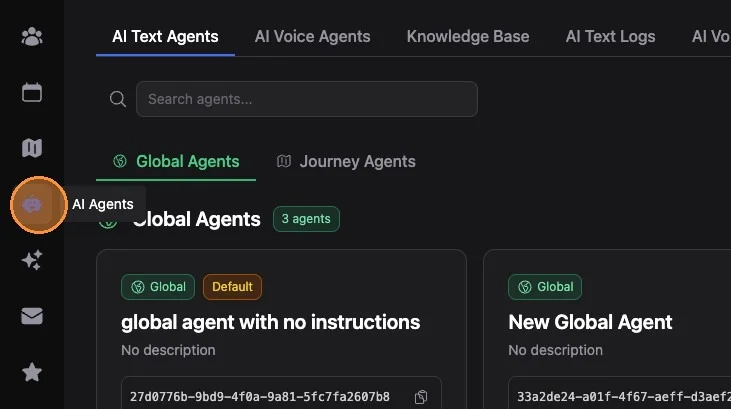
1. Navigate to AI Agents (robot icon, main left hand menu)
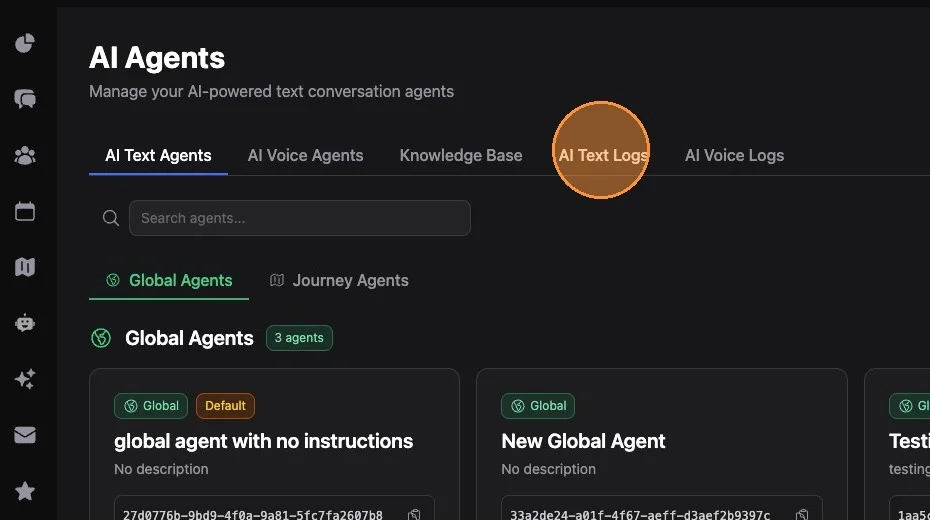
2. Click "AI Text Logs"
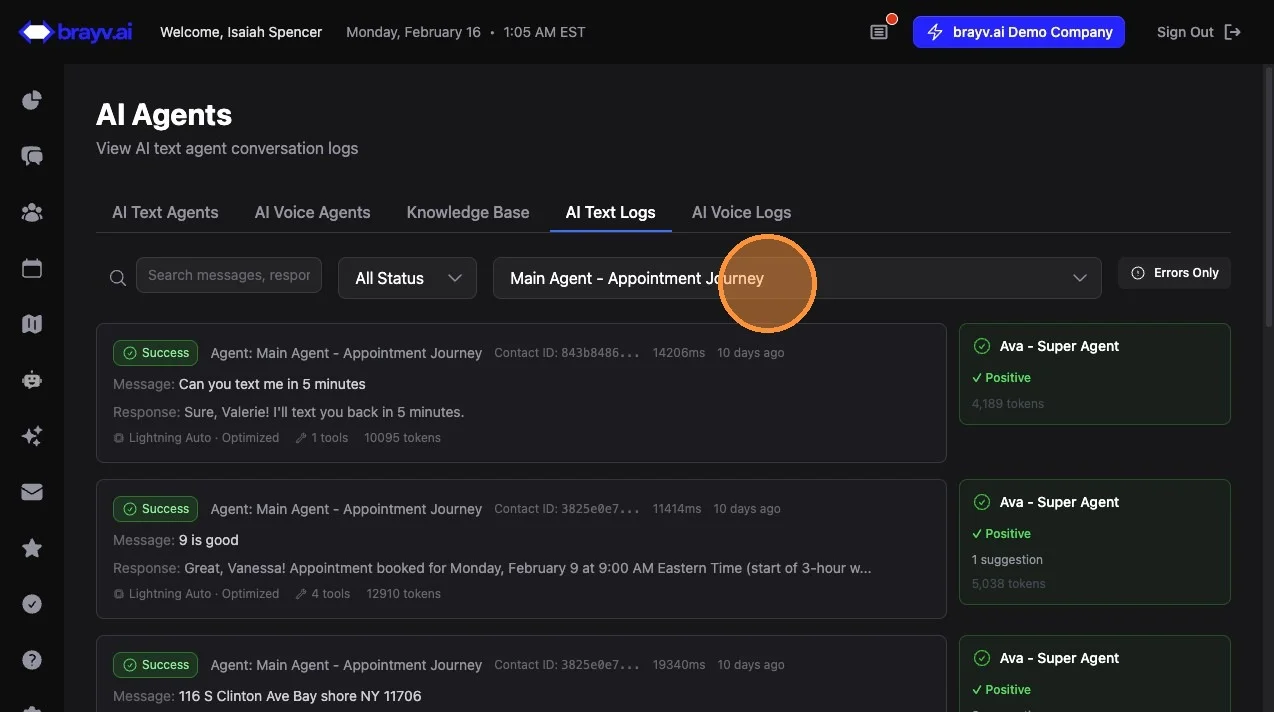
3. You can sort logs by a particular agent by clicking the agent dropdown and selecting one of your agents
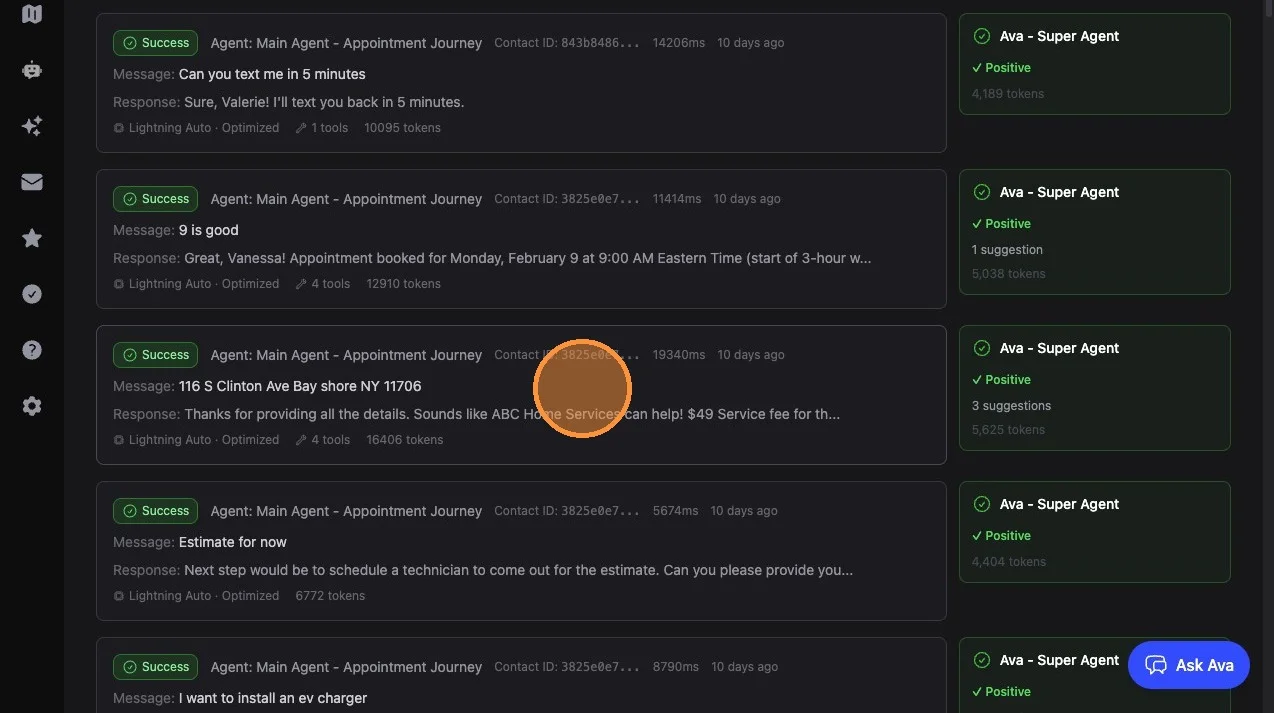
4. Click on any of the log cards to view the full log
Reading a Log Entry
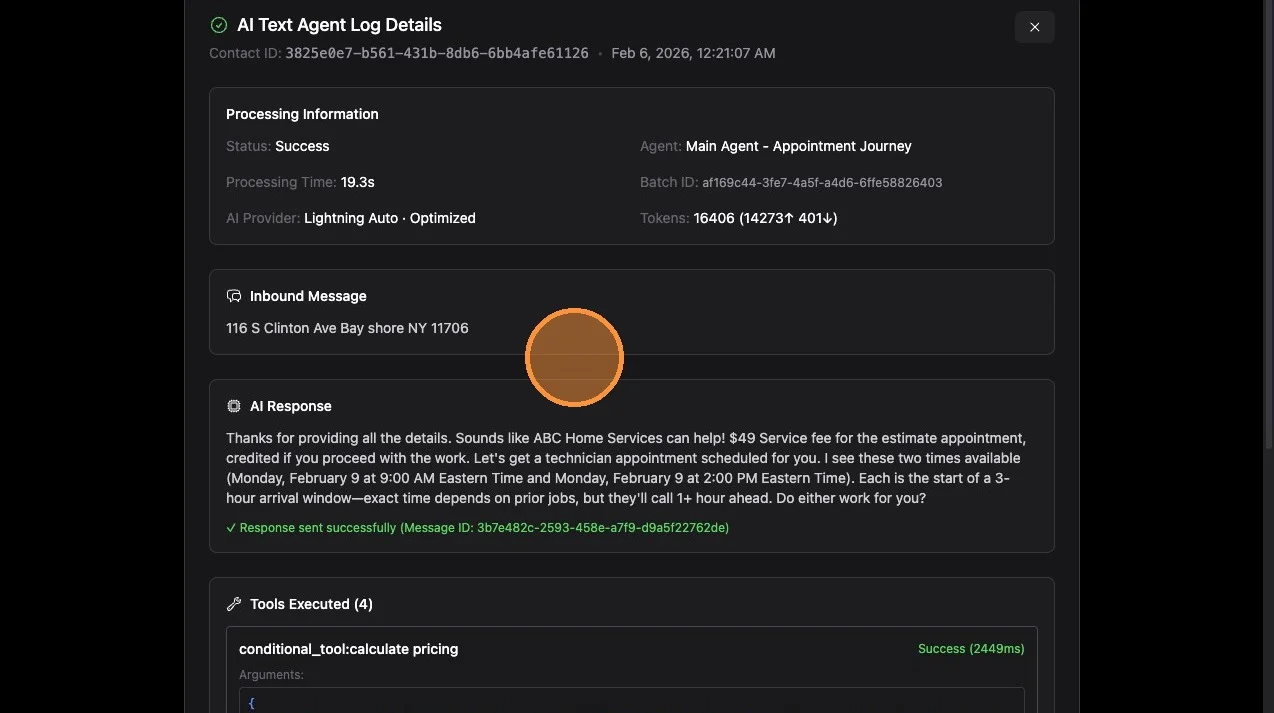
5. "Processing Information" at the top shows which agent responded and which provider/model was used
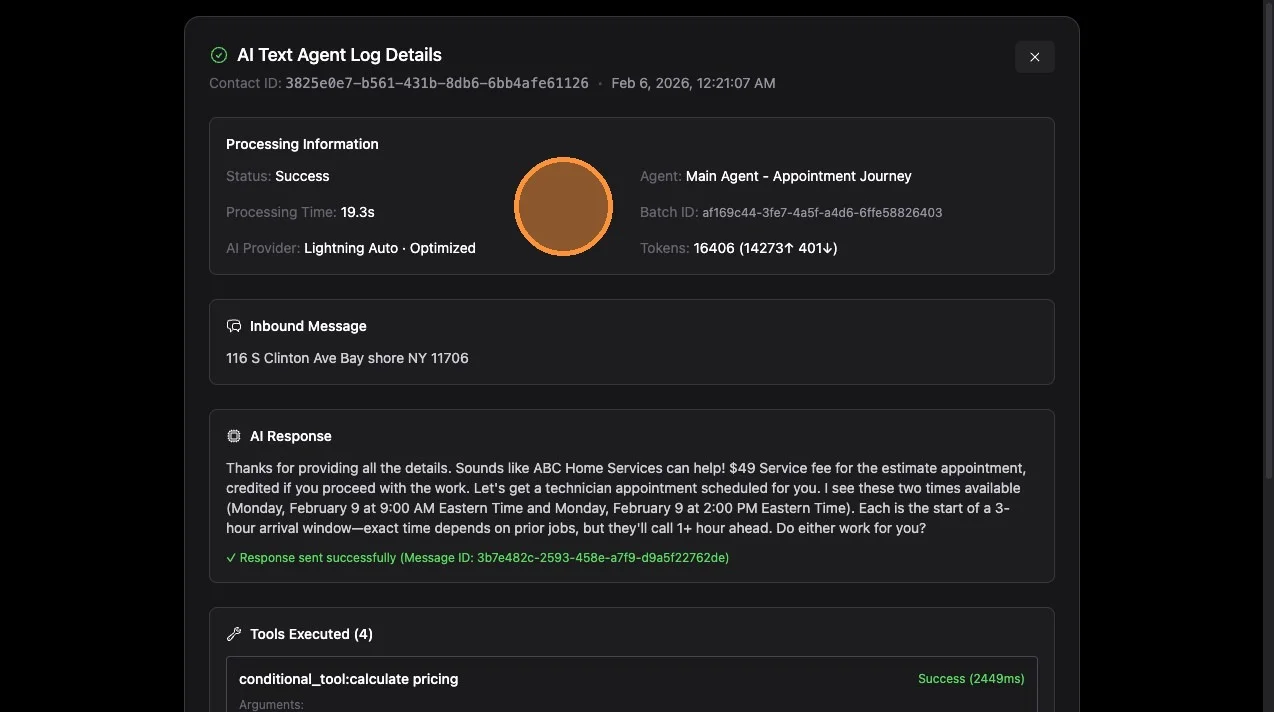
6. Below that, you'll see the inbound message from the contact and the AI response
Reviewing Tool Execution
7. Below the messages, you'll see tools executed (if applicable)
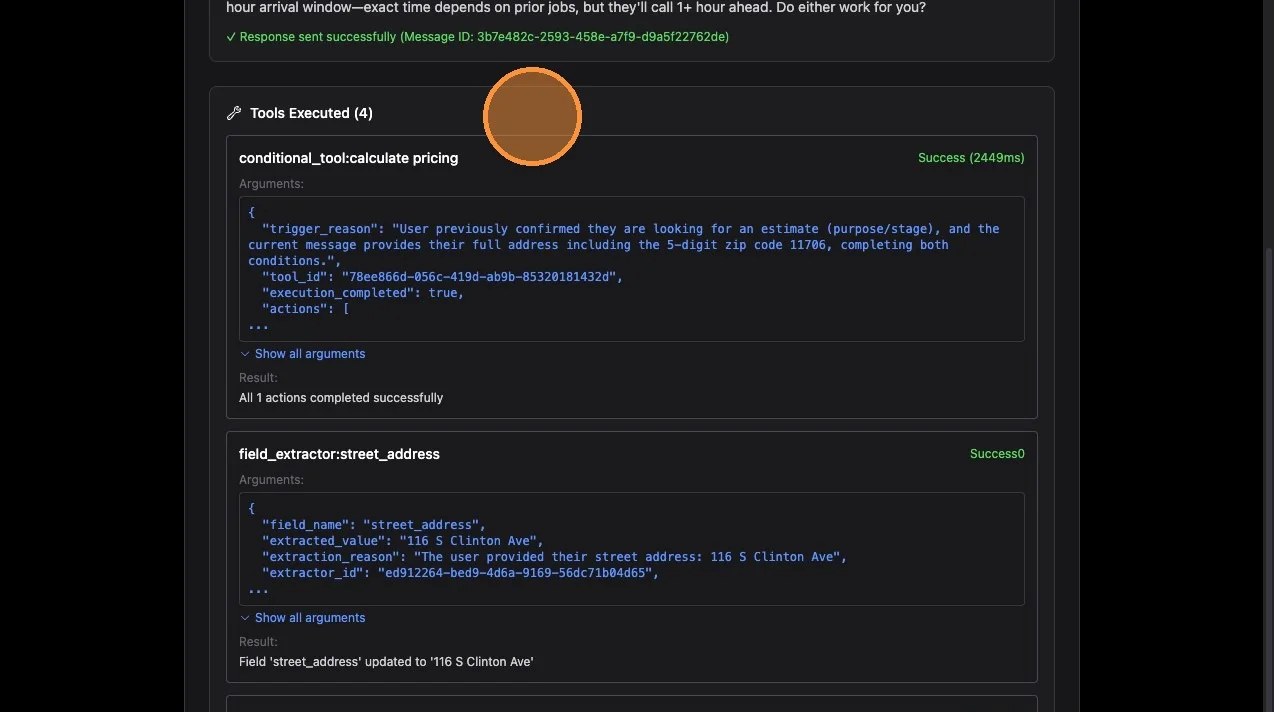
8. Click "Show all arguments" to expand tool usage and see key details
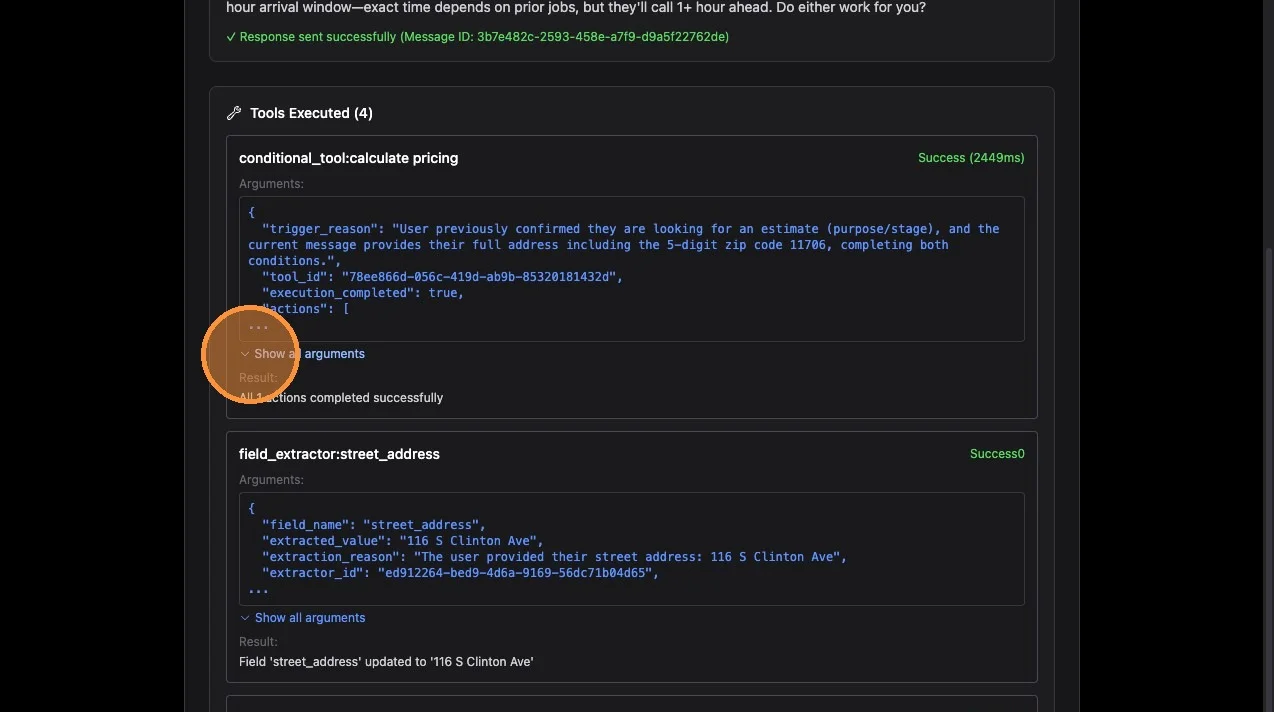
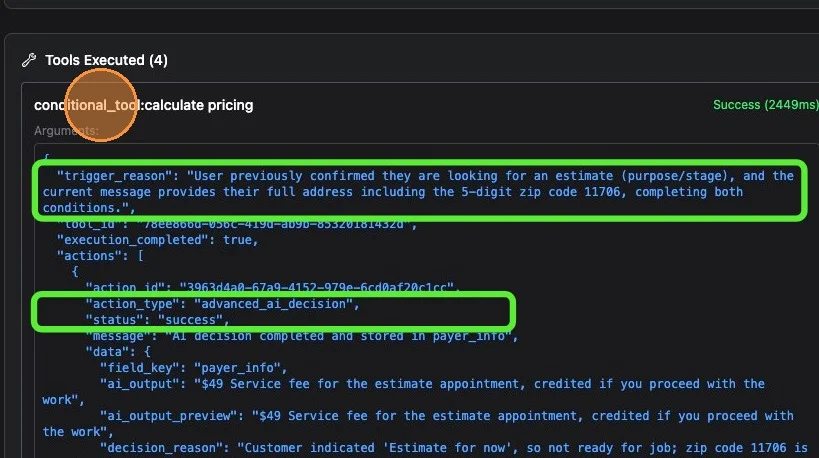
9. For conditional tools, key things to check are the "Trigger Reason" (the agent's explanation for why it used the tool) and any actions that were triggered, along with their status (success/failure).
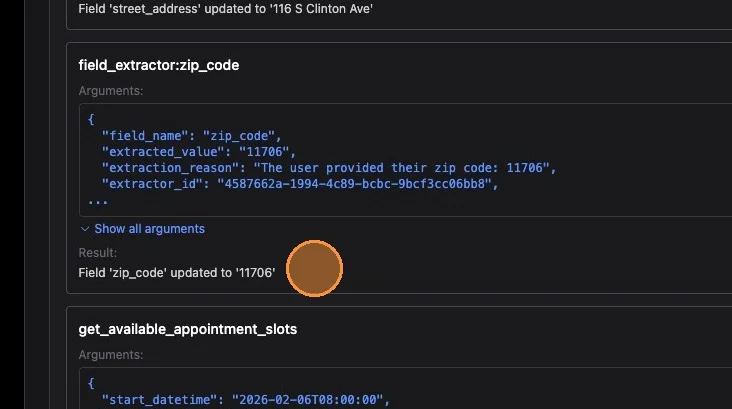
10. Field Extractor tools show what field was updated with what value (or if it was skipped because the field already had a value and allow_override was not enabled).
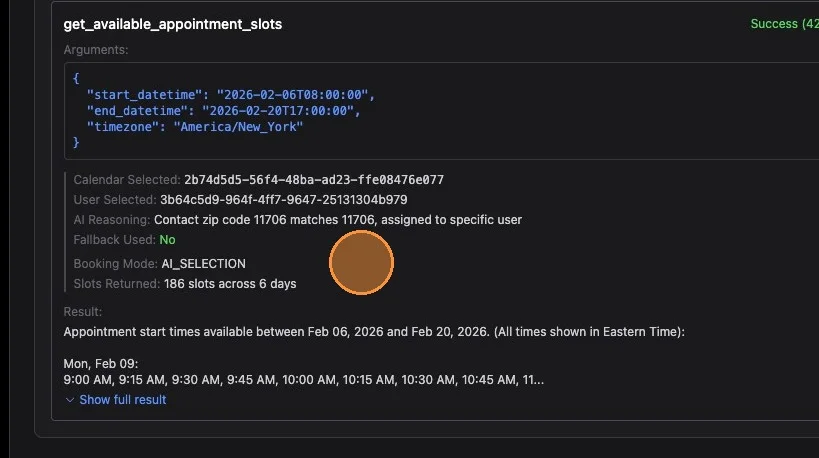
11. Booking tools (get_available_appointment_slots and book_appointment) show the booking mode, date range searched, slots returned, and the time that was attempted to be booked.
Searching Logs
12. You can search across all agents for a particular contact by contact ID.
Get a contact's ID by going to that contact's detail page and copying the last set of characters after
contacts/in the URL.
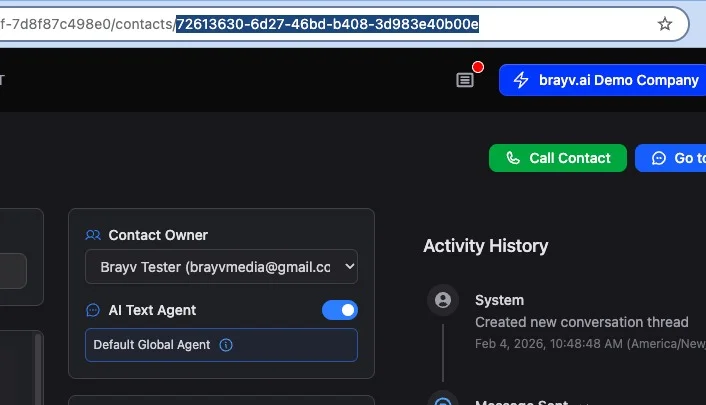
13. Return to AI Text Logs and paste the contact ID into the search field to filter results for that contact only.
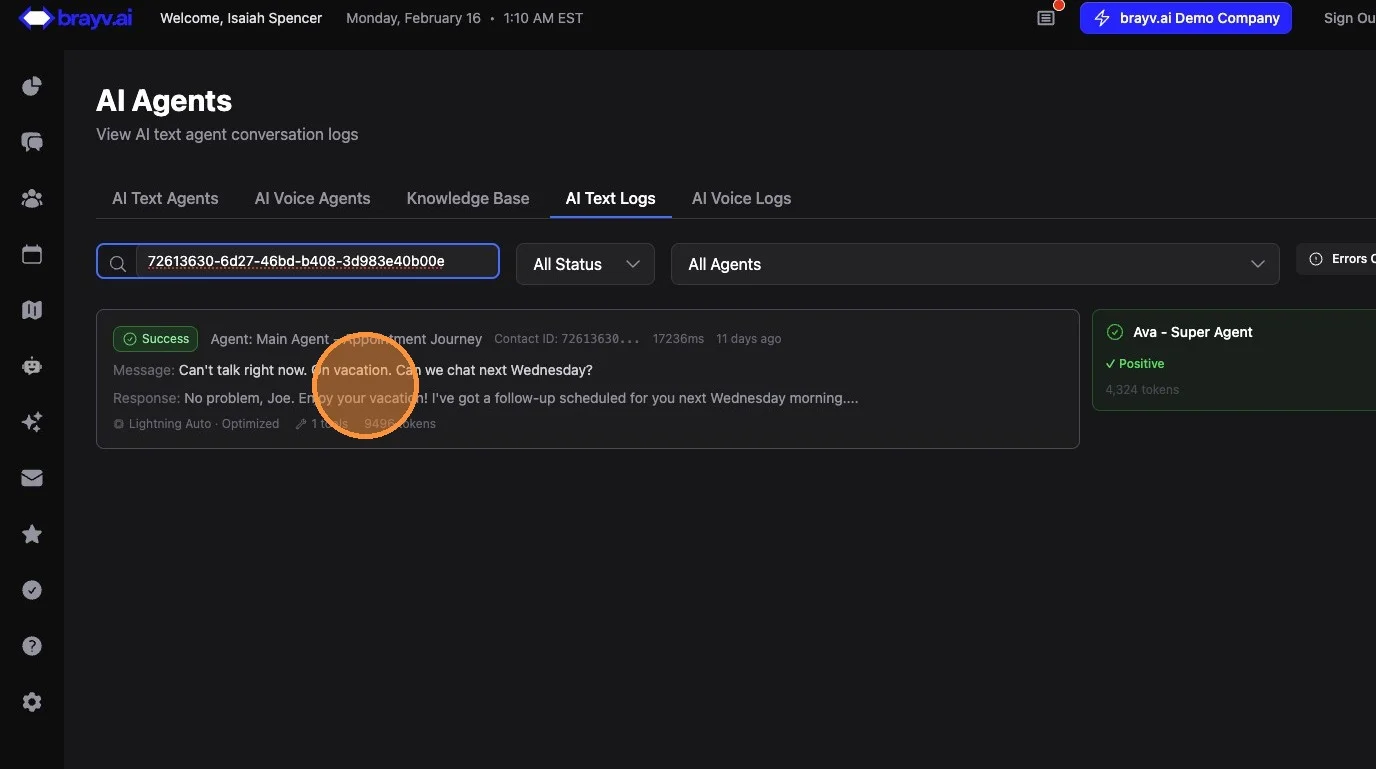
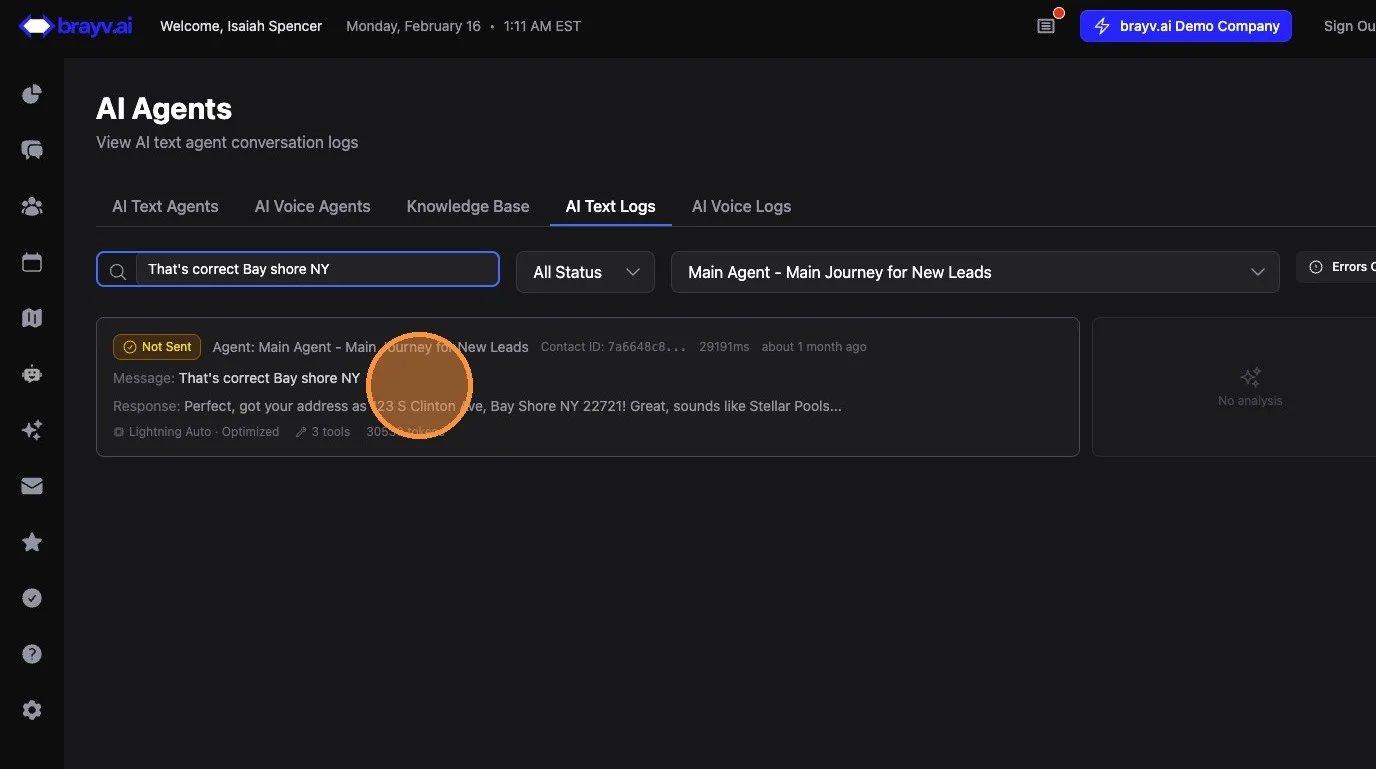
14. You can also search across all agents for a particular message by typing or pasting the message content you want to search for.
Key Tips
What to Look For When Troubleshooting:
- Unexpected responses: Check the agent name and model in Processing Information - is the right agent responding?
- Missing tool calls: If the AI should have used a tool but didn't, review the conditional tool trigger conditions
- Failed actions: Expand tool details to see action success/failure statuses
- Booking issues: Check booking tool logs for available slots returned and booking mode configuration
Searching Efficiently:
- Filter by agent first to narrow down logs
- Use contact ID search to see the full history of AI interactions with a specific person
- Use message content search to find specific conversations across all agents
Related Features
- AI Text Agents Overview - Agent setup and configuration
- Advanced Conversation Management - Manual intervention and troubleshooting
- Conditional Tools - Understanding tool triggers and actions
- Field Extractors - How field extraction works
- Booking Configuration - Booking modes and calendar setup
Summary
AI Text Logs give you full visibility into every AI interaction:
- Every response is logged - Even ones that weren't sent
- Processing info shows which agent and model responded
- Tool execution details reveal trigger reasons, actions taken, and success/failure
- Search by agent, contact ID, or message content to find specific logs
- Use logs to troubleshoot unexpected AI behavior, failed bookings, or missed tool triggers