
Related Articles
Bulk Importing Contacts via CSV
Quick Reference Keywords: Mass upload contacts · CSV import · Bulk upload · Contact migration · Field mapping · Duplicate handling
Overview
The bulk import feature allows you to upload hundreds or thousands of contacts at once using a CSV (Comma-Separated Values) file. This is perfect for migrating from another CRM, importing leads from a marketing campaign, or adding contacts from a spreadsheet.
Prerequisites
- A CSV file with your contact data
- First row of CSV must contain column headers
- File must be
.csvformat (any spreadsheet software can save as CSV)
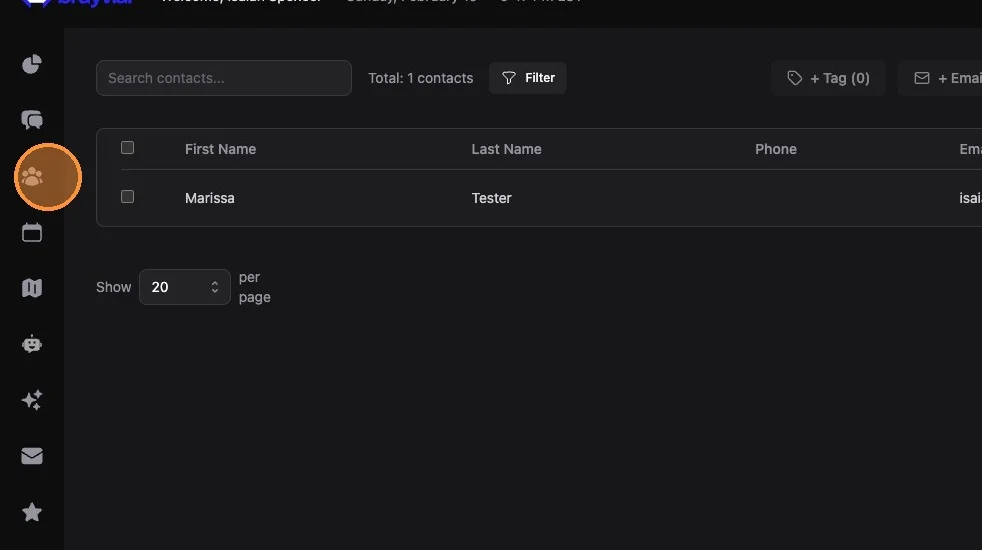
1. Navigate to Contacts (icon with 3 people in the main left hand menu)
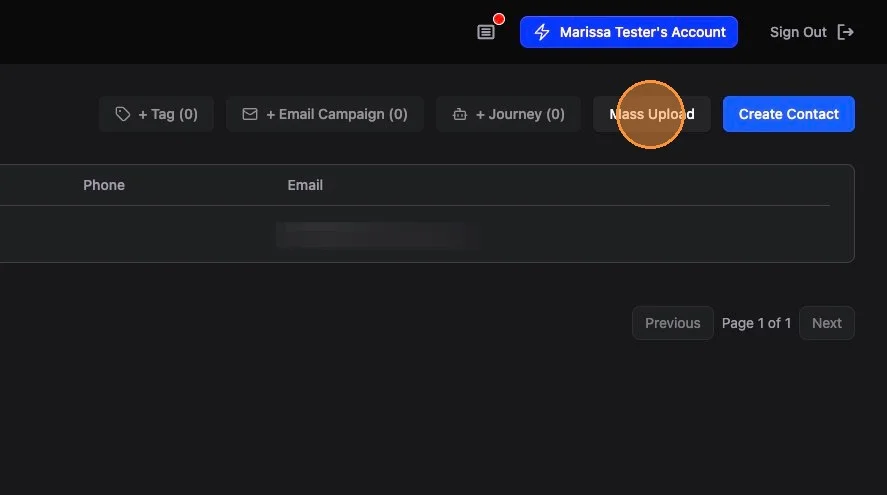
2. Click "Mass Upload" (upper right-hand corner of the page)
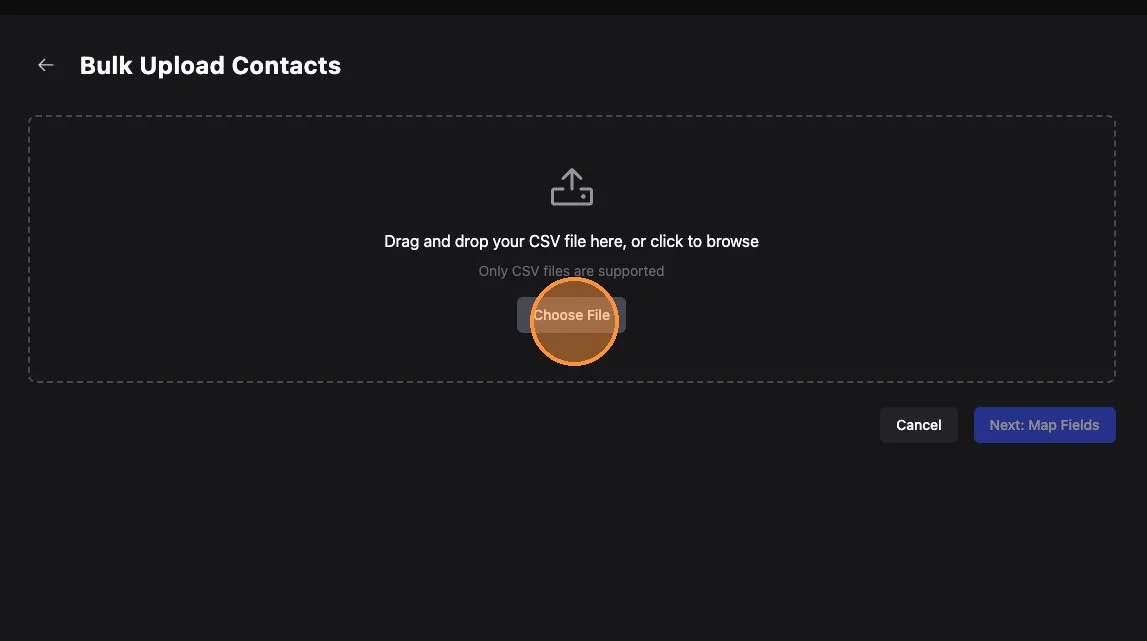
3. Click "Choose File" and select a .csv file from your computer.
Any standard spreadsheet software (Excel, Google Sheets, etc) can save a spreadsheet as a .csv file. If your spreadsheet is in a different format, simply open up the software you normally use and save-as a .csv
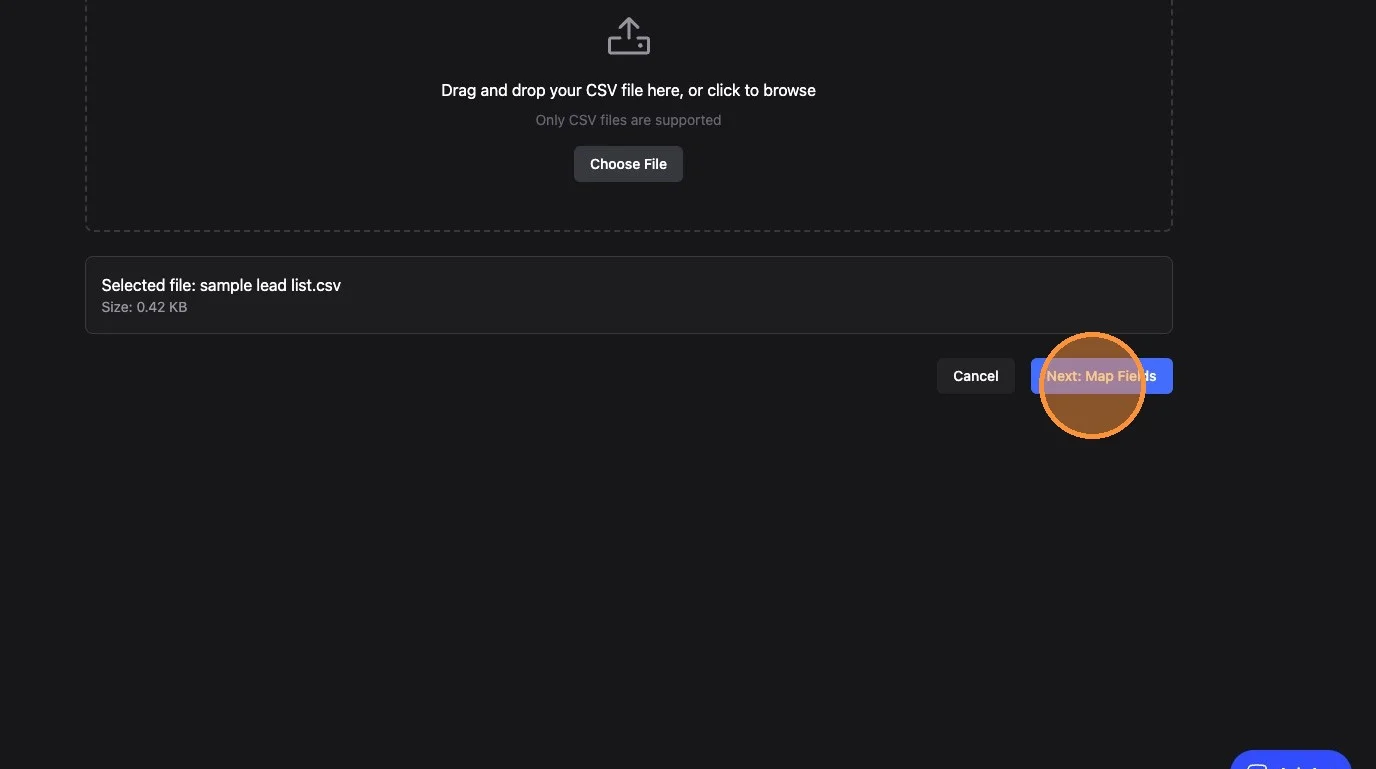
4. Click "Next: Map Fields"
5. Some fields may automatically map (ensure they are accurate and change if necessary)
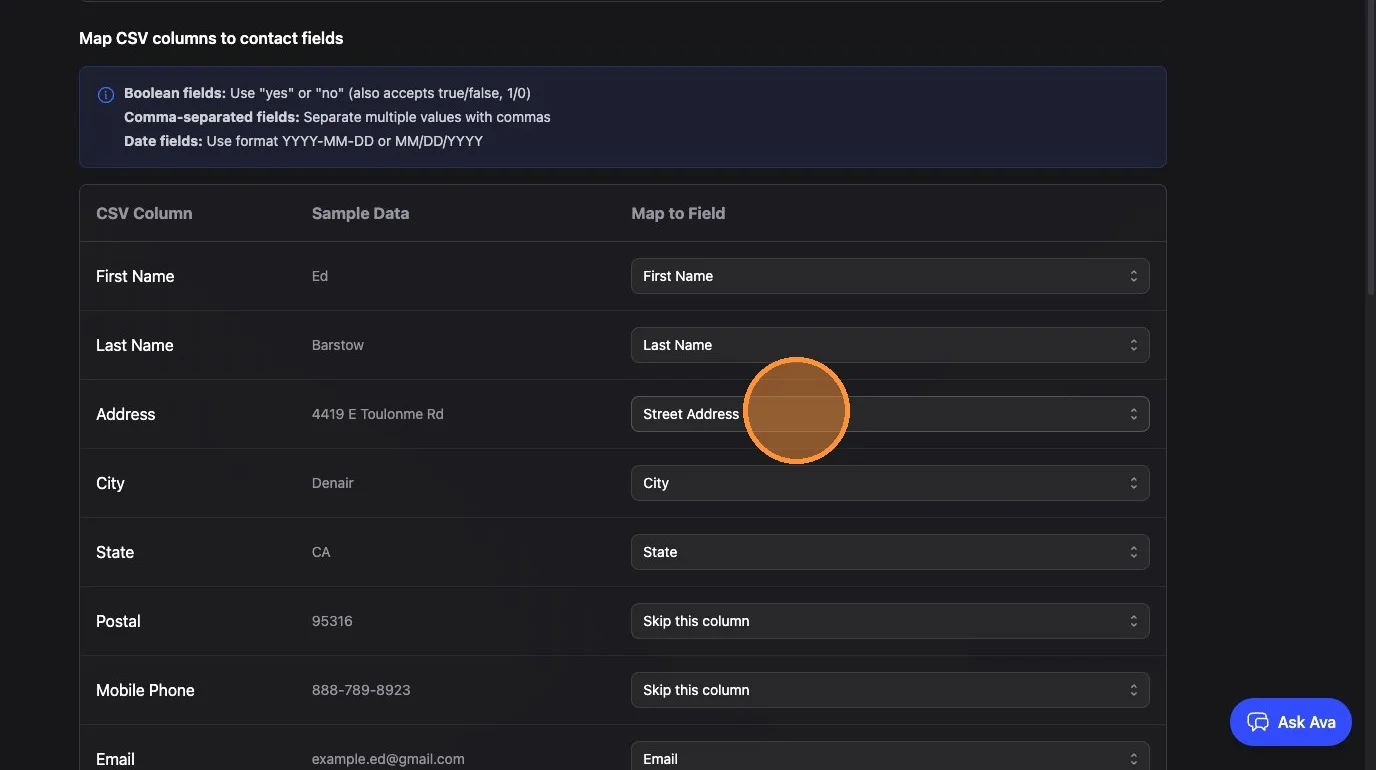
6. Be sure to map any important fields that are not auto-mapped. In this screenshot, the CSV contained a column "Postal" which did not auto-map to Zip Code - it is still showing "Skip this column". You probably want that data.
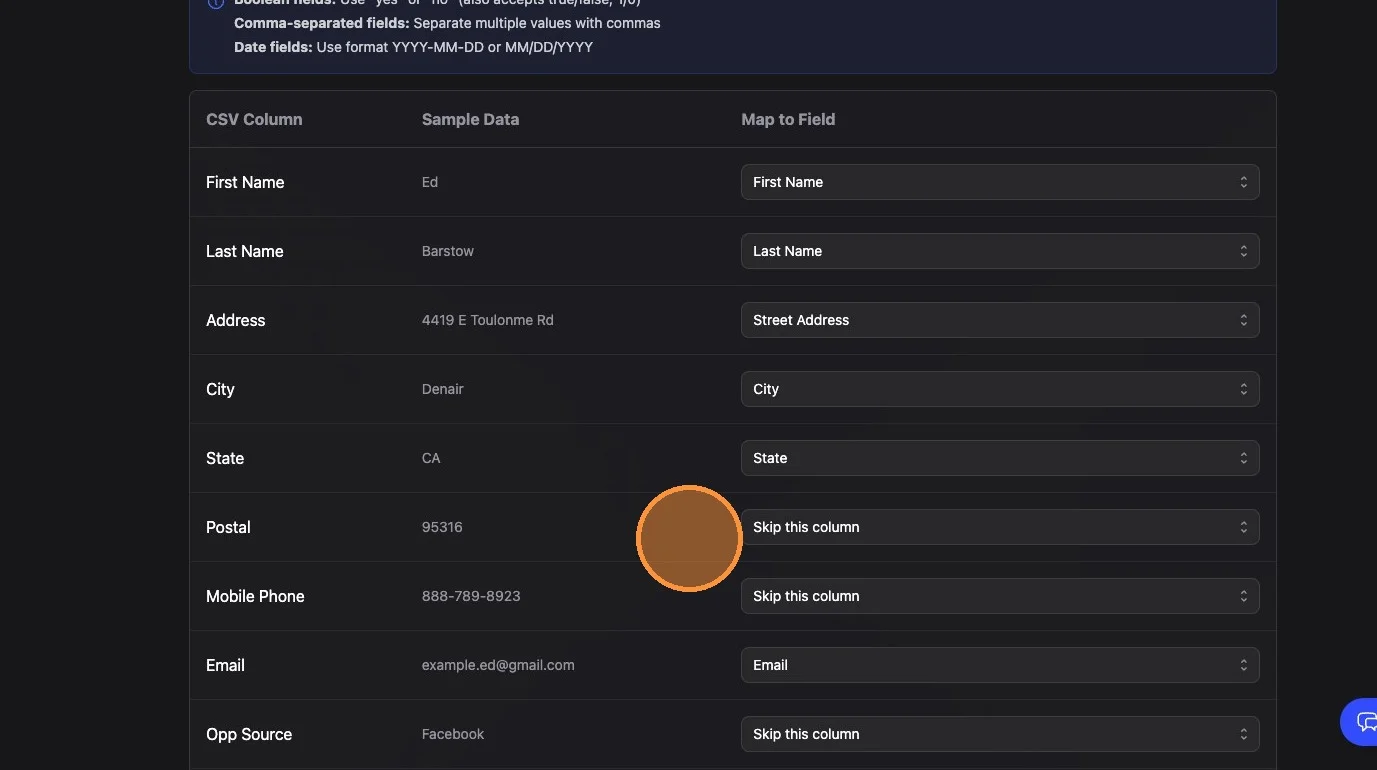
7. You can easily map just by clicking on the dropdown and selecting the brayv.ai field from the list.
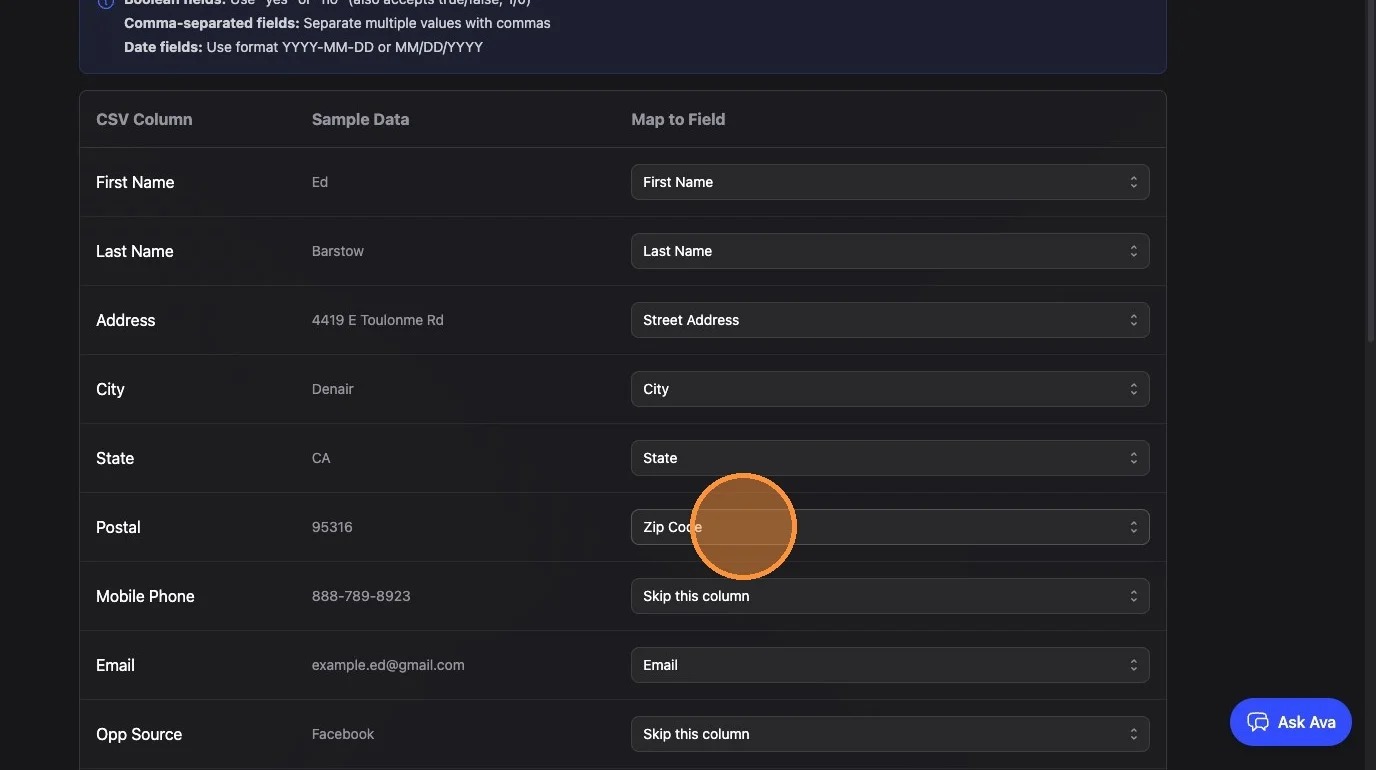
Required Mappings:
- You must map at least 1 name field (first and/or last OR full name)
- You must map at least phone or email (contacts with no contact method will be skipped)
Recommended Mappings (if available in your CSV):
- First and Last Name
- Phone
- Street Address, City, Zip Code
- Interest (hook if short and generic, or service description if more detailed, or a custom field of your choosing)
- Source
- Friendly Source (if you have it in your CSV, otherwise don't map to this field)
For data you don't need in brayv.ai, just leave as "Skip this column"
8. If you have contact assignments in your CSV that you want to maintain, find the appropriate column (CSV columns on the left).
In this screenshot it's named "Assigned Rep" but in your CSV it will be whatever your column header is.
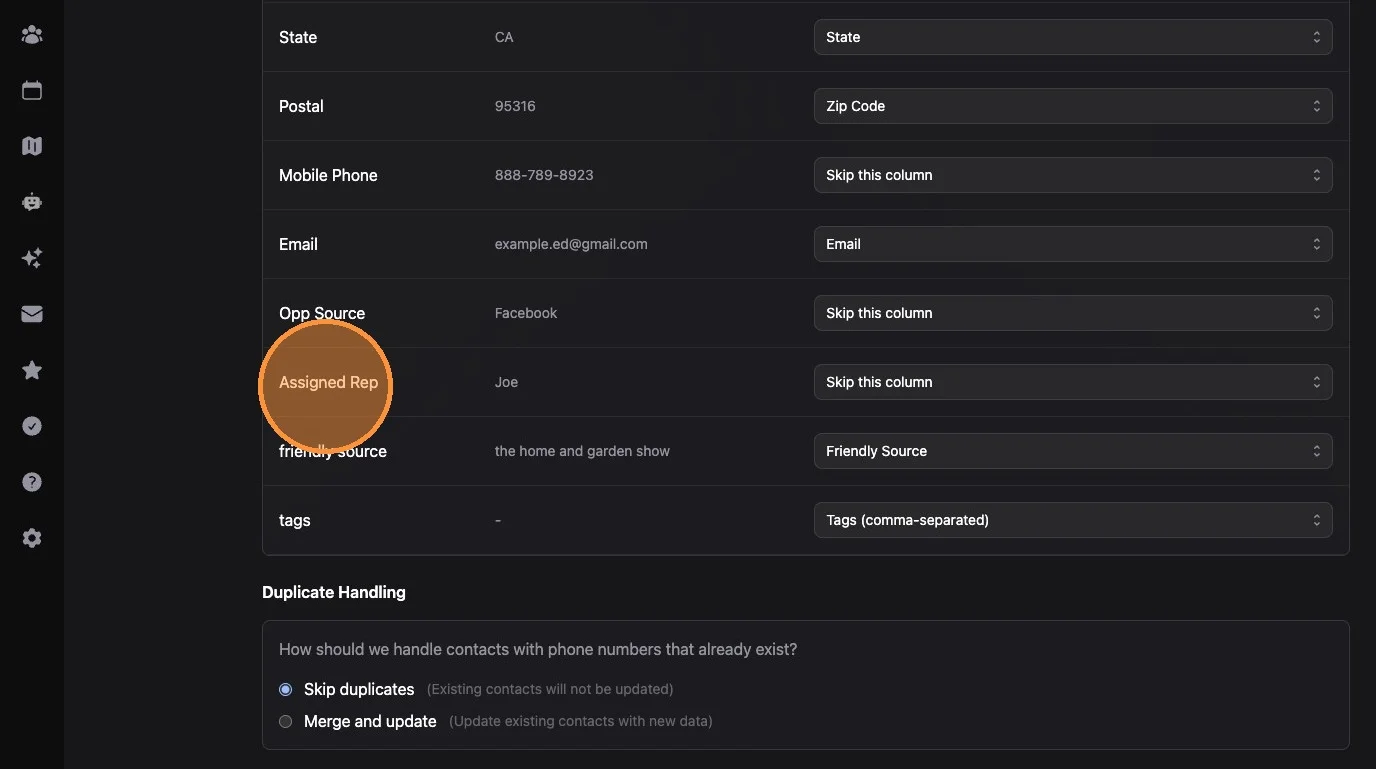
9. When you've identified the correct CSV column, select the "Contact Owner (requires value mapping)" option from the brayv.ai fields dropdown (right side)
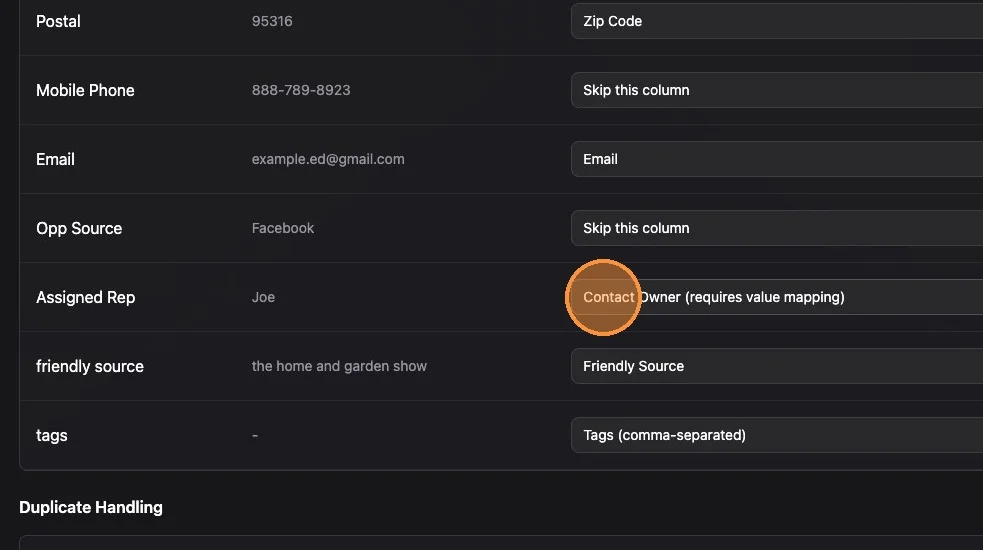
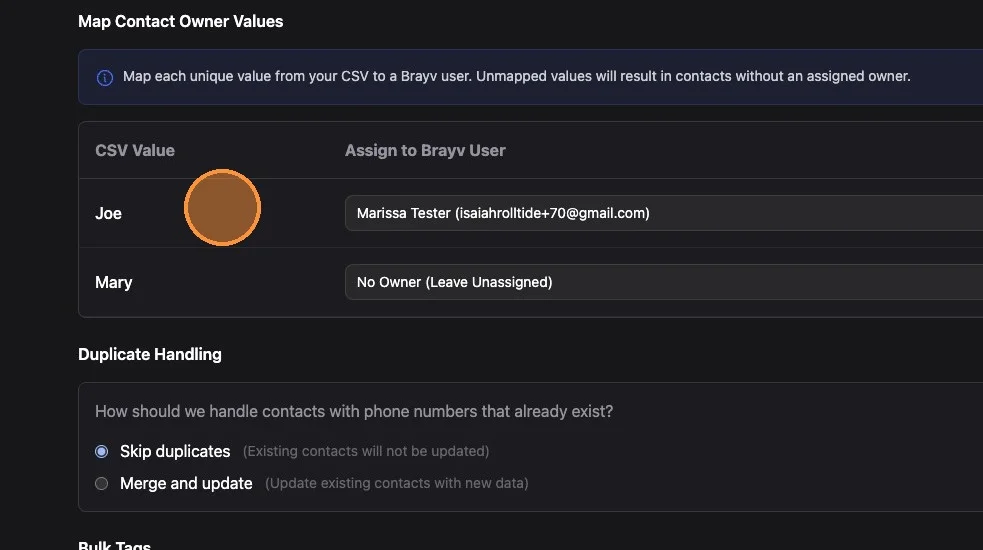
10. A new mapping section will appear, which will pull all the values from the selected column in your CSV, and you can map those directly to users in brayv.
Any values that you don't want to map to users in brayv simply leave unmapped (for example, old sales reps that no longer work for your company).
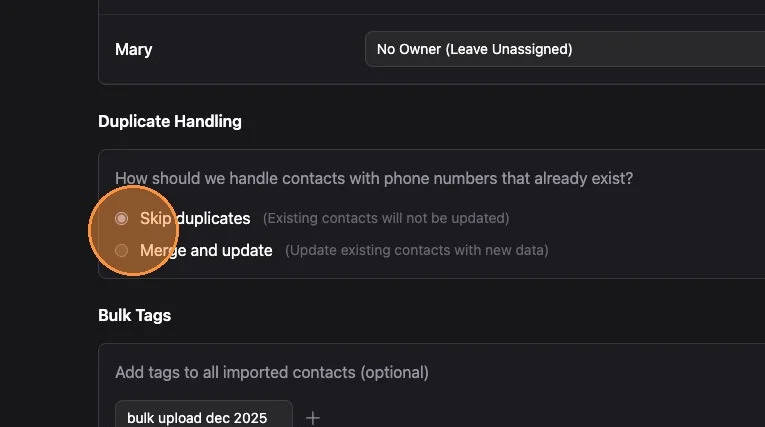
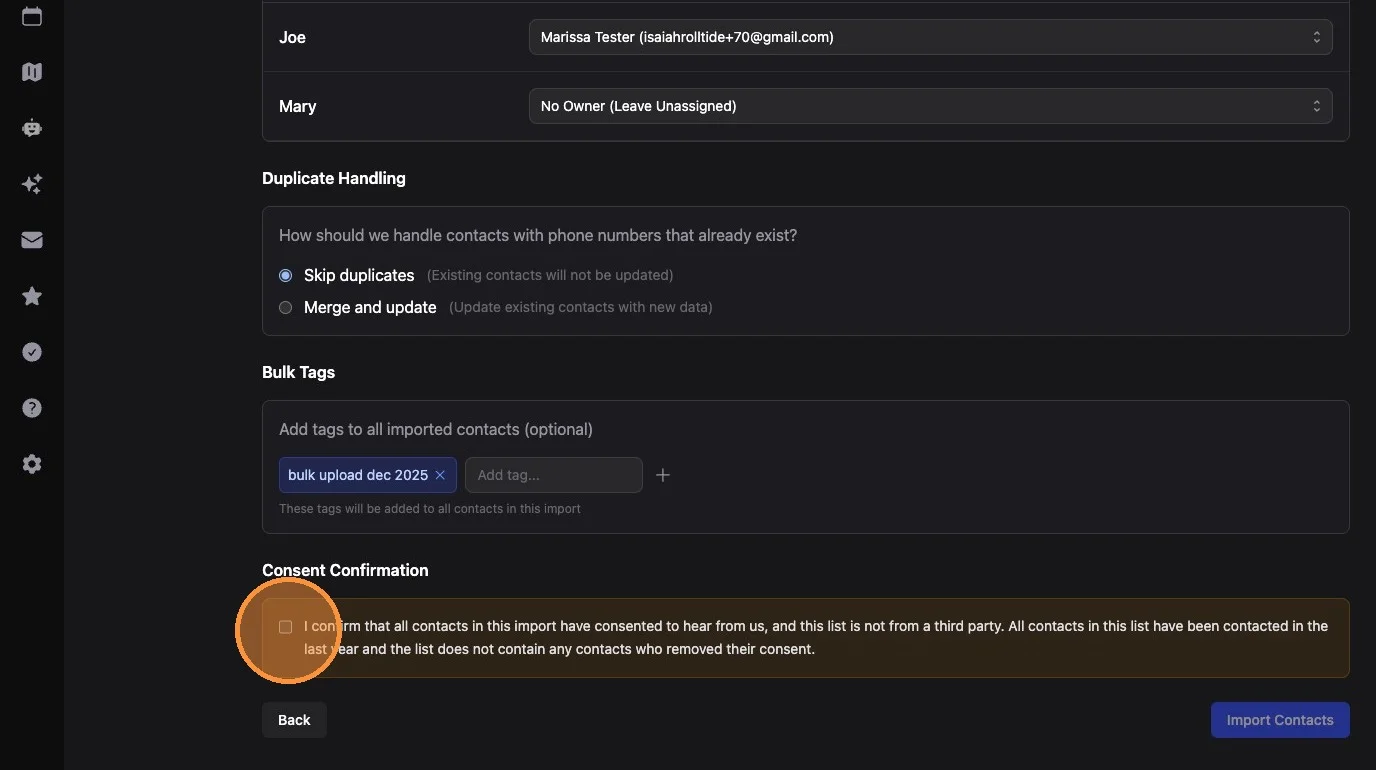
11. Choose "Skip Duplicates" or "Merge and Update".
This means that if a contact already exists in your brayv.ai account that has the same phone number as a contact in your CSV, we would either skip pulling in the data from the CSV for that contact, or we would merge with the existing contact in brayv (any fields in the CSV that are different would overwrite the fields in brayv for that particular contact).
12. Optional, but recommended: Type a unique tag like "bulk upload dec 2026" and click the + button.
This will add this tag to all contacts from this upload, making it easy to sort for this group of contacts later.
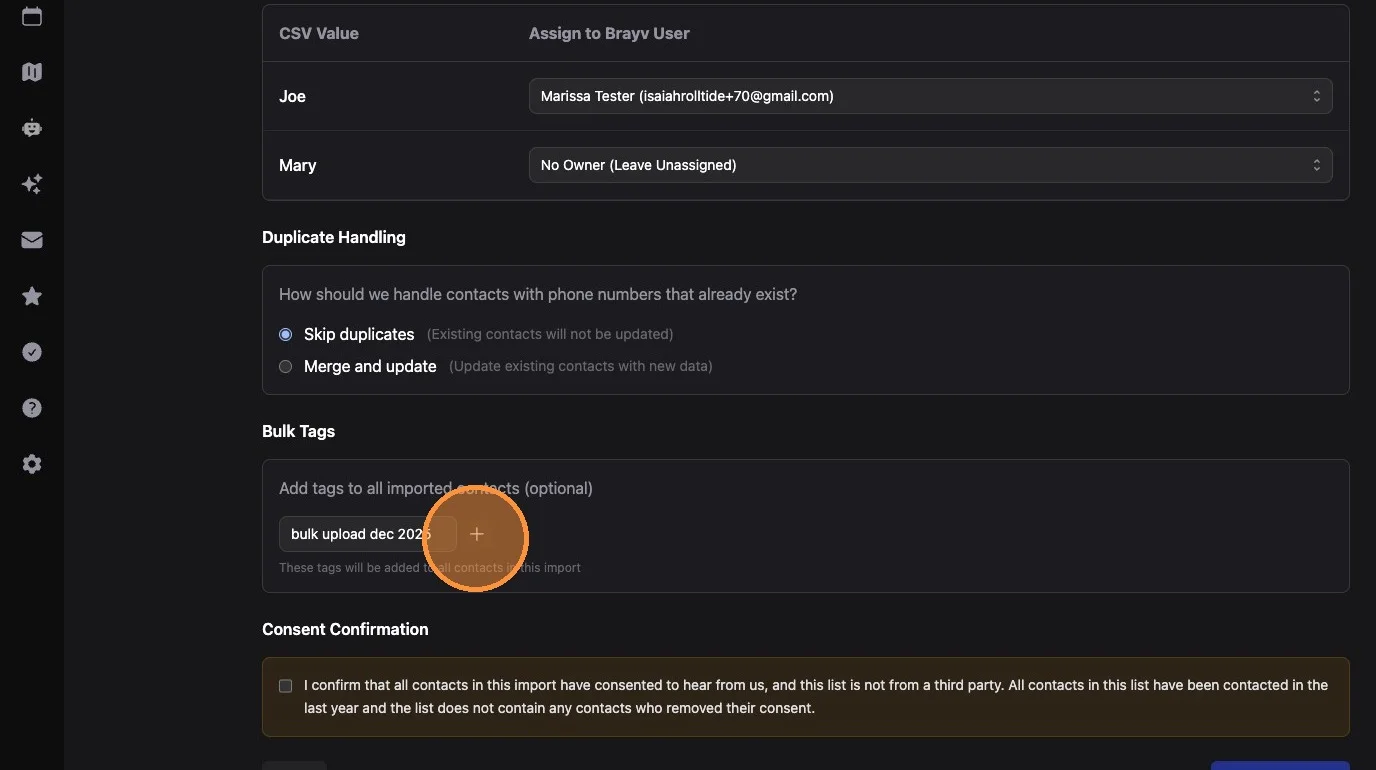
13. Check the consent confirmation checkbox.
14. Click "Import Contacts" and wait
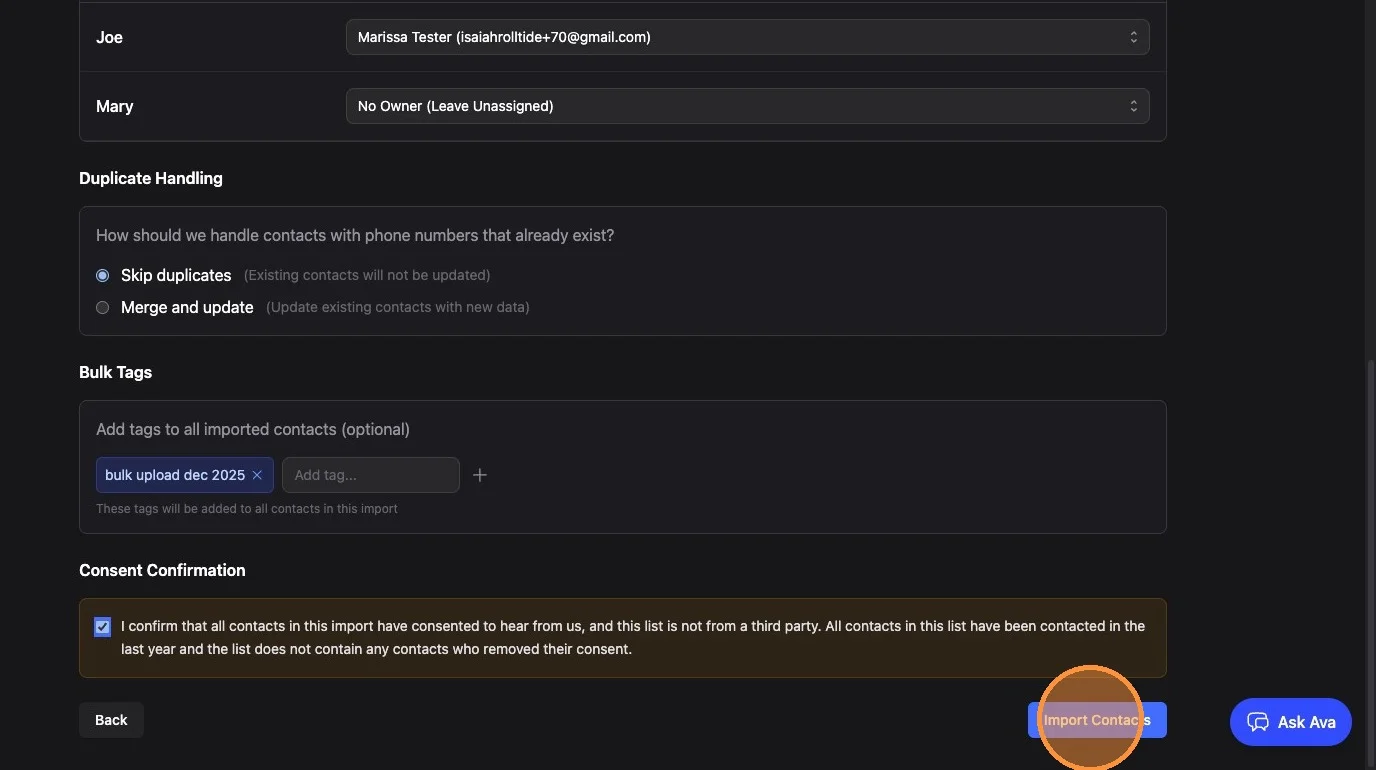
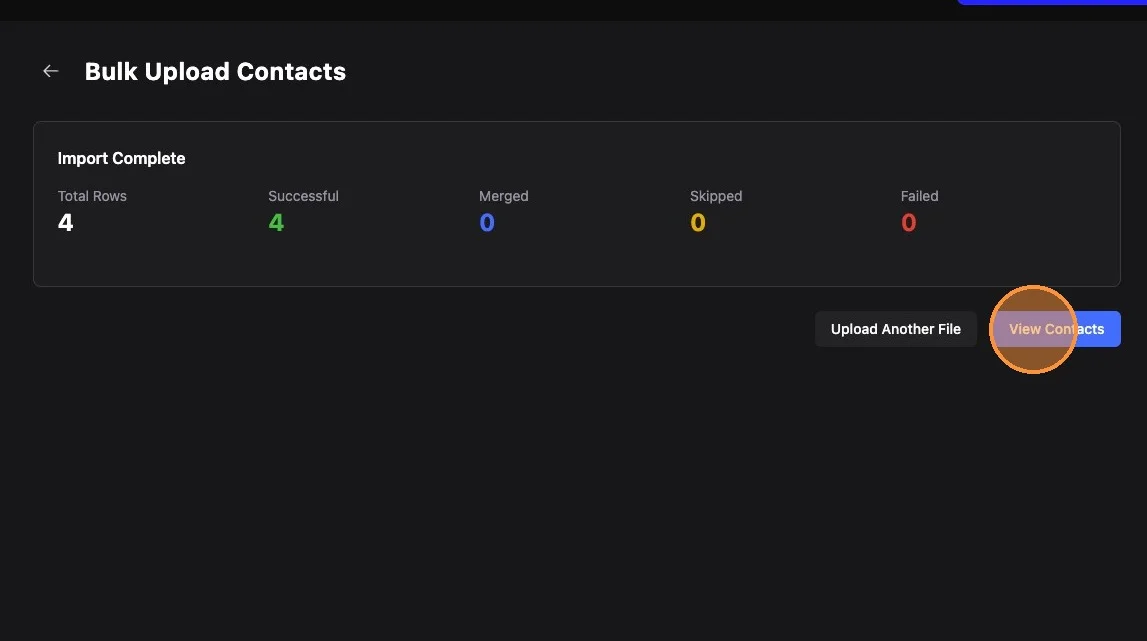
15. Stay on the page till the upload is complete. When completed, you'll see a success screen showing how many contacts were added, merged, or skipped.
If you have duplicate contacts within your CSV, the system will automatically skip any duplicates and only add one to brayv. Merging is only applicable if the contact already exists in brayv and you selected the merge and update option.
All done! You can click View Contacts to go back to the contacts page.
CSV Preparation Tips
Format Requirements:
- File extension must be
.csv - First row must contain header names (e.g., "First Name", "Email", "Phone")
- One contact per row
Example CSV Structure:
First Name,Last Name,Email,Phone,Business Name,Hook
John,Smith,[email protected],5551234567,Smith Plumbing,HVAC repair
Jane,Doe,[email protected],5559876543,Doe Electric,new panel installation
Phone Numbers: Must be 10 digits, no formatting characters (e.g., 5551234567)
Tags: Separate multiple tags with commas in your CSV (e.g., "lead,hvac,residential")
Boolean Fields (dnd_sms, has_text_ai, etc.): Use "true"/"false", "yes"/"no", or "1"/"0"
Common Use Cases
- Migrating from Another CRM: Export as CSV, map all fields, use "skip duplicates" mode
- Marketing Campaign Leads: Import with campaign-specific tags for easy sorting
- Trade Show or Event Leads: Add bulk tag with event name, include hook and source fields
- Updating Existing Data: Use "merge duplicates" mode, map only fields you want to update
Troubleshooting
"File must be a CSV" error: Make sure file extension is .csv. In Excel: File > Save As > CSV (Comma delimited). In Google Sheets: File > Download > CSV.
All contacts failed: Check that at least one name field AND at least one contact method (phone or email) is mapped.
Phone numbers not importing: Remove any formatting (parentheses, dashes, spaces, country code). Must be exactly 10 digits.
Too many duplicate skips: If you want to update existing contacts, change duplicate handling to "Merge and Update." Duplicates are matched by phone number only.
Strange characters after import: Re-save your CSV as UTF-8 encoding. In Excel: use "CSV UTF-8 (Comma delimited)" option.
Key Tips
Start with a Test Import: Import a small sample (5-10 contacts) first to verify field mappings are correct before importing the full file.
Use Descriptive Bulk Tags: Tag your import batches with something memorable like "import-feb-2026" or "tradeshow-nashville" for easy filtering later.
Leverage Hook and Friendly Source: These fields make your AI conversations much more personal. Hook is what they're interested in (e.g., "kitchen remodel"). Friendly source is how the AI references where they came from (e.g., "our website").
Clean Your Data First: Remove duplicate rows, validate emails, format phone numbers consistently, and remove test/placeholder data before importing.
Related Features
- Managing Contacts - Contact fields and management
- Form Lead Sources - Alternative lead capture via web forms
- Webhook Lead Sources - Integrate with external systems
- Customer Journeys - Automate follow-up after import
- Bulk Add to Journey - Enroll imported contacts in journeys