
Related Articles
How to Bulk Add Contacts to a Journey
Quick Reference Keywords: Bulk journey addition · How to do outreach for a sale or promotion to existing leads · Bulk SMS outreach · Mass texting · Lead reactivation · Bulk enrollment · Promotional campaigns
Overview
Bulk adding contacts to a journey allows you to enroll multiple contacts at once based on specific criteria. This is perfect for running promotional campaigns, seasonal sales, lead reactivation efforts, or any scenario where you need to reach out to a targeted segment of your existing contact database.
Before you enroll anyone: Run through the Bulk Outreach Final Spot Check checklist so your initial message, agent instructions, follow-ups, and company context match the promotion.
When to Use Bulk Add:
- Running promotional campaigns or seasonal sales
- Reactivating old/dormant leads
- Following up with specific customer segments
- Announcing new services or products
- Event invitations or trade show follow-ups
Important Considerations:
- Generally use a dedicated journey for bulk outreach (not your main new lead journey)
- All selected contacts will enter at the "Starting Line" stage
- Contacts need valid phone numbers for text outreach
- Processing happens in the background for large batches
Step-by-Step Instructions
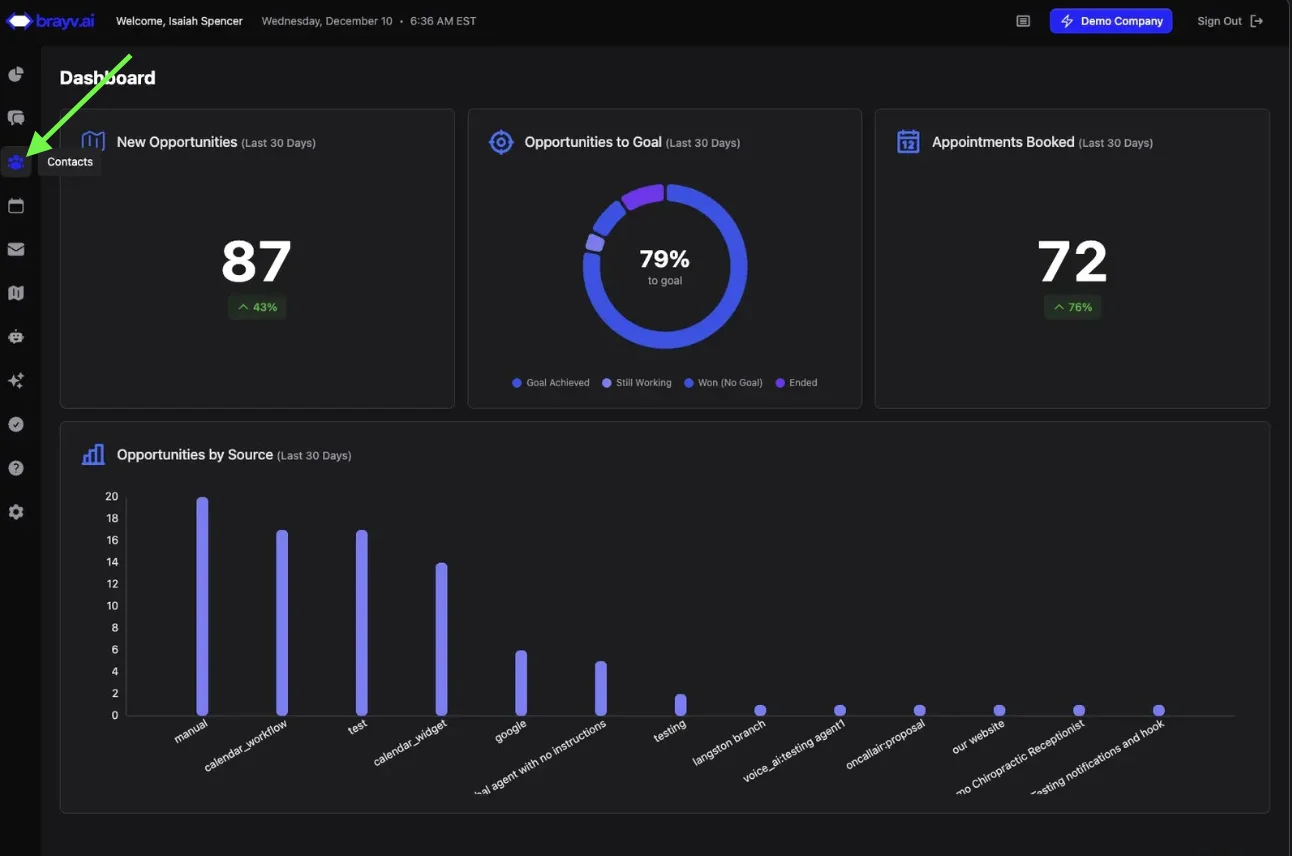
1. Click on the Contacts icon in the left hand menu
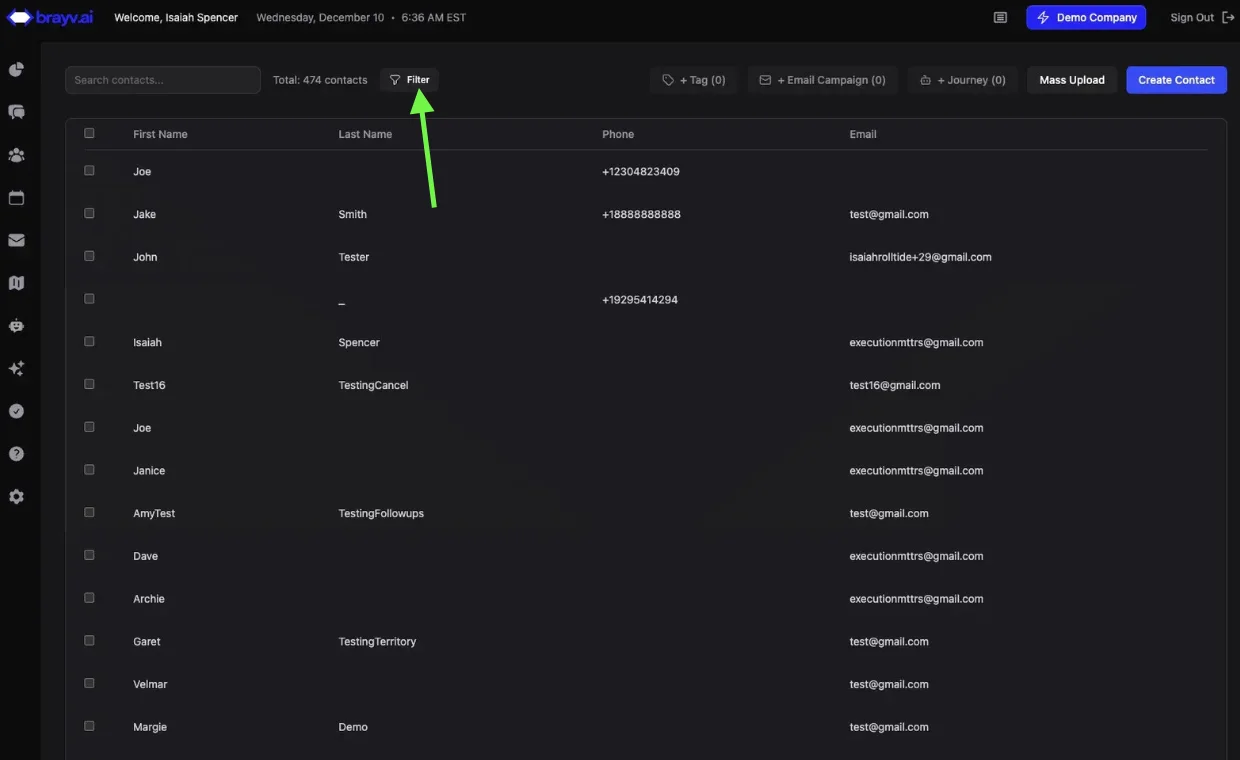
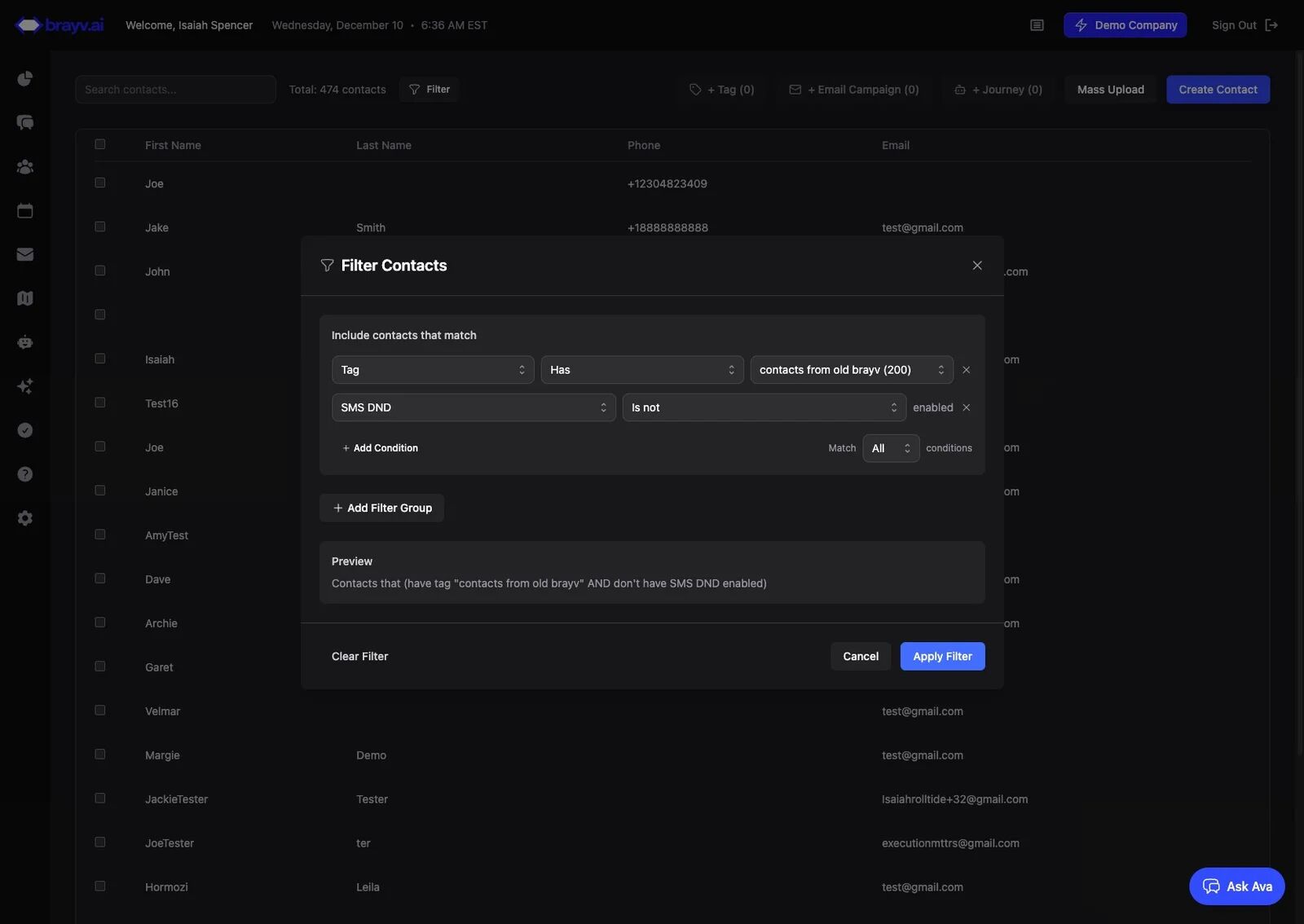
2. Click "Filter"
3. Apply filters of your choice
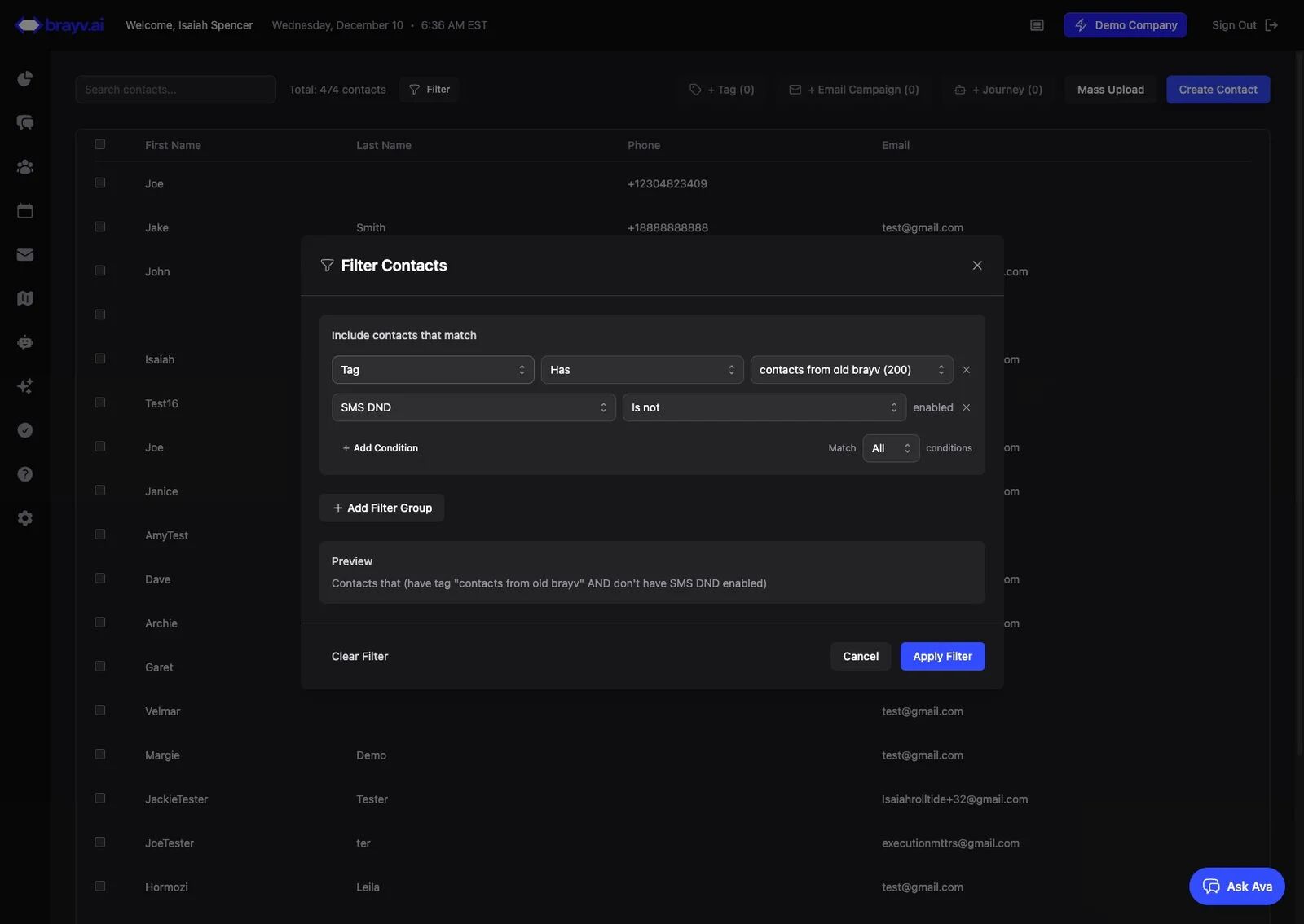
4. Click "Add Condition" to add another filter or "Add Filter Group" to add an "OR" condition
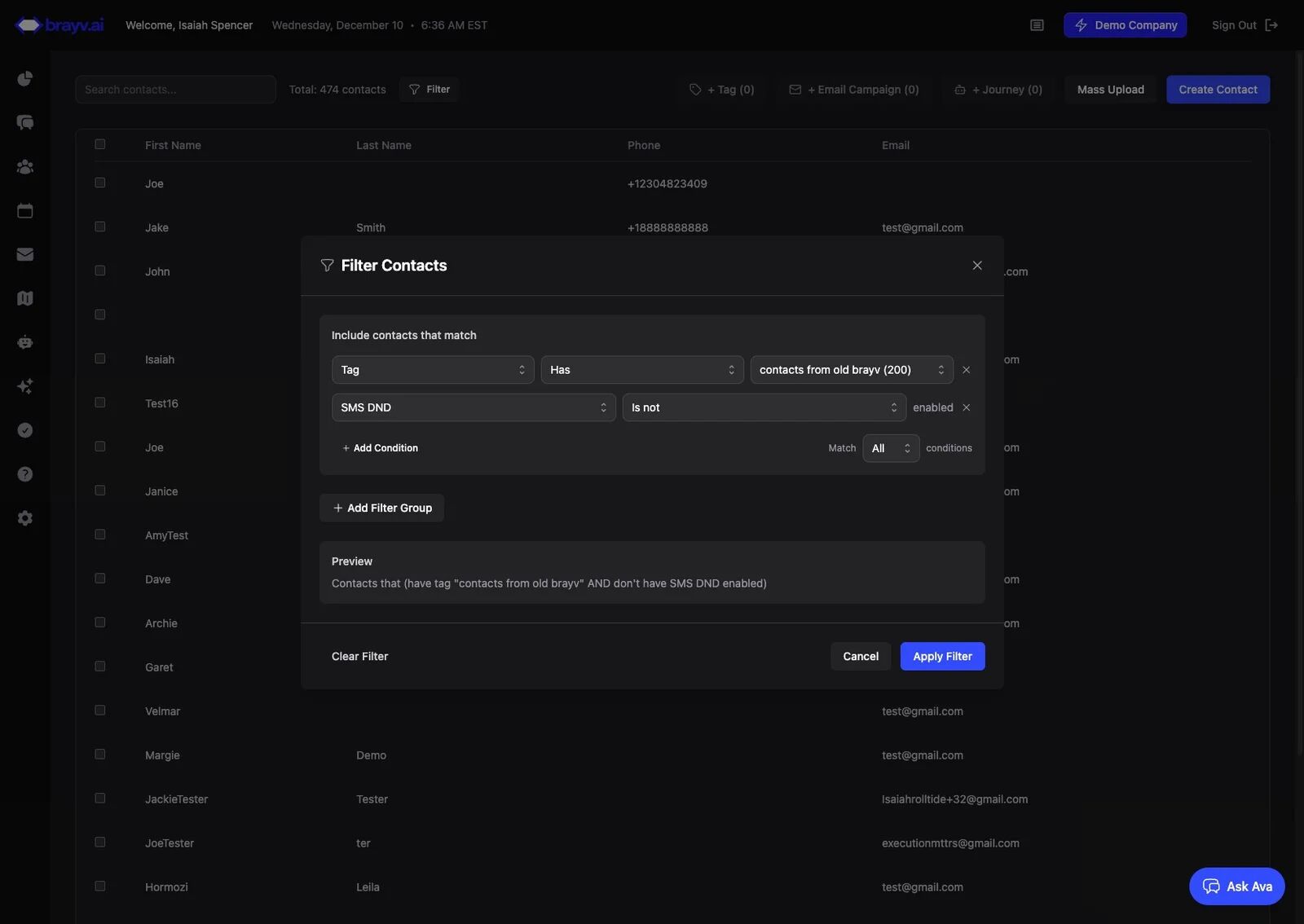
5. Click "Apply Filter"
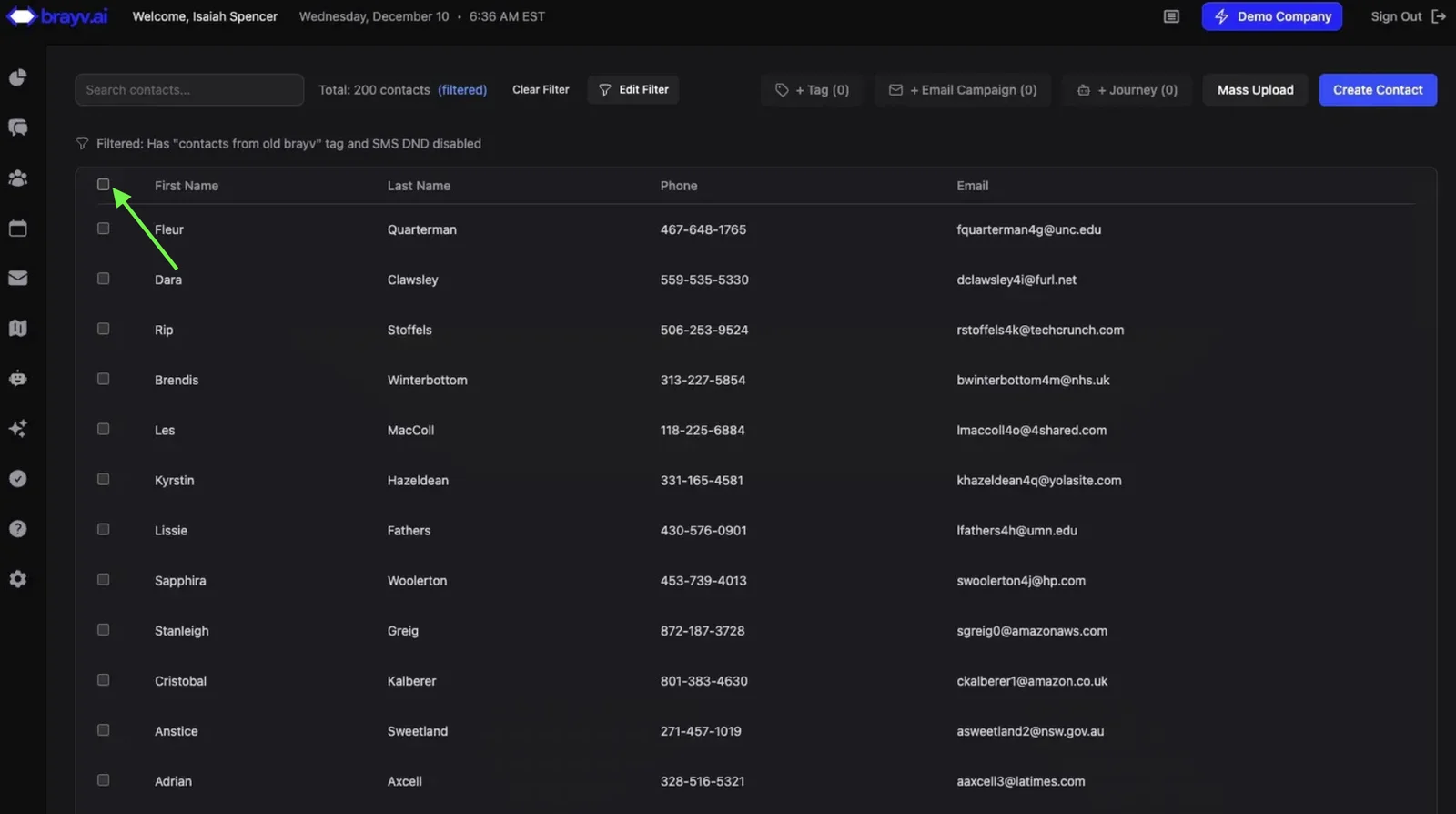
6. Click this checkbox to select the filtered contacts
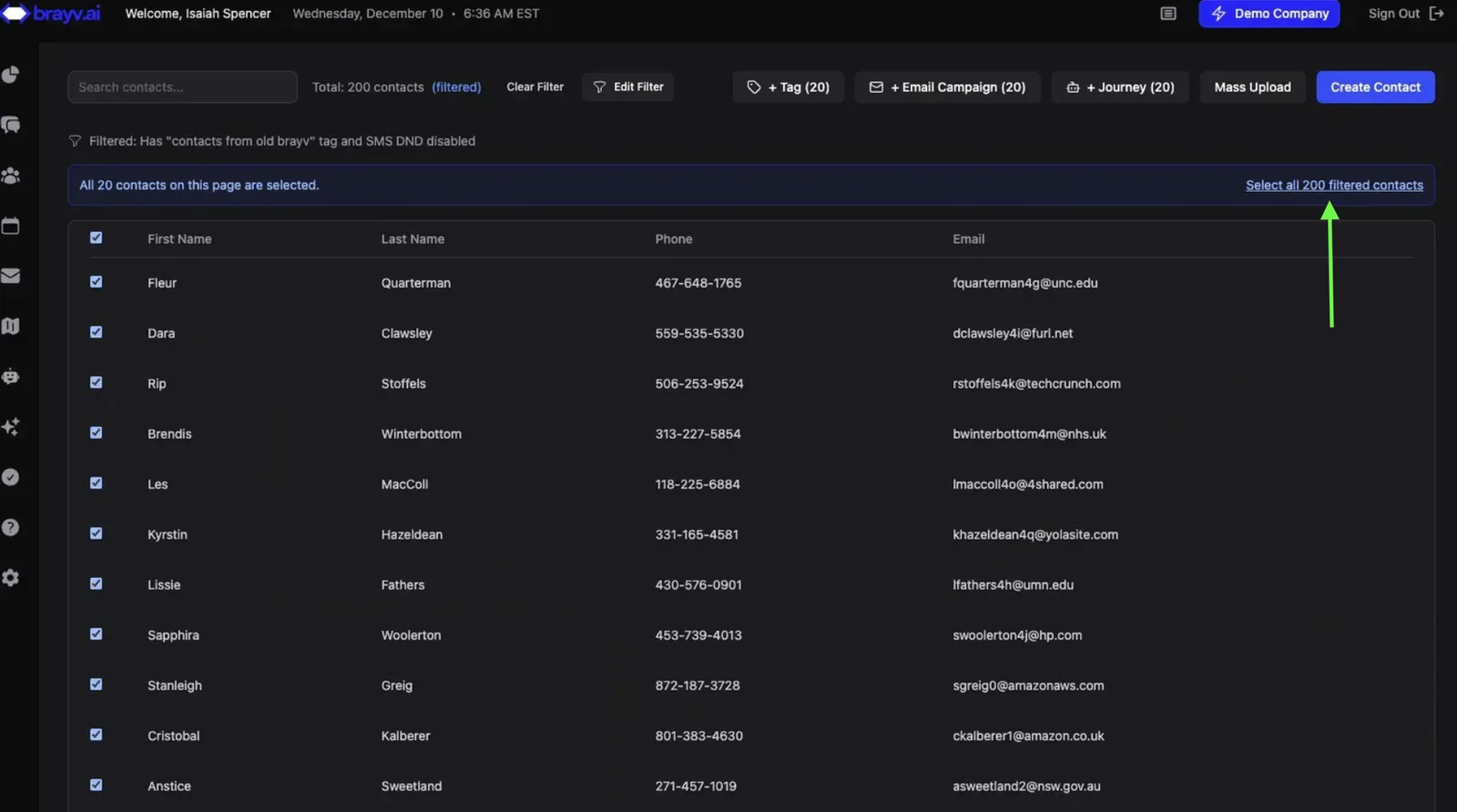
7. If more contacts are in your filtered list than fit on a page, you need to additionally click "Select all XX filtered contacts"
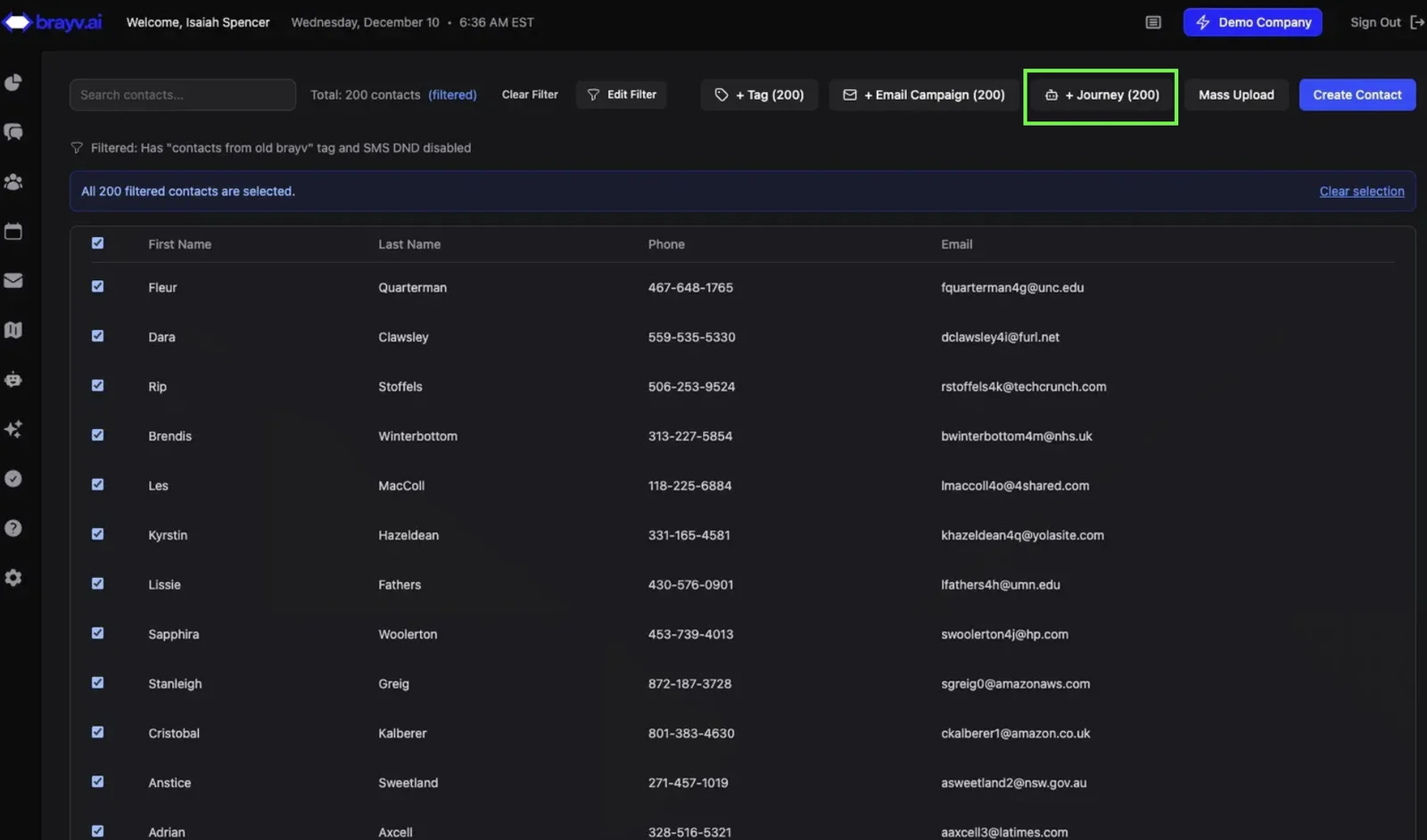
8. Click "+ Journey (number of contacts)"
9. Enter a Bulk Outreach Name (required)
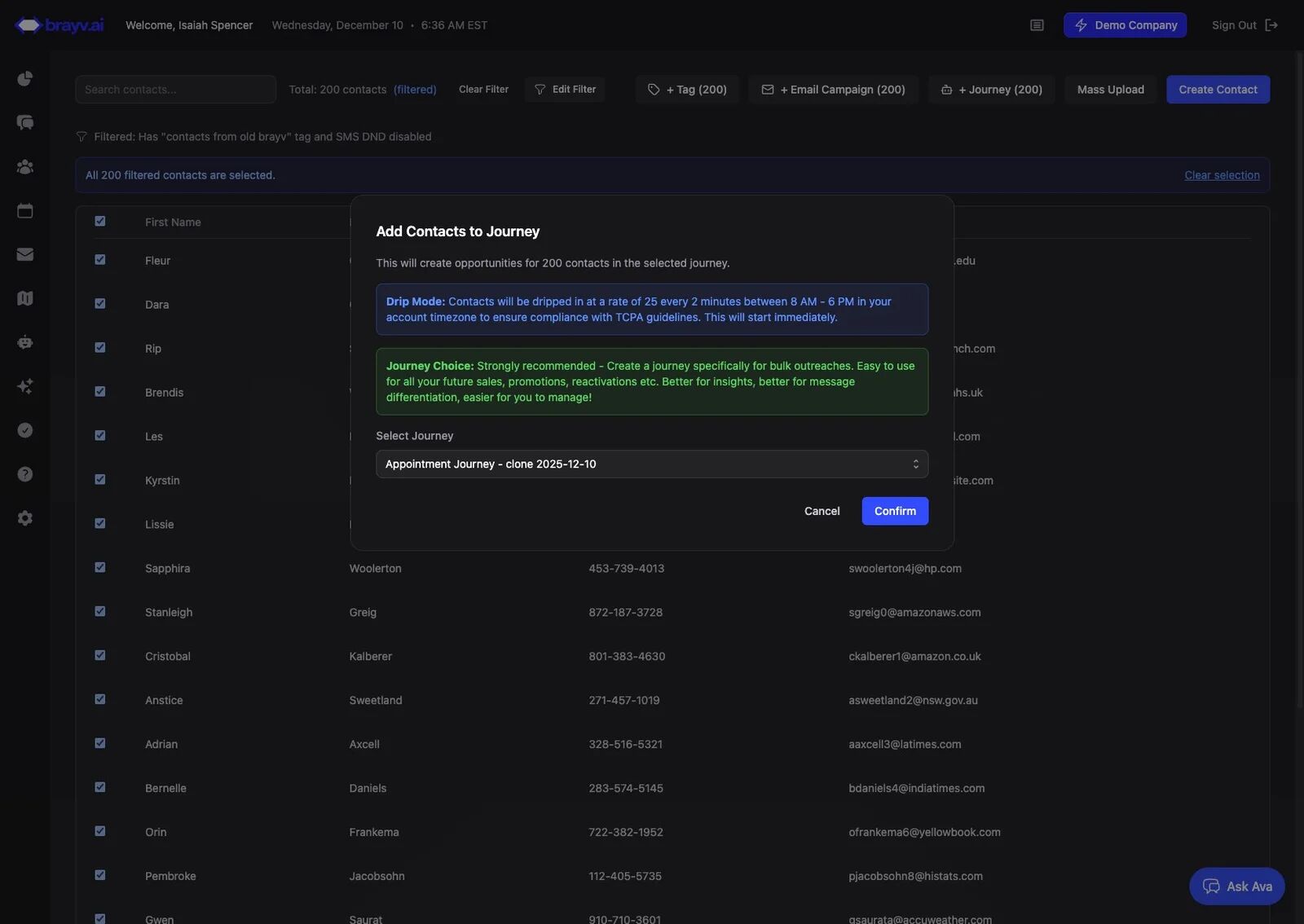
The dialog title is Add Contacts to Journey.
Bulk Outreach Name is required (example placeholder:
June 2025 AC Sale). Opportunity source values for these enrollments start withbulk_enrollmentand include this name so you can filter and report on the specific outreach later.
10. Select the Journey you want to add these contacts to
Important: You cannot bulk add to a Journey that is in use for new leads (routed to from a lead source). Create a new journey first, specifically for bulk additions in scenarios like sales/promotions/old lead reactivations. The dialog itself recommends a dedicated bulk journey.
Tip: You can easily clone an existing Journey for use with bulk outreach. See the step-by-step guide on cloning journeys!
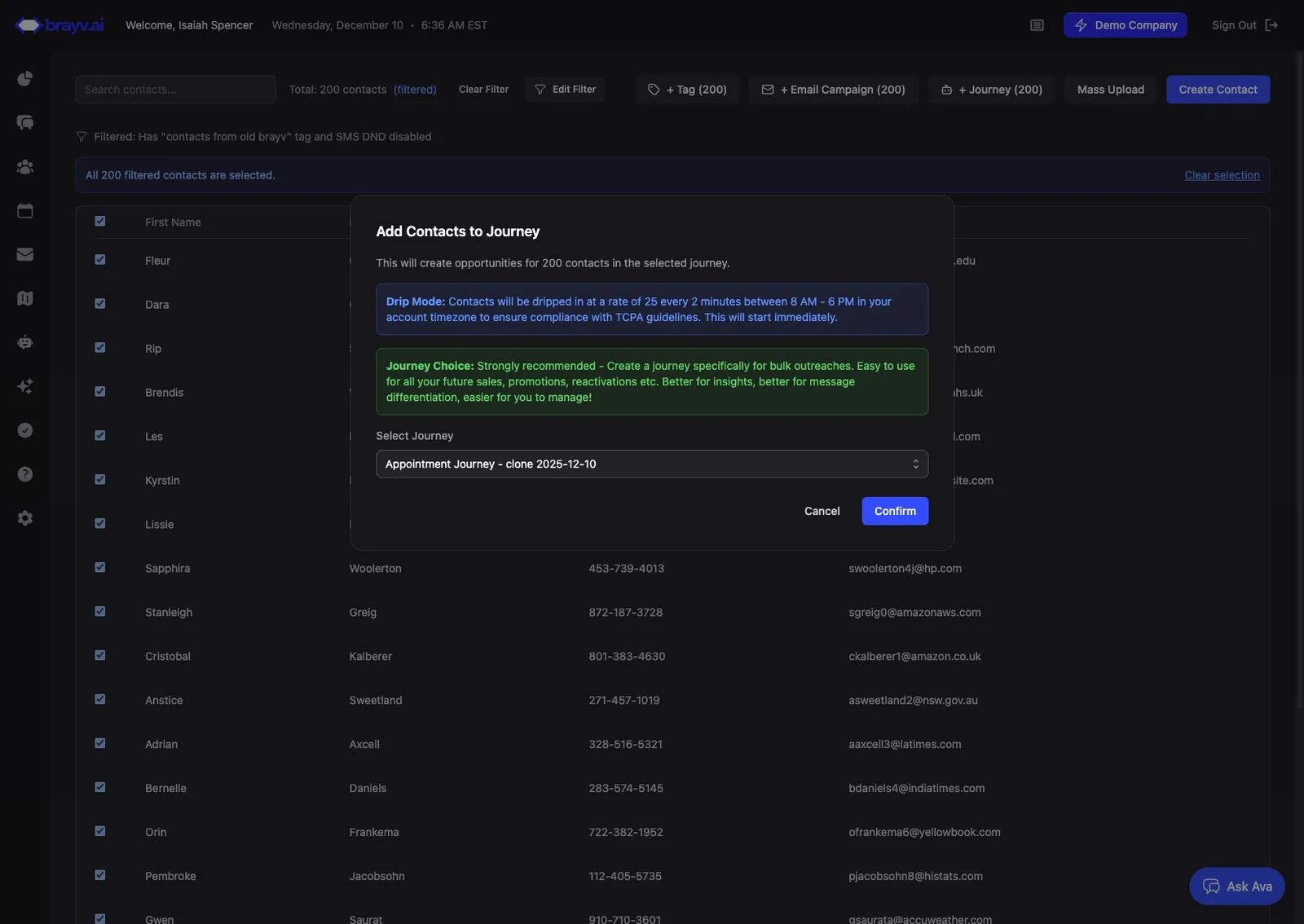
11. After you select a Journey, complete the spot check acknowledgment
A warning appears asking if you have reviewed the journey for this outreach. Open the Bulk Outreach Final Spot Check if you have not already, then check I have completed the spot check for this journey. Confirm stays disabled until you check the box.
12. Review eligibility and drip messaging before confirming
Before you confirm, the dialog checks for contacts who:
- Already have an open opportunity, or
- Are currently enrolling in another bulk job
Those contacts are skipped. The dialog shows how many will be skipped and how many remain eligible.
Hover Contact Enrollment Rate Info in the dialog for drip pacing (25 every 2 minutes, 8 AM–6 PM in your account timezone) and, on large Basic-tier batches, A2P daily limits — see Settings → Business if prompted.
If bulk additions are not available on your plan, you will see Bulk Journey Additions Not Available and a link to Settings → Billing.
13. Click "Confirm"
You will see a success dialog (Bulk Journey Enrollment Created Successfully!). Processing continues in the background — track pause/resume/cancel and progress on Journeys → Bulk Job History.
Understanding Contact Filters
Filter Logic:
- Add Condition - You can have multiple conditions for the filter and choose whether "all" or "any" should apply for the filter to be true
- Add Filter Group - You can add multiple condition "groups" separated by "OR" - meaning if a contact satifies conditions of group 1 or group 2 they would be included.
- Combine conditions and groups for complex targeting
Best Practices for Filtering:
- Start broad, then refine with additional conditions
- Test your filter on a small group first
- Filter by phone number texting DND status to ensure contacts can receive texts
- Use tags to segment audiences for different journeys
What Happens After Bulk Add
Immediate Actions:
- Opportunities Created - Each contact gets a new opportunity in the selected journey
- Batch Processing - Large batches are processed in the background (you'll see progress updates)
- Starting Line Entry - All contacts enter at the "Starting Line" stage
- AI Agents Assigned - Journey's Starting Line agent is assigned to each opportunity
Automated Follow-Up:
- Initial outreach begins based on journey configuration
- Follow-up sequences activate according to agent settings
- Contacts without valid phone numbers are enrolled but won't receive texts
- Opportunities appear on the Journey board and in conversations
Tracking:
- View job progress and pause/resume/cancel on Journeys → Bulk Job History
- View opportunities on Journeys → Opportunity Board
- Monitor conversations in the Conversations page
- Track outreach performance on the Opportunity Board or Dashboard
Common Use Cases
Seasonal Promotions: Filter contacts by past purchase history or engagement level, add to promotional journey with special offer messaging.
Lead Reactivation: Filter contacts who haven't engaged in 90+ days, add to reactivation journey with updated services/offers.
Segmented Campaigns: Filter by location, service interest, or custom fields to create targeted campaigns for specific audiences.
Event Follow-Up: Filter contacts from recent trade shows or events, add to dedicated follow-up journey.
Service Announcements: Filter existing customers to announce new services, expanded coverage areas, or business updates.
Related Features
- Bulk Outreach Final Spot Check - Spot-check the journey before you enroll contacts
- Clone a Journey - Create dedicated journeys for bulk outreach campaigns
- Manually Add Contact to Journey - Add individual contacts to journeys
- Customer Journeys Overview - Complete guide to journey setup and configuration
- Managing Contacts - Contact filtering, tagging, and organization
Summary
Bulk adding contacts to journeys is a powerful way to run targeted campaigns and promotions to your existing database. By combining smart filtering with dedicated journey configurations, you can create highly effective outreach campaigns.
Key Reminders:
- Use dedicated journeys for bulk outreach (separate from new lead journeys)
- Test your filters before bulk adding to ensure you're targeting the right audience
- Clone existing journeys to quickly set up outreach-specific automation
- Remember to click "Select all XX filtered contacts" if your list spans multiple pages
- Contacts must have valid phone numbers to receive text outreach
- Large batches process in the background - you can continue working while they complete
Best Practice: Before bulk adding hundreds of contacts, run the Bulk Outreach Final Spot Check checklist, then test your journey and messaging with a small filtered group (5-10 contacts) to ensure everything works as expected and your messaging resonates.