
Related Articles
How to Book and Edit Appointments
Quick Reference Keywords: How to book an appointment · Creating an appointment · Booking an appointment · Editing an appointment · Rescheduling an appointment
Overview
This guide walks you through manually creating and editing appointments in brayv.ai. Whether booking from the calendar view, a contact page, or a conversation thread, this step-by-step guide covers all the options.
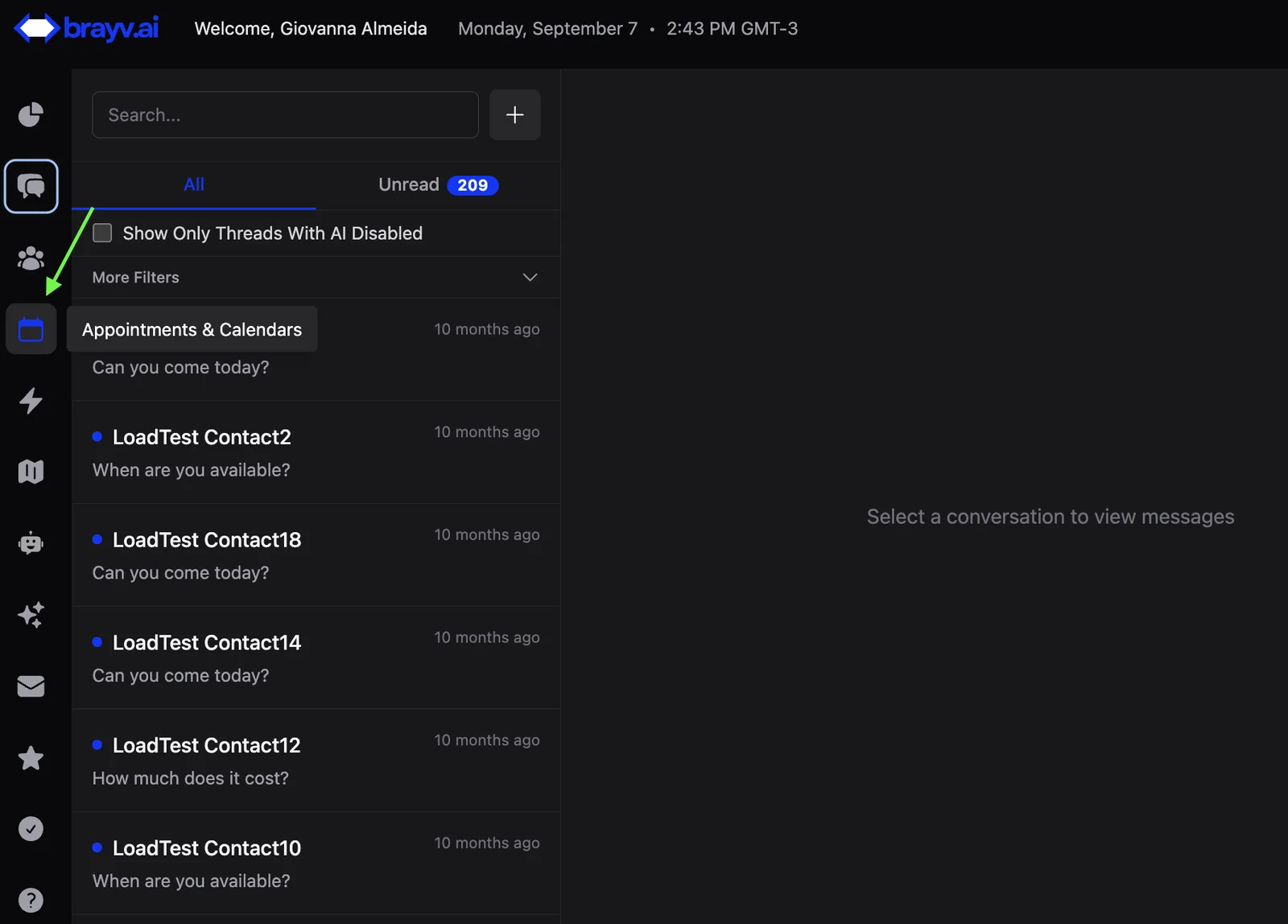
1. Click on the Calendar icon in the main left to go to the 'Appointments & Calendars' page
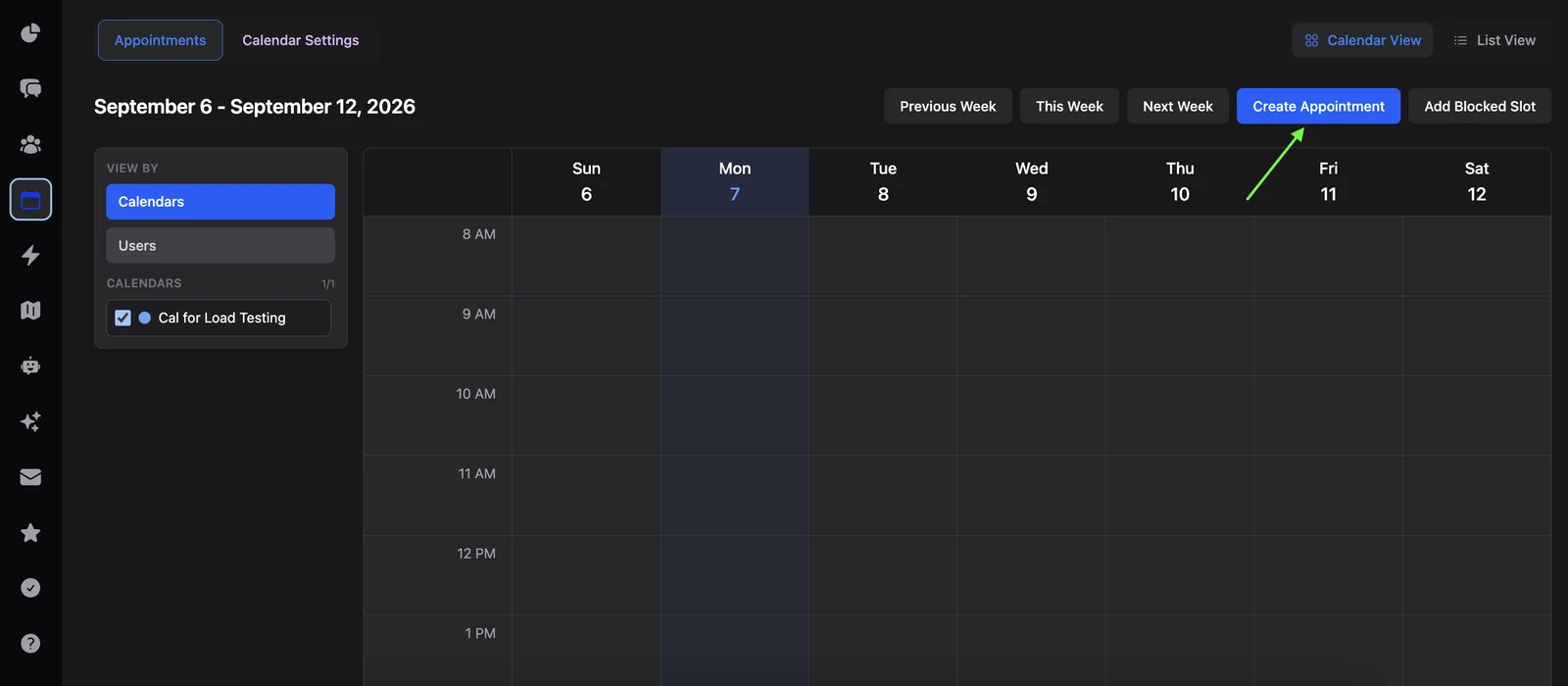
2. Click "Create Appointment"
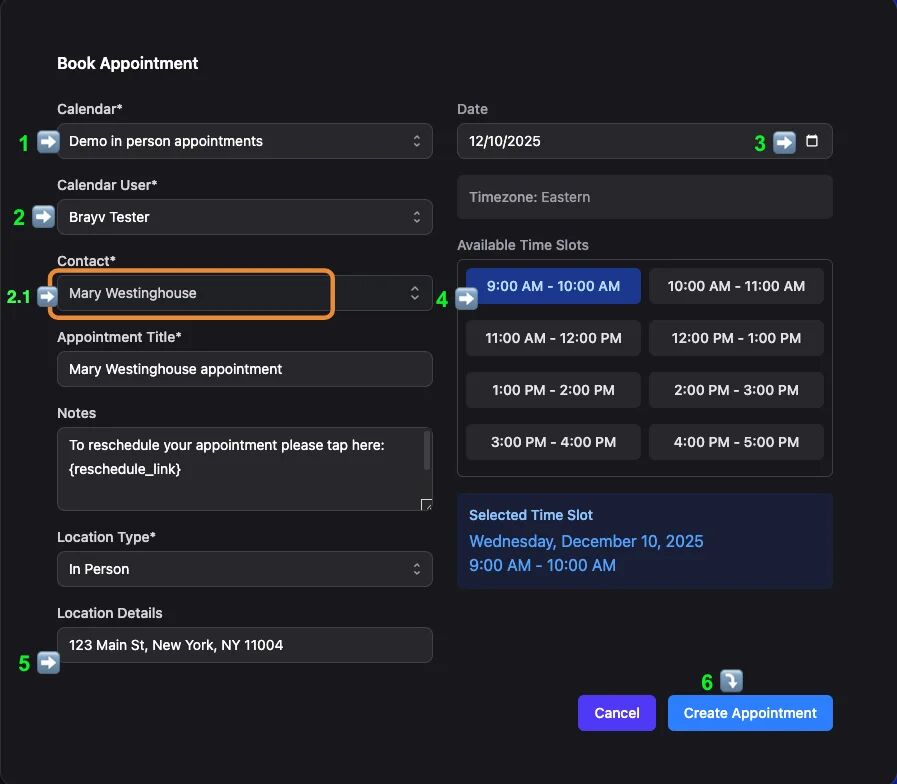
3. The 'Book Appointment' dialog will open
- Select the Calendar to book into
- Optionally select the user, or let the calendar select automatically
- when booking from the Calendar & Appointments page, search for and select a contact. (you can also book directly from a contact page or conversation thread in which case the relevant contact will be pre-selected)
- Click the calendar icon in the date field to pull up a date selector and choose the date
- Click on the appropriate time slot
- Ensure location details are relevant
- IMPORTANT: If connected to housecall pro or servicetitan, the contact must have at least street address, city, and zip code to proceed
- Optionally edit Appointment Title, and Notes then click Create Appointment
Tip: If booking for a contact with an 'open' opportunity in a journey, be sure to book into a Calendar that is set to trigger the 'Appointment Scheduled' stage of that Journey. You can easily accomplish this by clicking 'Let AI Select Calendar' once you have a contact selected. If you have account level guidance rules set this option can provide guidance even with no open opportunity. Learn more in AI Guidance for Manual Booking.
4. You can edit appointments from the conversations page, contact page, or the appointments and calendars page.
On the conversation page, when viewing a thread, current appointments will show up with their own card showing the date & time, location, assigned user and status.
Click anywhere on the appointment you wish to edit.
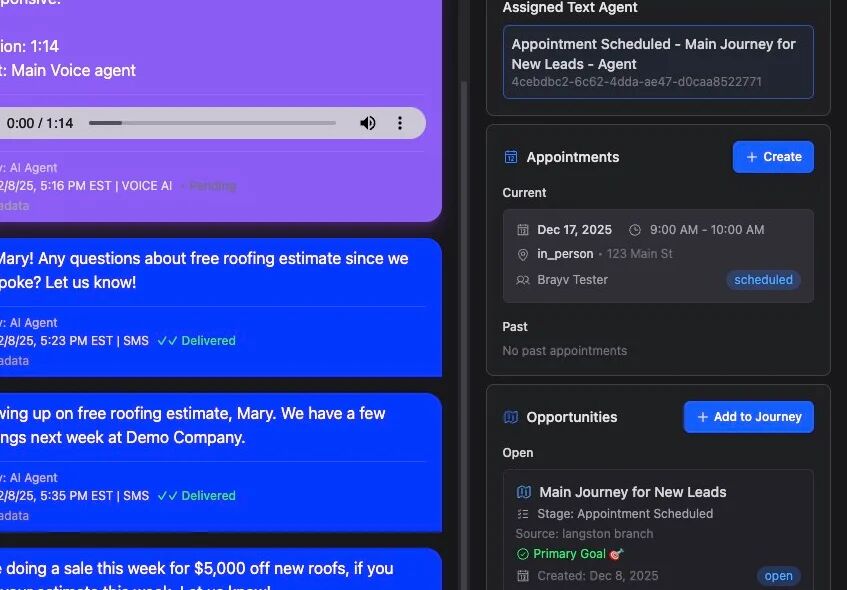
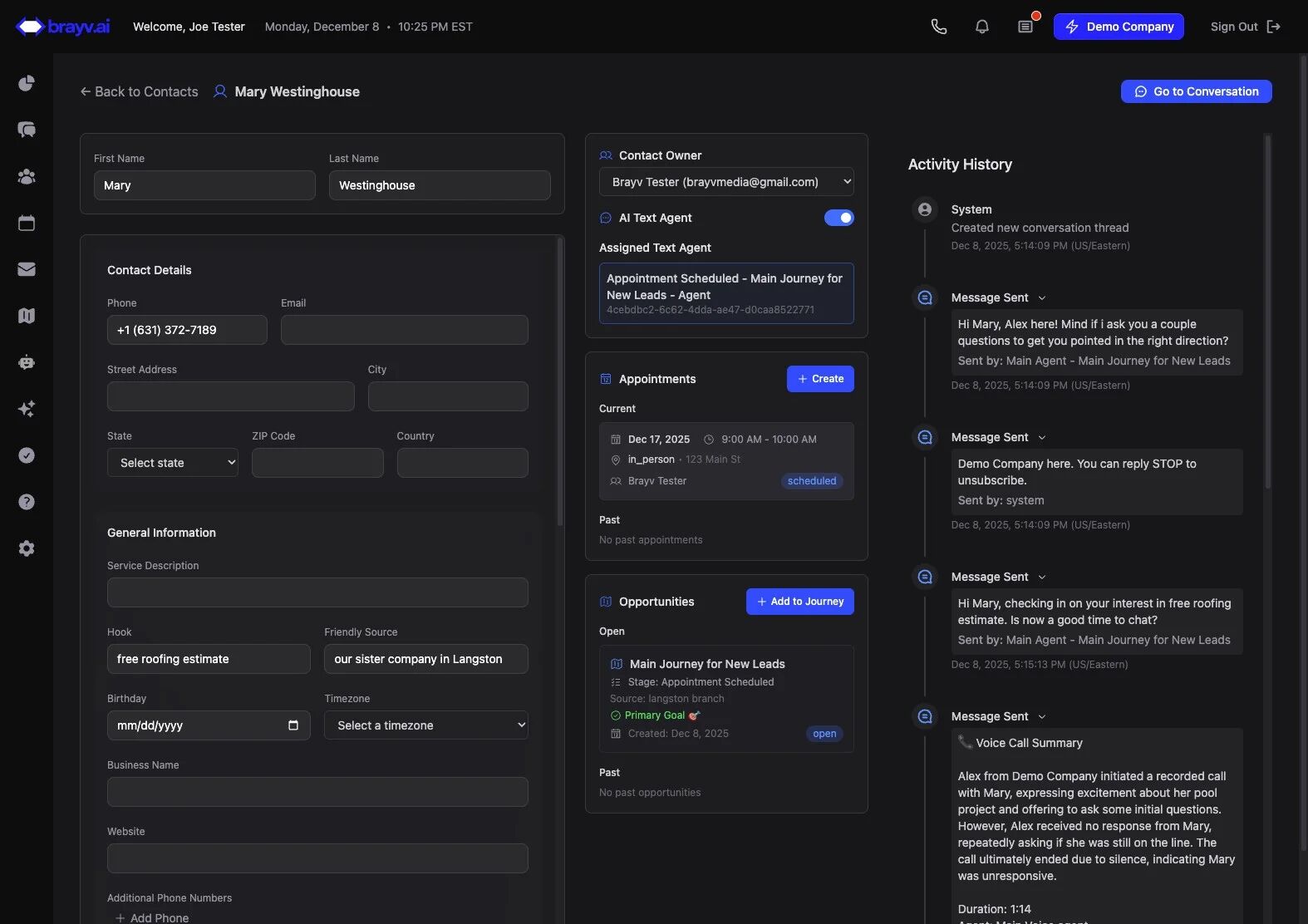
5. On a contact page, the appointments card will show up in the center column. Showing up with their own card showing the date & time, location, assigned user and status.
Click anywhere on the appointment to edit.
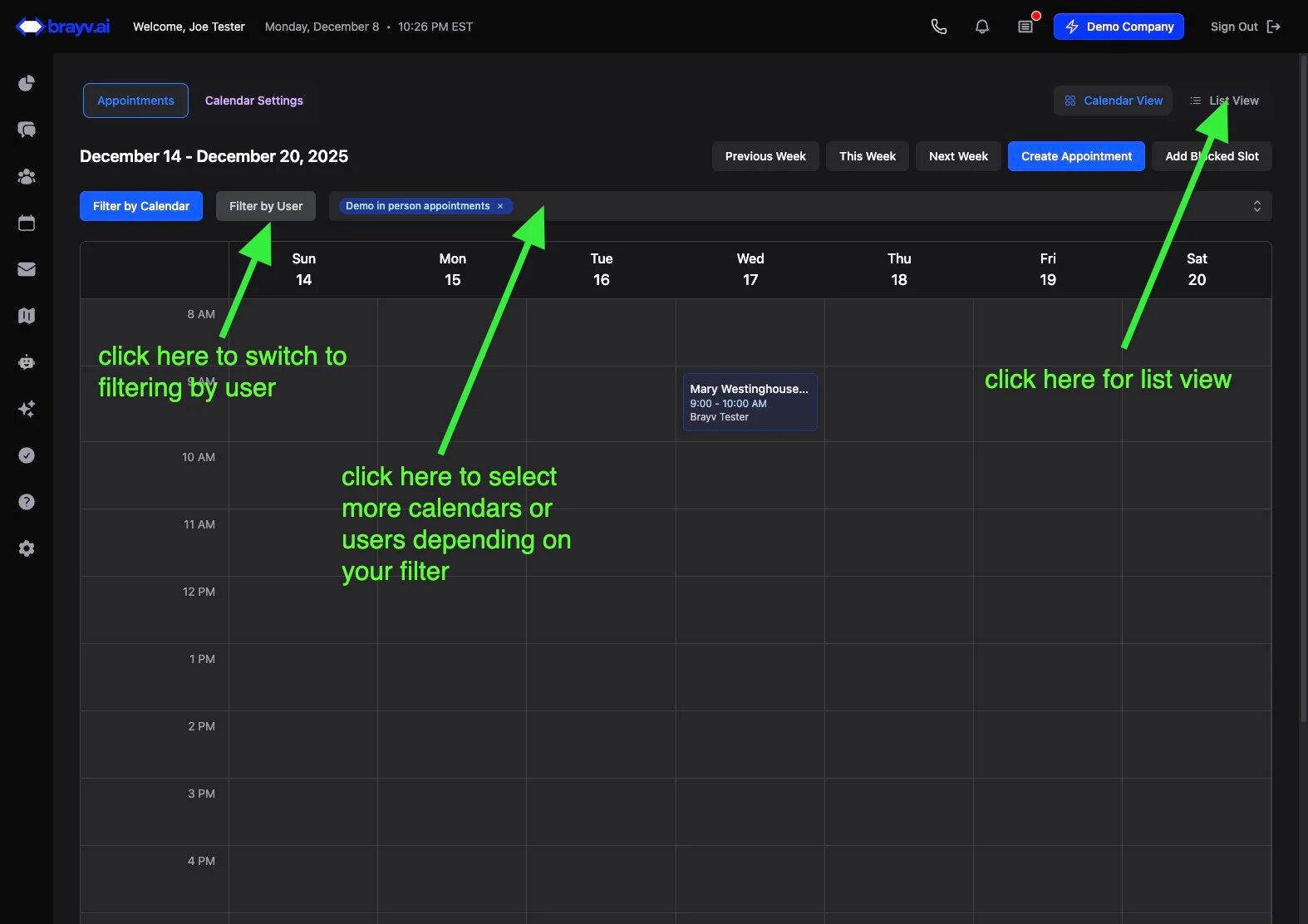
6. On the main calendar view, filter by calendar and select the calendar(s) you wish to view appointments from
Or, filter by user, and select the user's appointments you wish to view
Use the previous, this, and next week buttons to navigate through appointments
Appointment cards will show up in the hour the appointment starts.
They do not visually stretch across multiple hours even if the appointment is multiple hours. This is just visual to keep things clean.
The appointment card will show the appointment title, start and end time, and the assigned user.
Click on it to edit
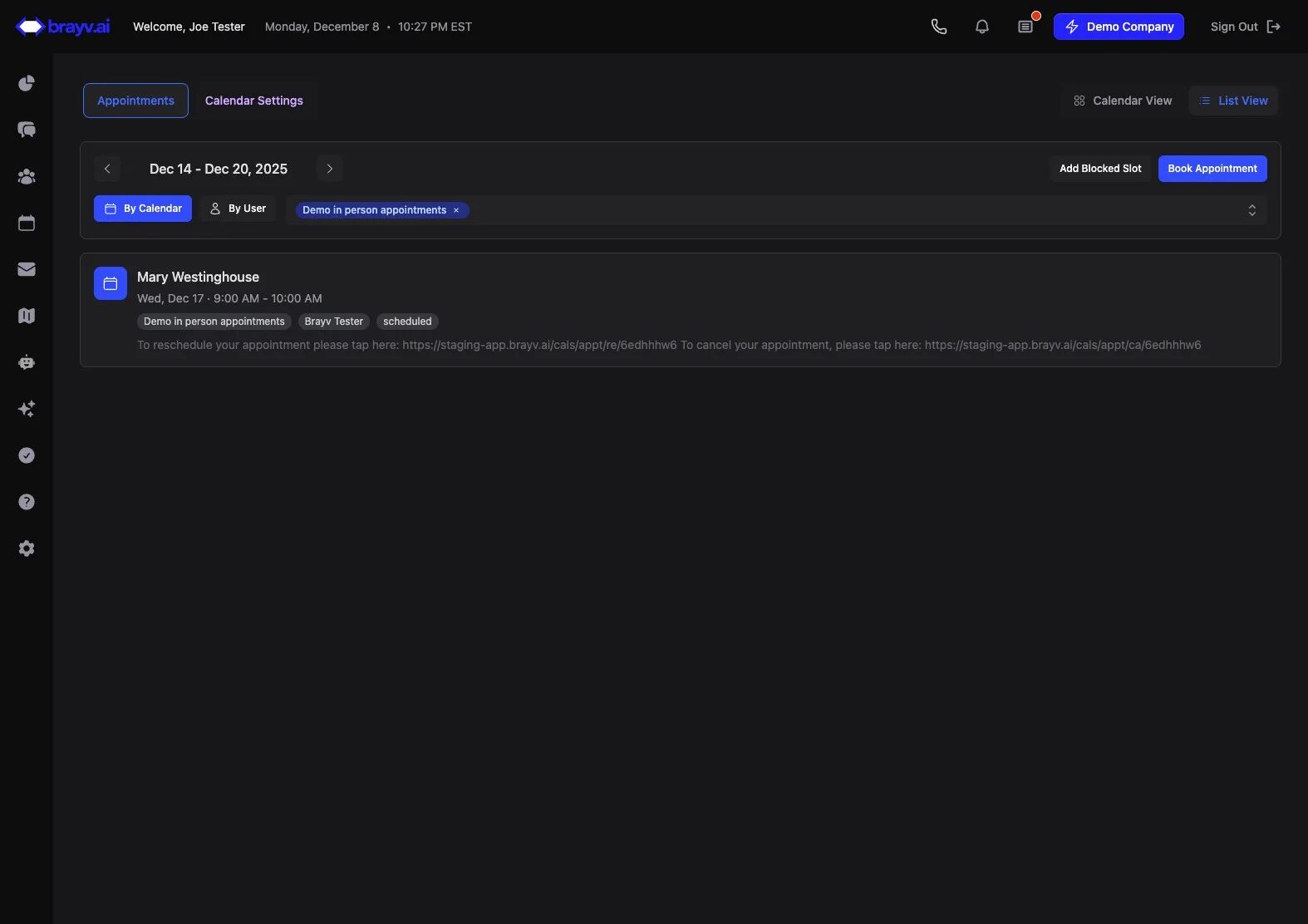
7. If you select List View, you can still filter by calendars or users
You can click on the appointment in the list to edit
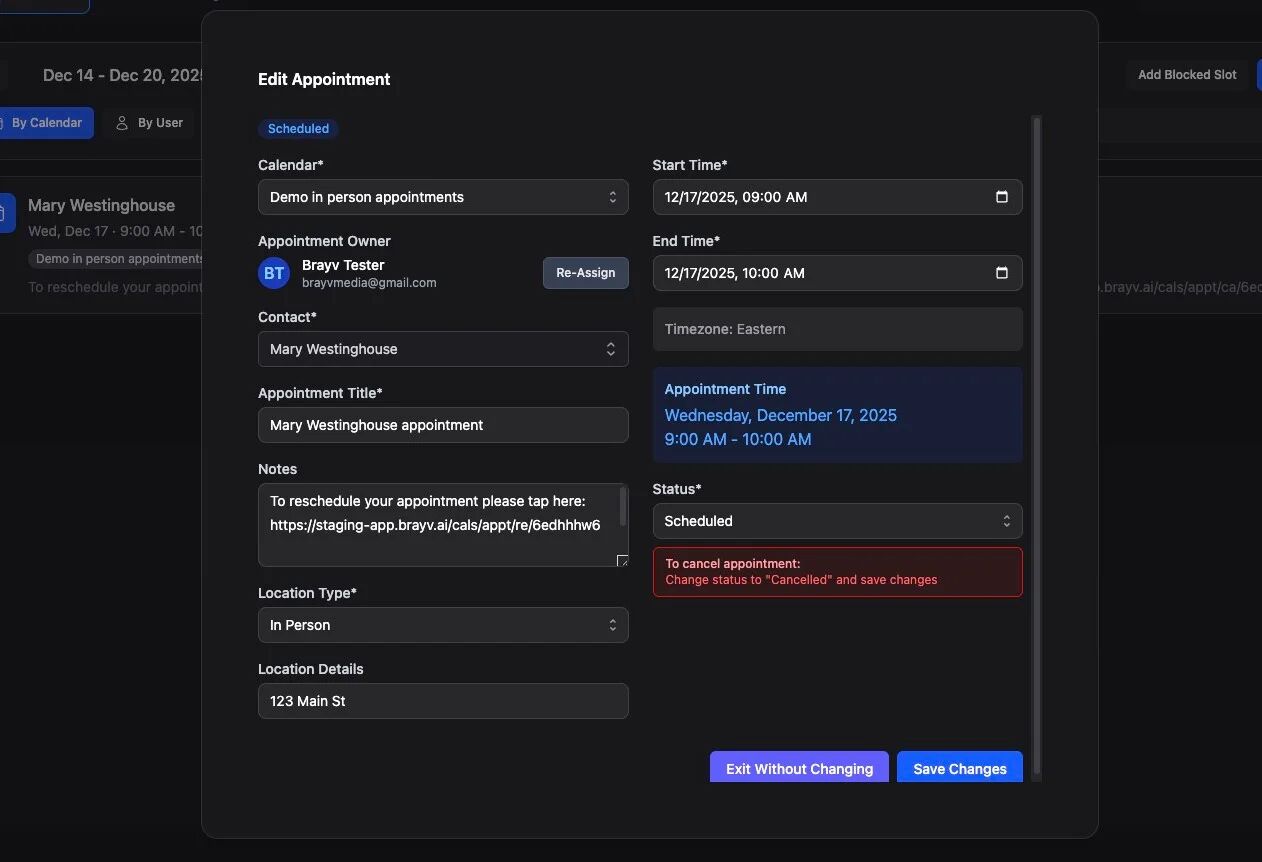
8. Regardless of which route you take to get to an appointment, the same dialog will appear
The dialog opens on the Appointment Details tab: a quick read-only view of the appointment time, owner, and location, plus the contact's name, phone, email, address, and any extra contact fields configured on that calendar's internal summary.
Switch to the Edit tab to change calendar, owner, times, status, notes, or location. Then click Save Changes or Exit Without Changing.
The History tab shows the appointment ID and a timeline of booking and update events.
Important: when editing an appointment, a user's availability is ignored and you can set any custom start or endtimes you wish.
Tip: We strongly recommend that you do not edit appointments already in the past, other than to change their status (like completed or no-show).
If you need a new appointment with the contact in the future, and the appointment is already past, just leave this appointment as is, and create a new appointment.
This will provide the best experience for you and your contacts.
Related Features
- Calendars and Appointments Overview - Complete calendar setup and configuration
- Customer Journeys - Understanding journey stages and appointment triggers
- Human-in-the-Loop with AI - Booking appointments during conversations
- AI Guidance for Manual Booking - How the "Let AI Select Calendar" button works and where to configure account-wide rules
Summary
You can book and edit appointments from multiple locations in brayv.ai:
- Calendar View - Week view or list view
- Contact Page - Appointments card in center column
- Conversation Thread - Appointment cards when viewing messages
Key points to remember:
- Select calendars that trigger appropriate journey stages when booking
- Verify contact address information for HouseCall Pro/ServiceTitan integrations
- Avoid editing past appointments except to update status
- Manual edits ignore user availability restrictions for flexibility