
Related Articles
How to Be a Human-in-the-Loop with AI Conversations
Quick Reference Keywords: How to turn off AI · How to manually text contacts · How to stop follow-ups · How to mark an opportunity as won or lost · How to book an appointment
Overview
Being a "human-in-the-loop" means seamlessly stepping into AI conversations when you need to personally handle a contact. This guide shows you how to temporarily disable AI, send manual messages, book appointments, and properly disposition opportunities - all while keeping the AI informed so it can pick up where you left off.
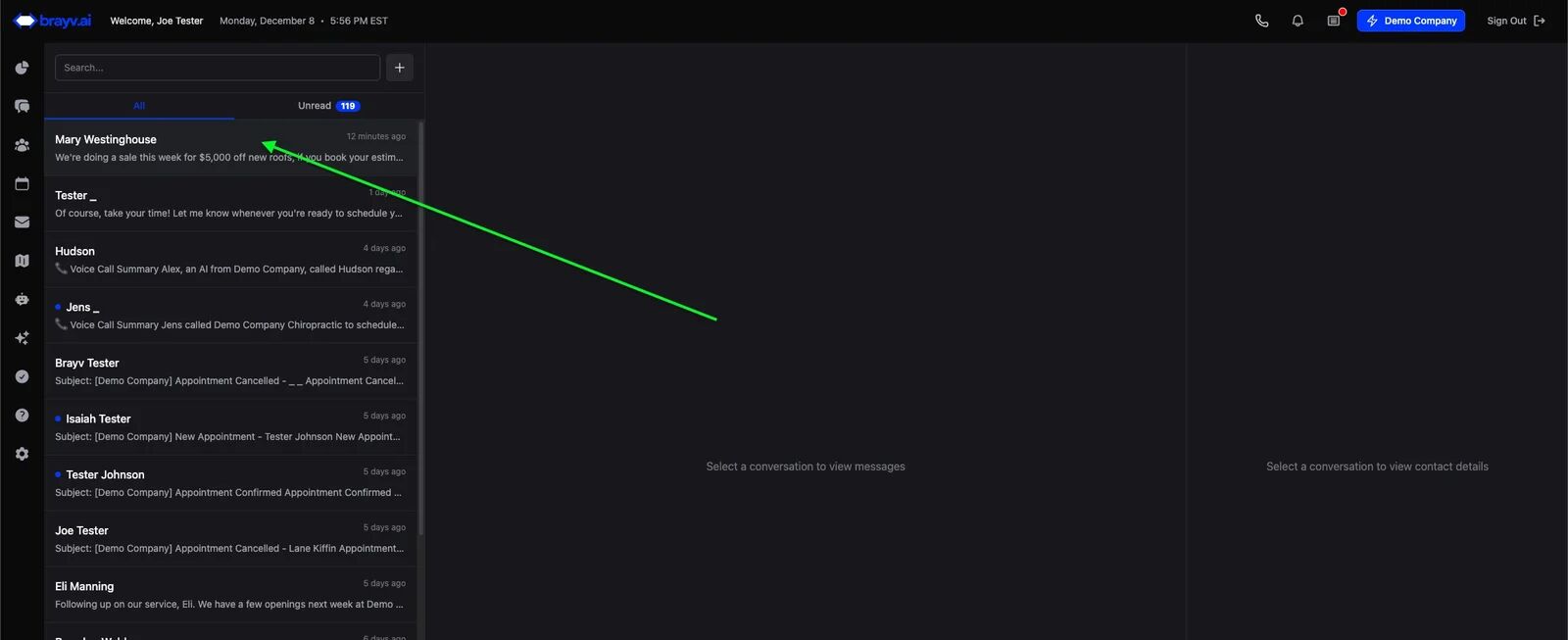
1. On the conversations page, click the thread you want to view
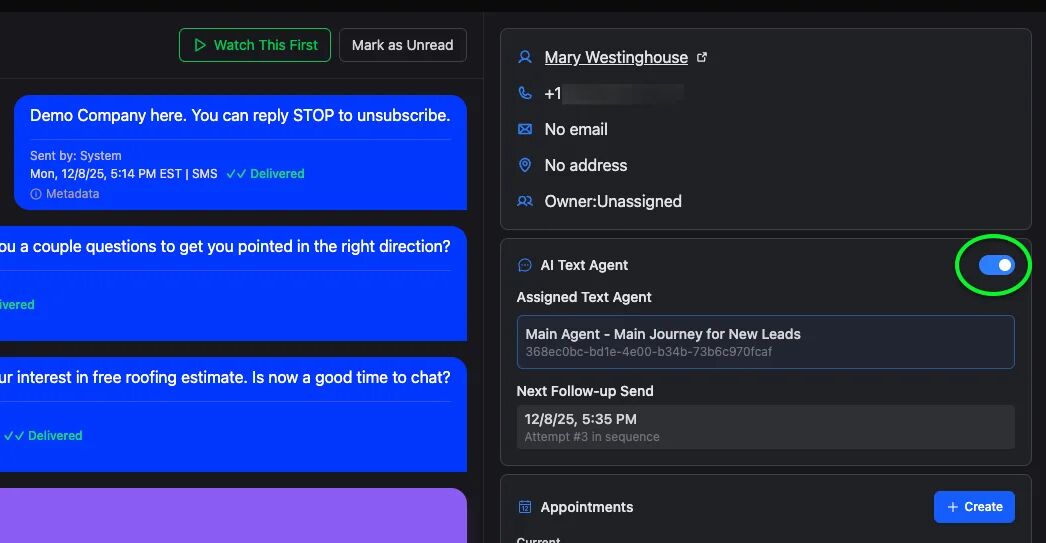
2. To temporarily turn off the AI, click the toggle switch to the right of "AI Text Agent"
On mobile, the Text AI switch is right below the message box, so you can turn the AI off without leaving the conversation. Tap More to see the assigned agent and next follow-up.
If AI is off, it is flipped to the left and colored grey
If AI is on, it is flipped to the right and colored blue
Below the switch you can find see the currently assigned AI text agent, as well as the next scheduled follow up (if applicable).
This should be viewed as a temporary measure for contacts currently enrolled in a journey (has an open opportunity, assigned to a Journey scoped AI text agent)
For contacts being handled by a global agent, this is basically a permanent action (unless the contact is enrolled in a journey in the future), so be sure to turn the AI back on when you want it to be able to respond again.
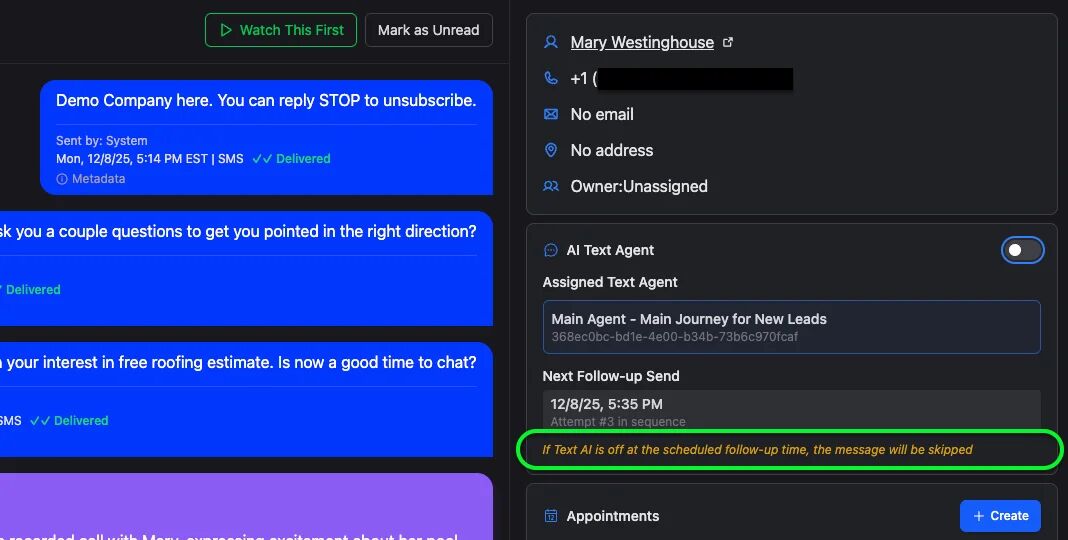
3. When the AI is off, you will still see the next scheduled follow up (if contact has an open opportunity in a Journey with follow up steps remaining), but this follow up will be skipped if the AI is still off when the time comes.
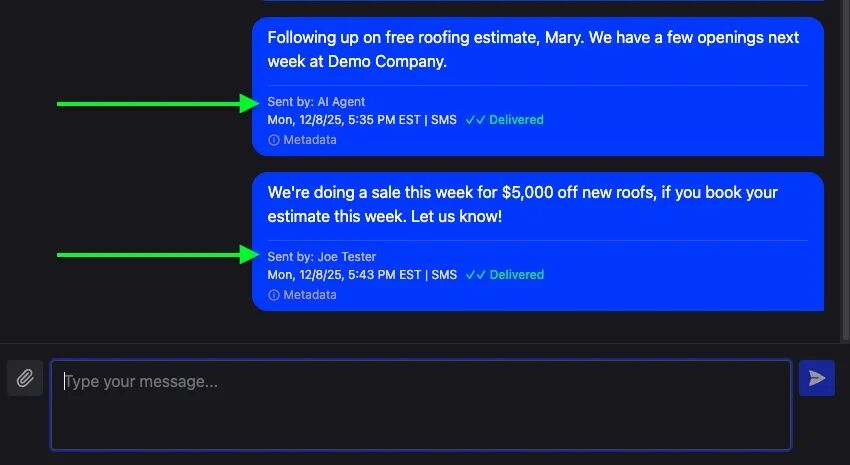
4. Jump into the conversation and say whatever you need to!
Messages sent by the AI, will show as sent by AI, messages sent by a team member will show that they were sent by a human user. (This is not visible to your customers - they only get the content of the message. This is just information about the message for your insight.)
5. After you talk to the contact (texting or on the phone), don't just leave it there!
For contacts enrolled in a Journey, if you didnt reach any conclusion, just turn the AI back on and it will follow up again at the next scheduled time.
If you want the AI to follow up at a specific time click Schedule Custom right below the assigned text agent and schedule a follow-up (message, date, time, optional reason) for a timeframe that seems appropriate (e.g. 1 week from now). This is only available for journey AI agents.
For customer service interactions with a global agent, just turn the AI back on and it will be ready to respond next time your contact reaches out with a question!
6. If you chatted with them and booked an appointment, be sure to create the appointment in brayv!
If the contact is enrolled in a Journey, be sure to book into a calendar that triggers the "Appointment Scheduled" stage in their Journey.
This will properly disposition the opportunity, end the follow ups, let the AI know the appointment has been set, and move the lead to the appropriate stage in the Journey so your interactions going forward are smooth.
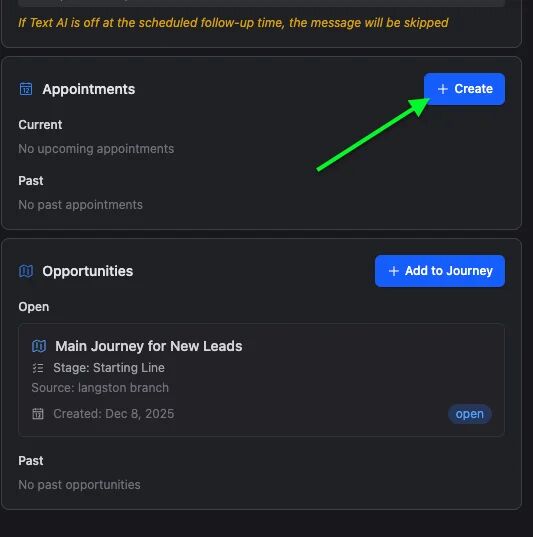
Simply click "+ Create" in the Appointments card
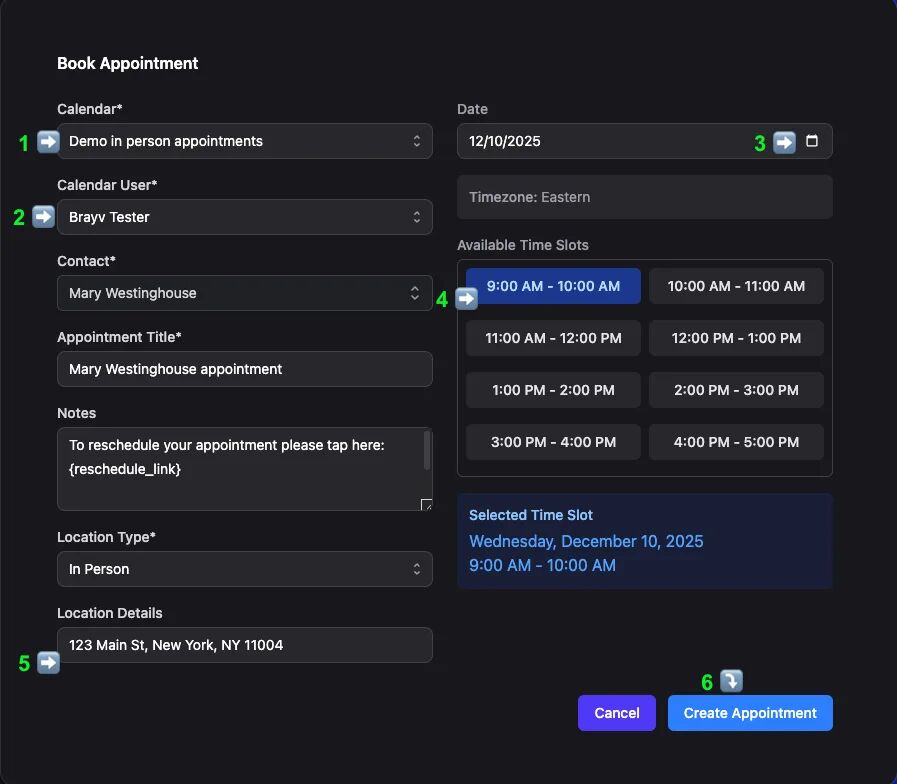
7. The Book Appointment dialog will open.
- If lead is in a Journey click "Let AI Select Calendar" (recommended) or manually select correct calendar.
- Optionally select the user, or let the calendar select automatically
- Click the calendar icon in the date field to pull up a date selector and choose the date
- Click on the appropriate time slot
- Ensure location details are relevant
- IMPORTANT: If connected to housecall pro or servicetitan, the contact must have at least street address, city, and zip code to proceed
- Optionally edit Appointment Title, and Notes then click Create Appointment
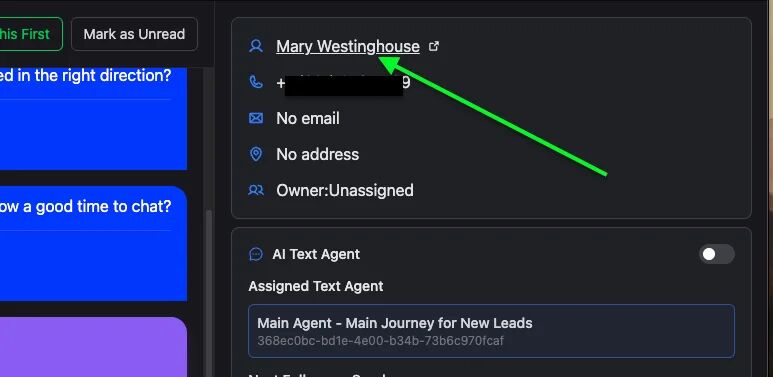
8. If you need to fill in details for the contact before booking an appointment (or for any other reason), click the contact name in the contact info panel on the right (on mobile: tap More at the top of the conversation). This opens their full contact record where you can edit address, service description, email, notes, etc.
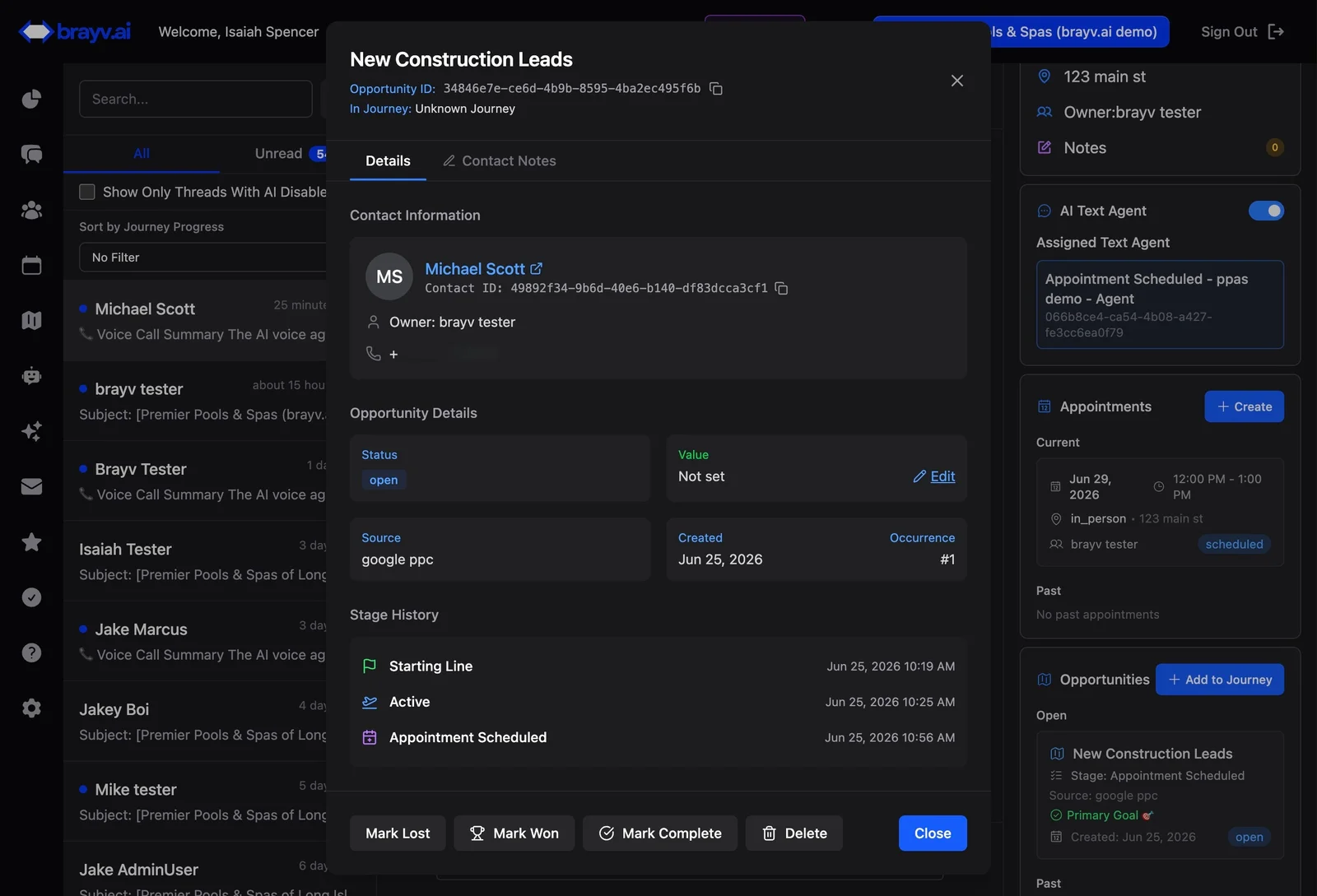
9. If you chat with the contact and reach a conclusion, click on the opportunity to properly handle it. This is crucial for your reporting, and ensuring effective conversations with this contact in the future.
When to mark as "lost": you determine they are not interested/are unqualified/not a fit/outside your territory etc.
When to mark as "complete": for instances where you reached the goal of the journey without booking an appointment. (ie, it was a non appointment journey (lead qualified), it was an appointment journey but you set an appointment outside of brayv which is already passed, or the contact has already taken whatever the next step with you is). What this status really signifies is the journey, as configured, is over with a postitive conclusion.
When to mark an opportunity as "won": You closed the deal with the lead! Be sure to put in a value for that opportunity. This is helpful for reporting, team ranking, and importantly sorting later between leads that took a positive action and leads that actually paid for you product or services.
When to "delete" the opportunity: it was not a real opportunity and you don't want it reflected in your conversion stats.
All 4 status update actions will properly disposition the opportunity, end the follow ups, and properly handle the AI conversation context so that if circumstances change in the future (ie, the lead is ready to buy) and a new opportunity is created, you can have a good lead interaction.
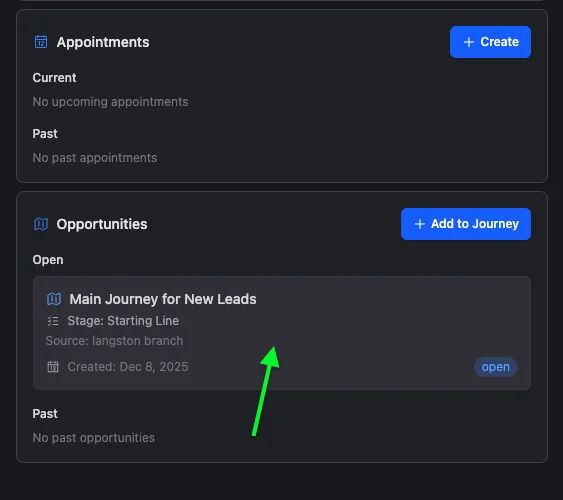
10. After clicking on the opportunity card, a dialog will open allowing you to mark as lost, complete, won, or delete.
all 4 options will ask for confirmation before proceeding.
For lost opportunities, you can select a reason (either from existing reasons, or create a new one)
Opportunities marked as "lost" can be updated in the future to "won"
Opportunities marked as "won" cannot later be changed to "lost"
Opportunities marked as "completed" can later be changed to "lost" or "won"
Deleted opportunities cannot be recovered. You can always add a contact into a Journey again to create a new opportunity at the Starting Line stage, or book an appointment with a contact to create an opportunity at the Appointment Scheduled stage (for appointment Journeys).
Key Tips
AI Always Stays Informed: Any time you send a text message, the AI is in the loop with you! When you flip the AI back on, your agent knows what you said (and who said it), so that it can respond intelligently to the next message from your contact!
Temporary vs Permanent:
- For contacts in journeys (with open opportunities), toggling AI off is temporary - turn it back on when you're ready for AI to resume
- For contacts with only the global agent, toggling AI off is essentially permanent unless you turn it back on or they enter a journey
Proper Disposition Matters: Always mark opportunities as won, lost, or book appointments appropriately. This ensures accurate reporting and proper AI context for future interactions with the contact.
Related Features
- AI Text Agents Overview - Understanding how AI text agents work
- Booking and Editing Appointments - Complete appointment booking guide
- Customer Journeys - Understanding opportunities and journey stages
- Advanced Conversation Management - Troubleshooting and manual intervention tools
Summary
Human-in-the-loop workflow essentials:
- Toggle AI off to manually handle a conversation
- Send your messages - AI sees everything you send
- Take action - Book appointments or disposition opportunities as needed
- Toggle AI back on - Let AI resume when you're done
Remember: The AI is always watching and learning from your interactions, so when you turn it back on, it seamlessly continues from where you left off!