
How to Manually Add a Contact to a Journey
Quick Reference Keywords: How to start AI follow-up to a lead manually · How to manually create an opportunity · Adding contacts to journeys · Manual enrollment
Overview
While many contacts enter journeys automatically through lead sources (forms, chat widgets, webhooks), you can also manually add any contact to a journey. This creates an opportunity and begins the AI-powered follow-up sequence immediately.
1. To find a contact, click on the contacts icon in the main left hand menu
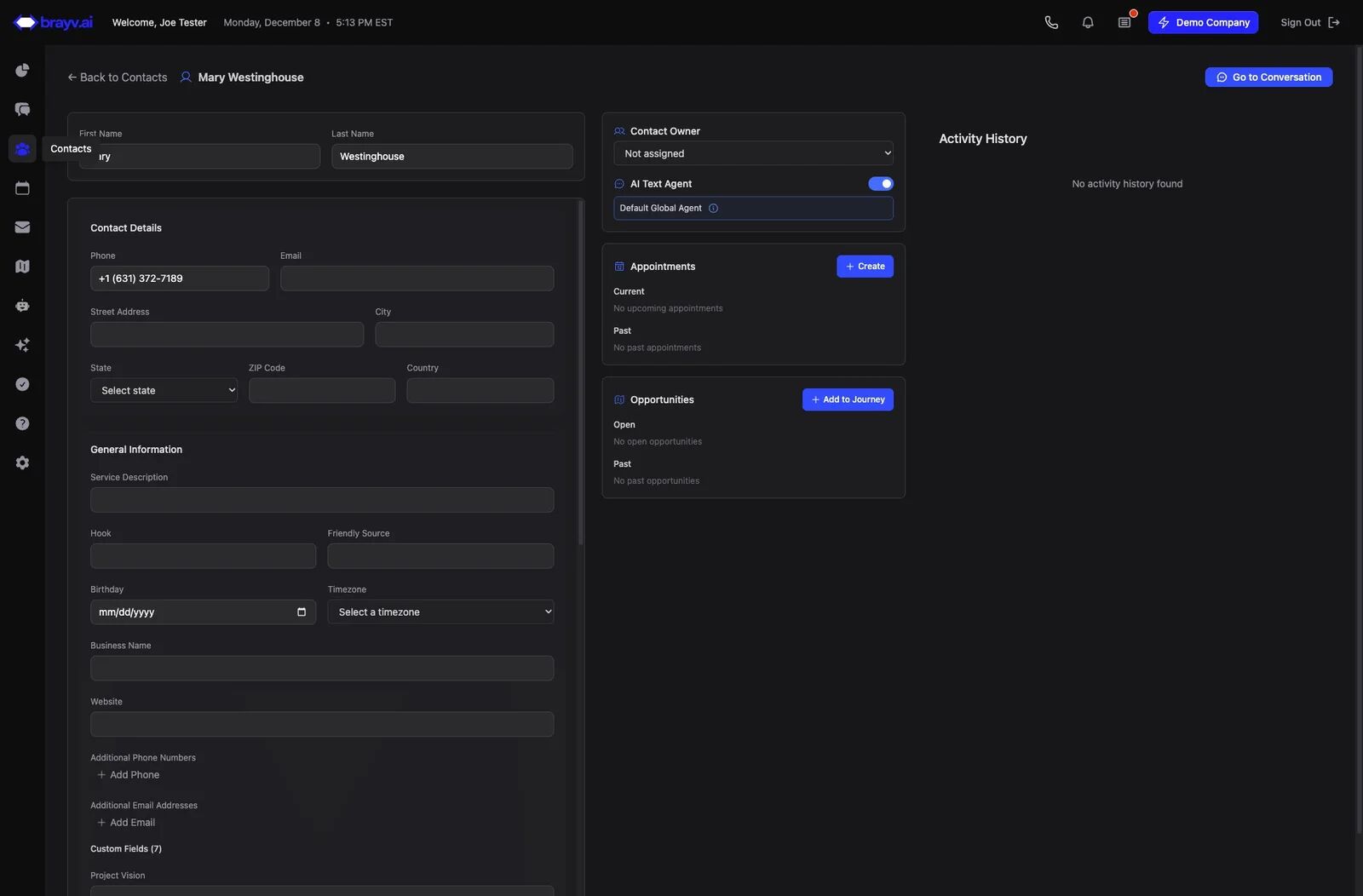
2. Click the "Search contacts..." field and search by first, last name, email, or phone number
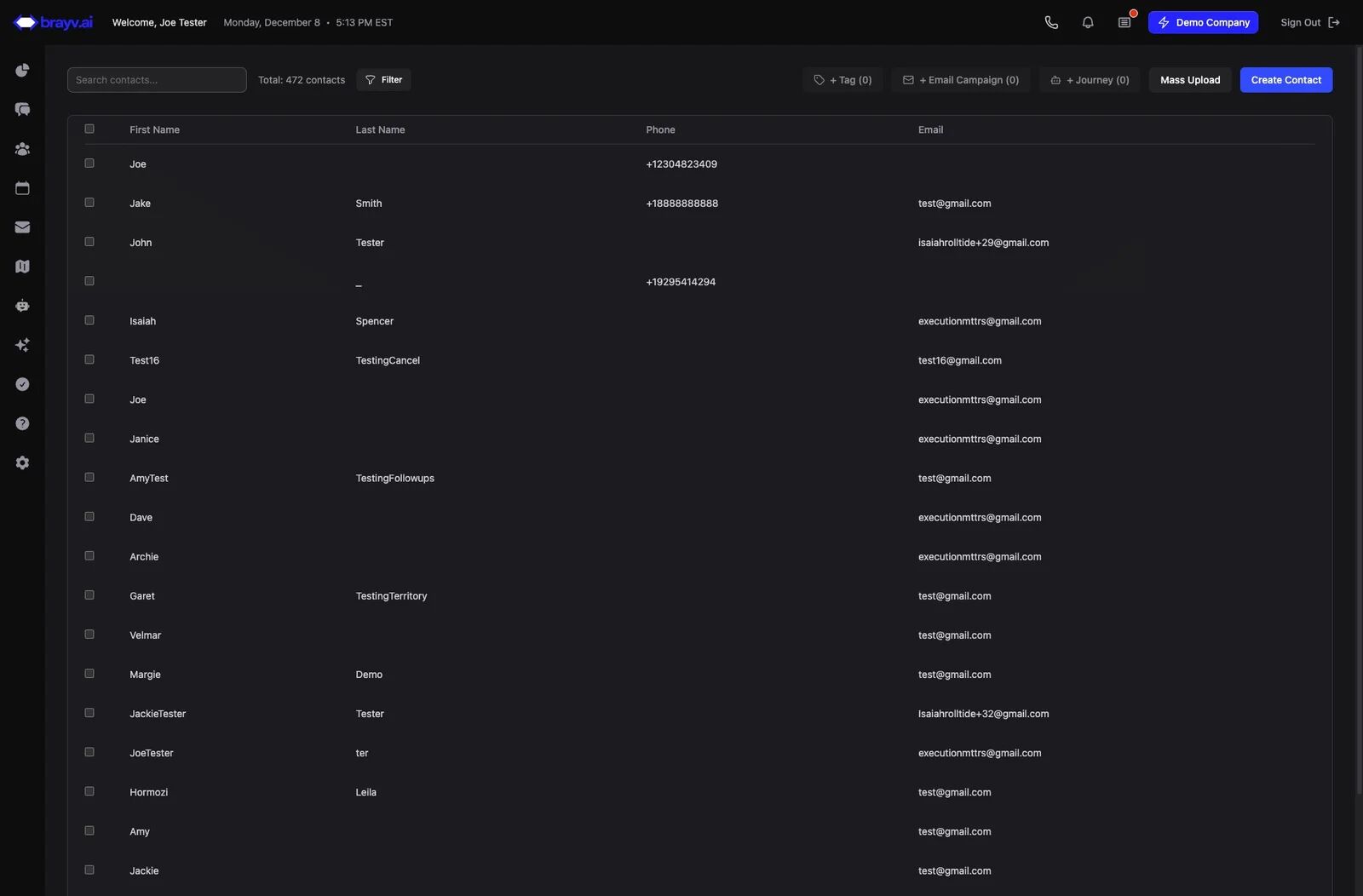
3. Click on the appropriate contact
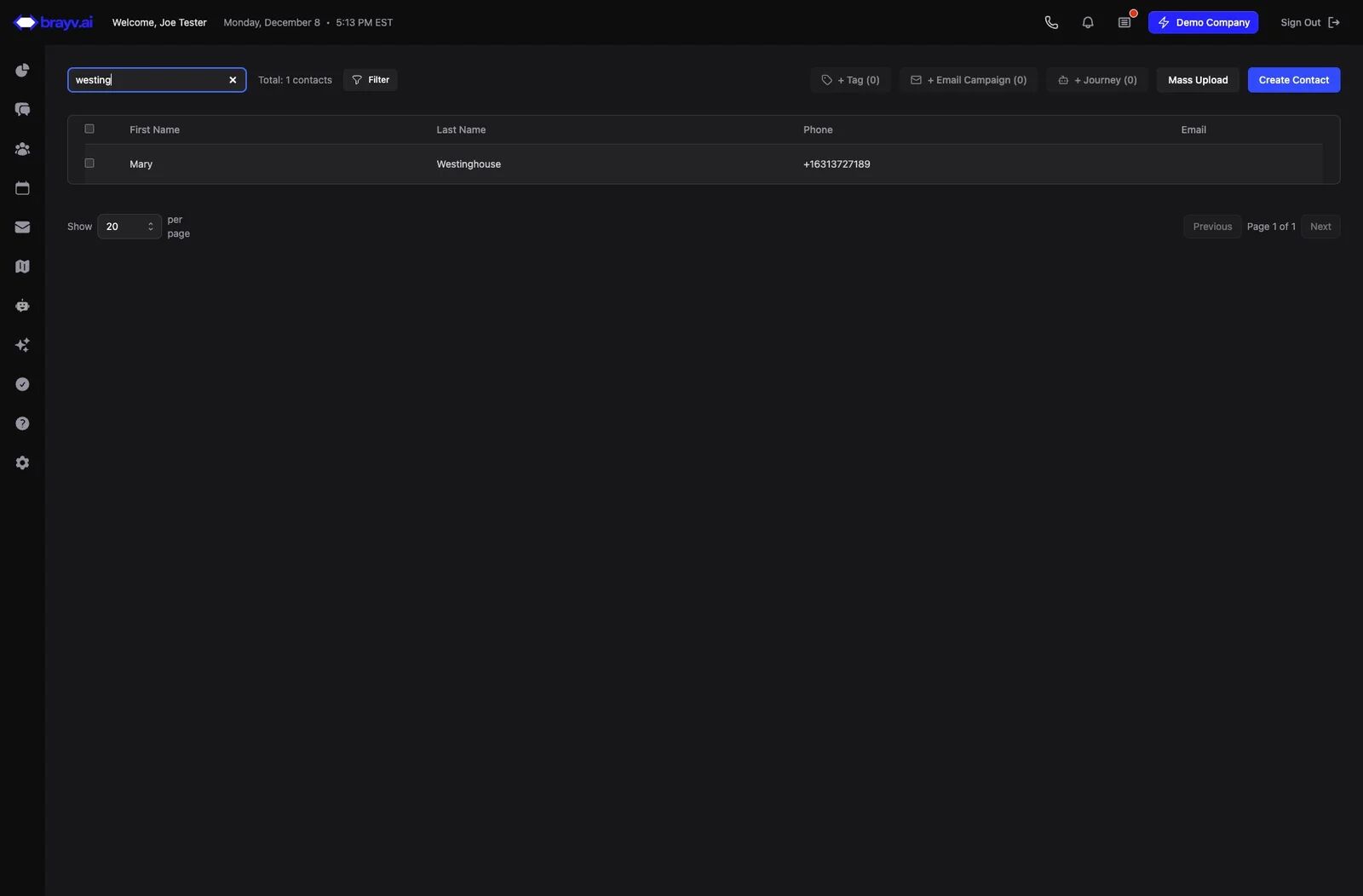
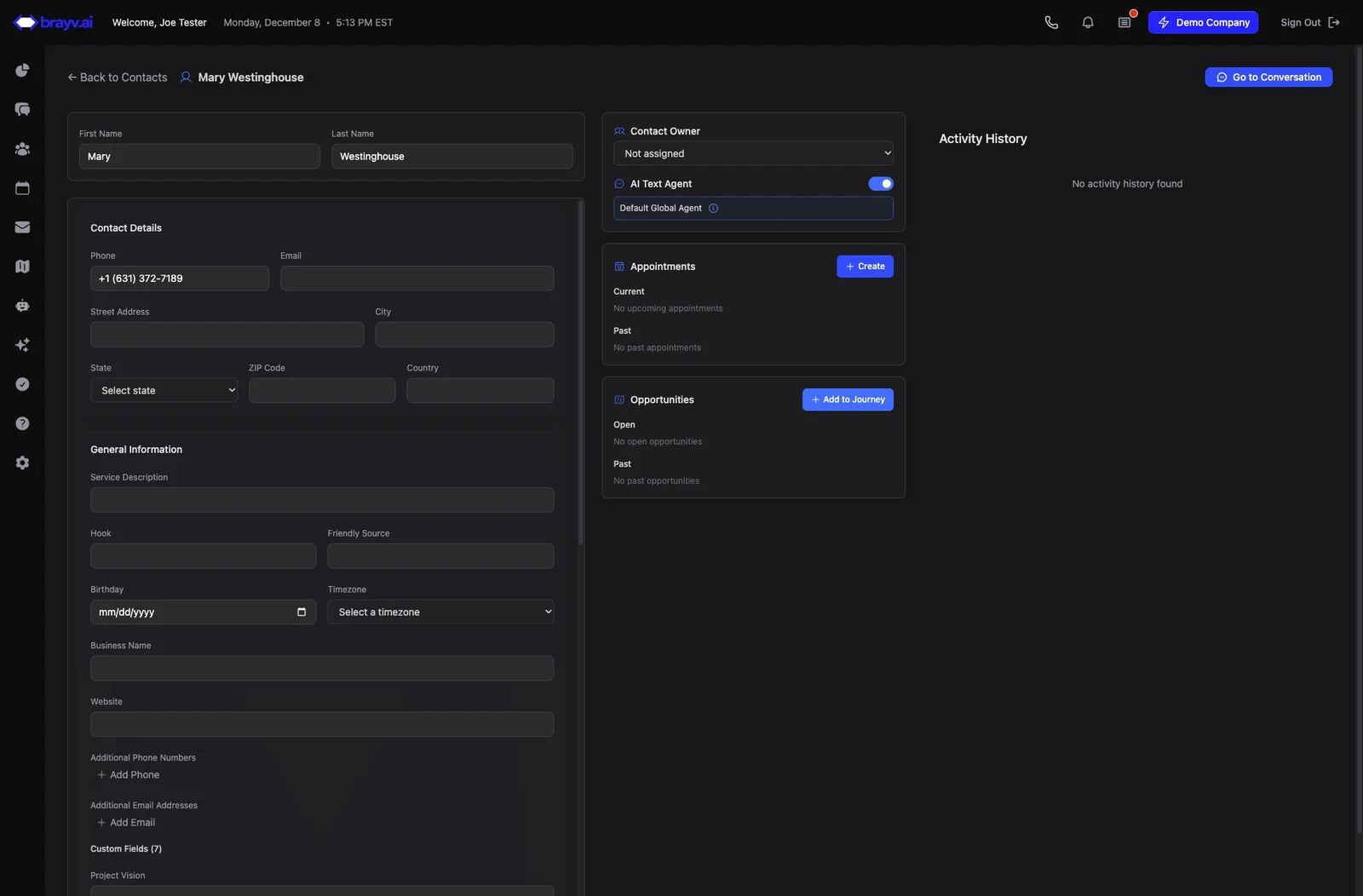
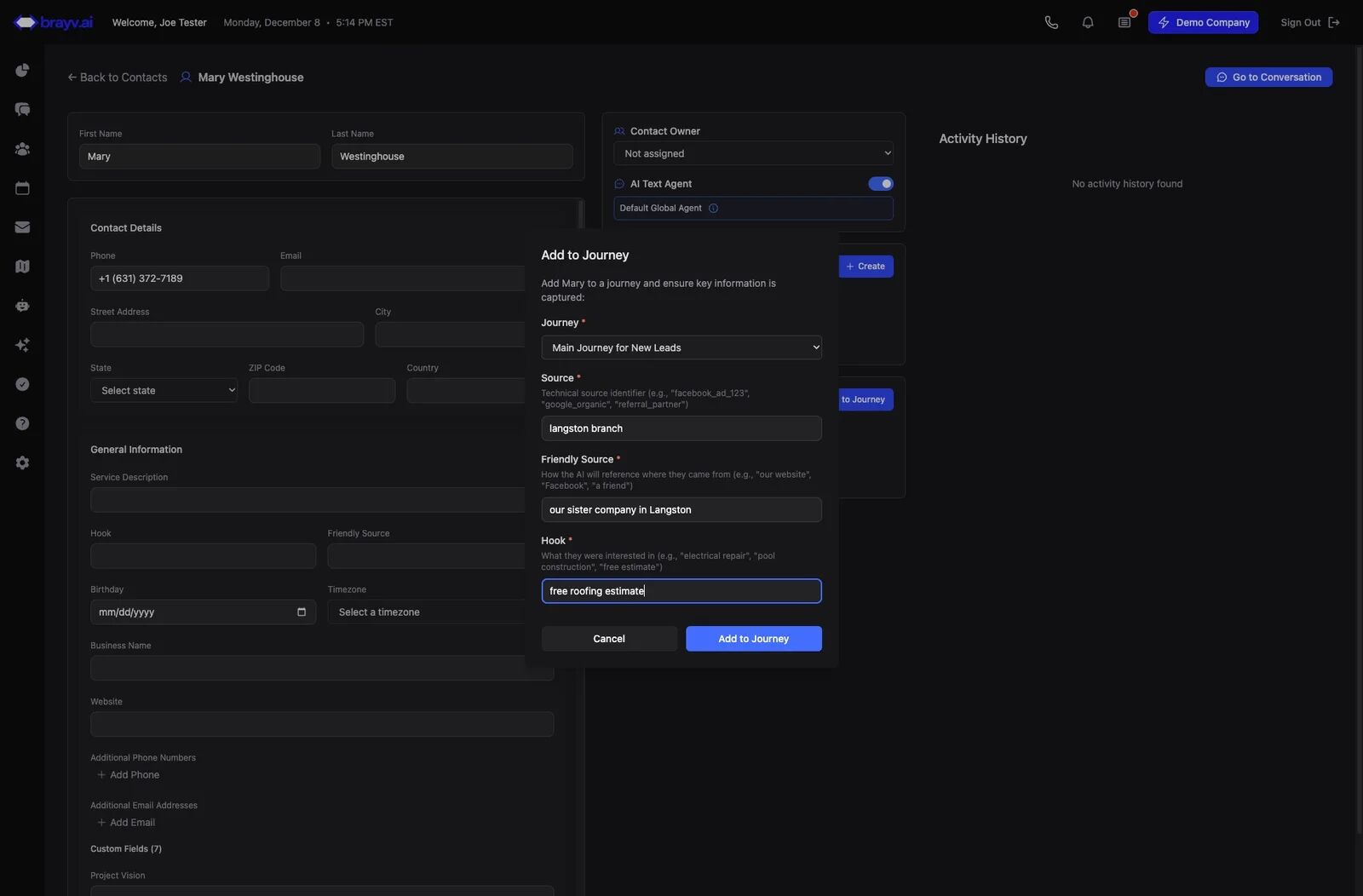
4. Click "Add to Journey" (Button is in the Opportunities card in the center column of the contact page - also accessible on the right side of a conversation)
5. Select the Journey you wish to add the contact to from the dropdown. Journeys should be set up with the idea of what the contact needs and what goal the AI is attempting to reach. (ie, new lead → to booking initial sales appointment). See help docs on Journeys for help constructing your Journeys
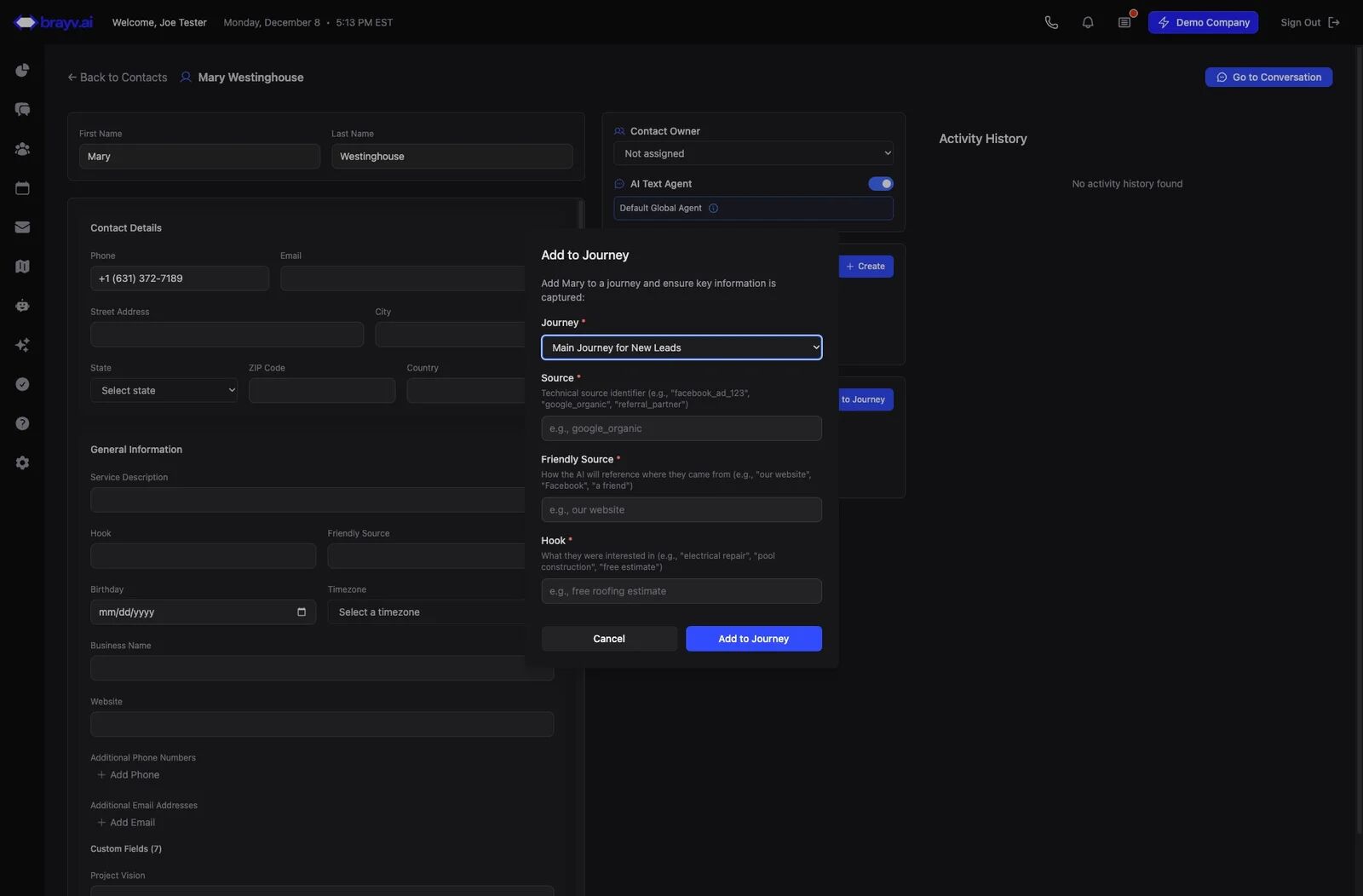
6. Click the "Source" field and enter the source you want recorded on the opportunity and contact. This is the real source used in reporting.
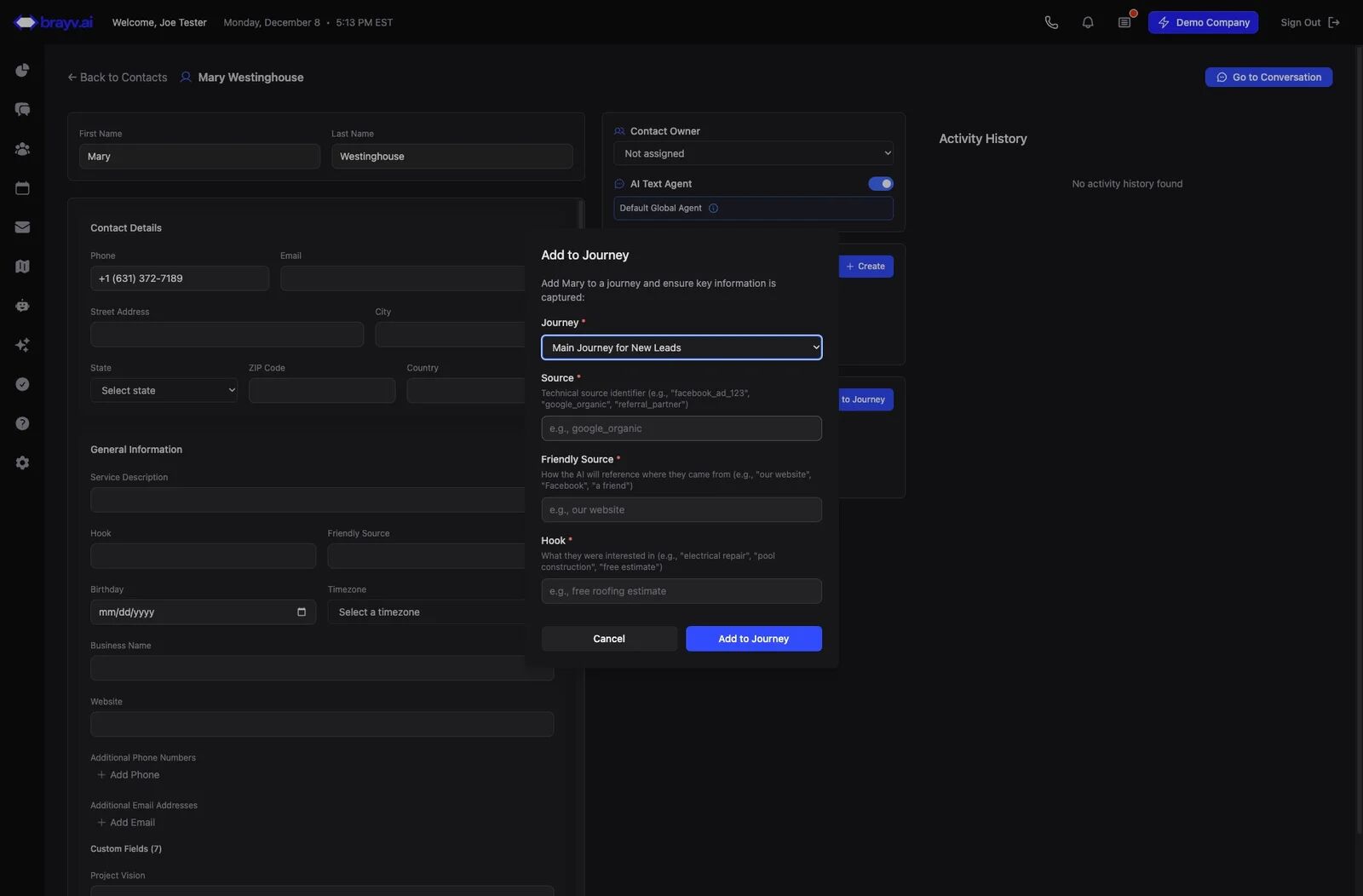
7. Next, enter a value in the "friendly source" field. This is a friendly/conversational way for the AI to refer to where the lead came from. For example, if the technical source is "Summer Sale Ad Campaign - Shelby County 2025", the friendly source might be "our website" or "our ad".
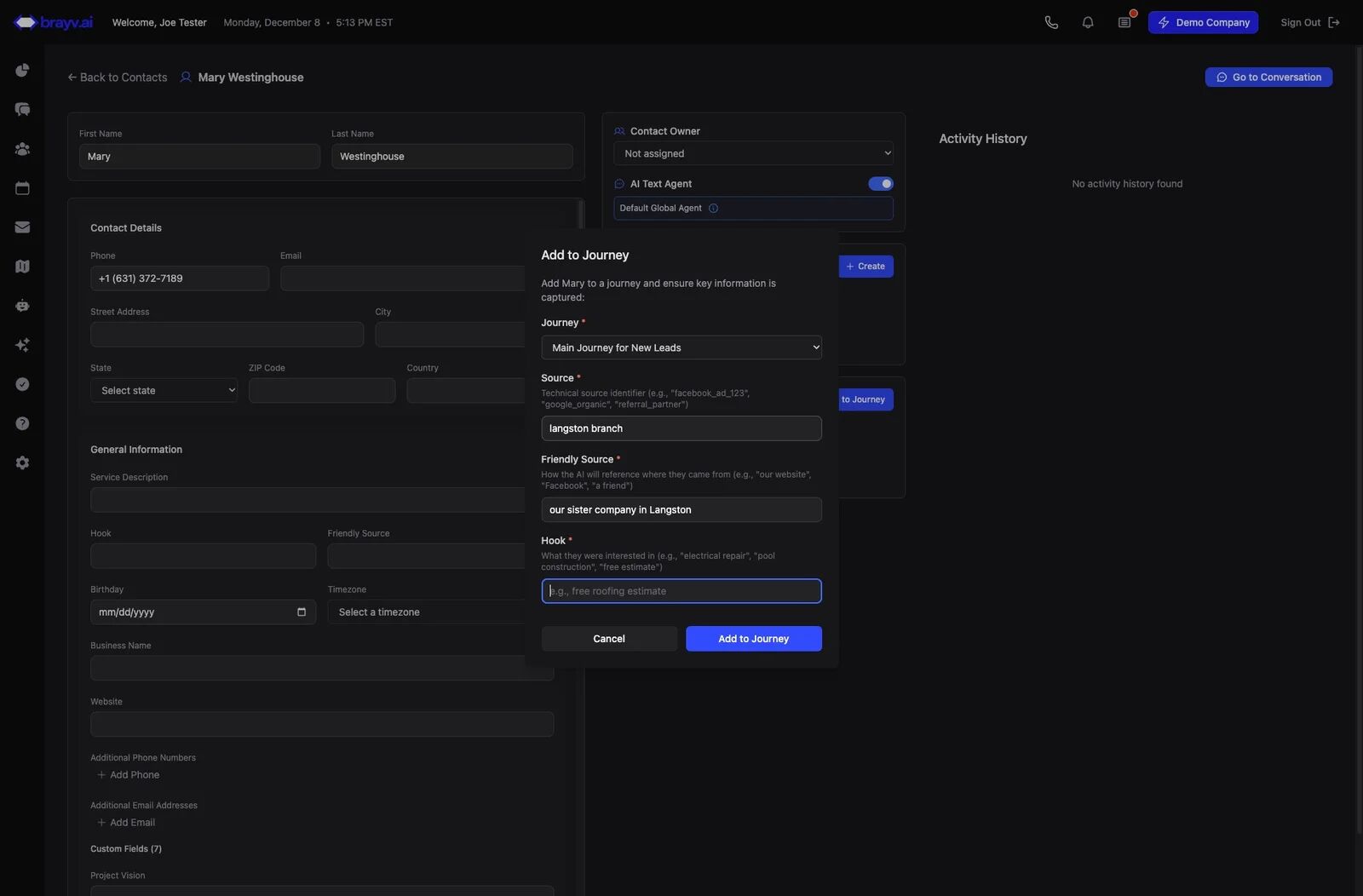
8. Enter the "Hook". This is the general interest that hooked the lead. i.e. "installation estimate" "new deck build" "tooth cleaning" "electrical services" etc. (AI will often use this value in conversations and follow up messages. Keep it short and generalized).
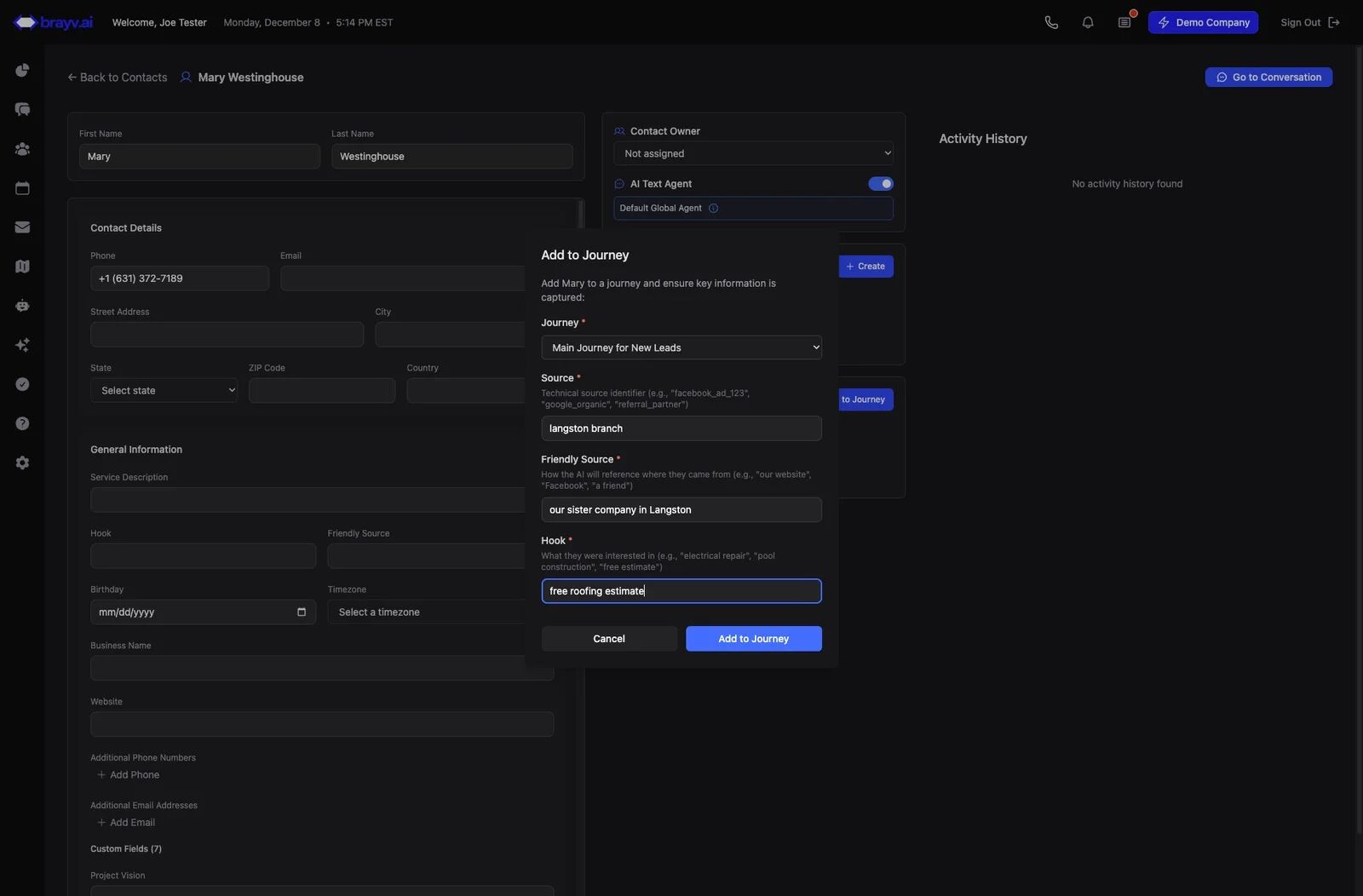
9. Optionally check "Skip initial message"
When checked, the contact still enters the journey at the Starting Line and gets the stage agent, but the stage’s initial outreach message is not sent. Use this when you already texted them manually or do not want the first automated SMS. (The next scheduled follow-up will still send at the appropriate time)
10. Click "Add to Journey"
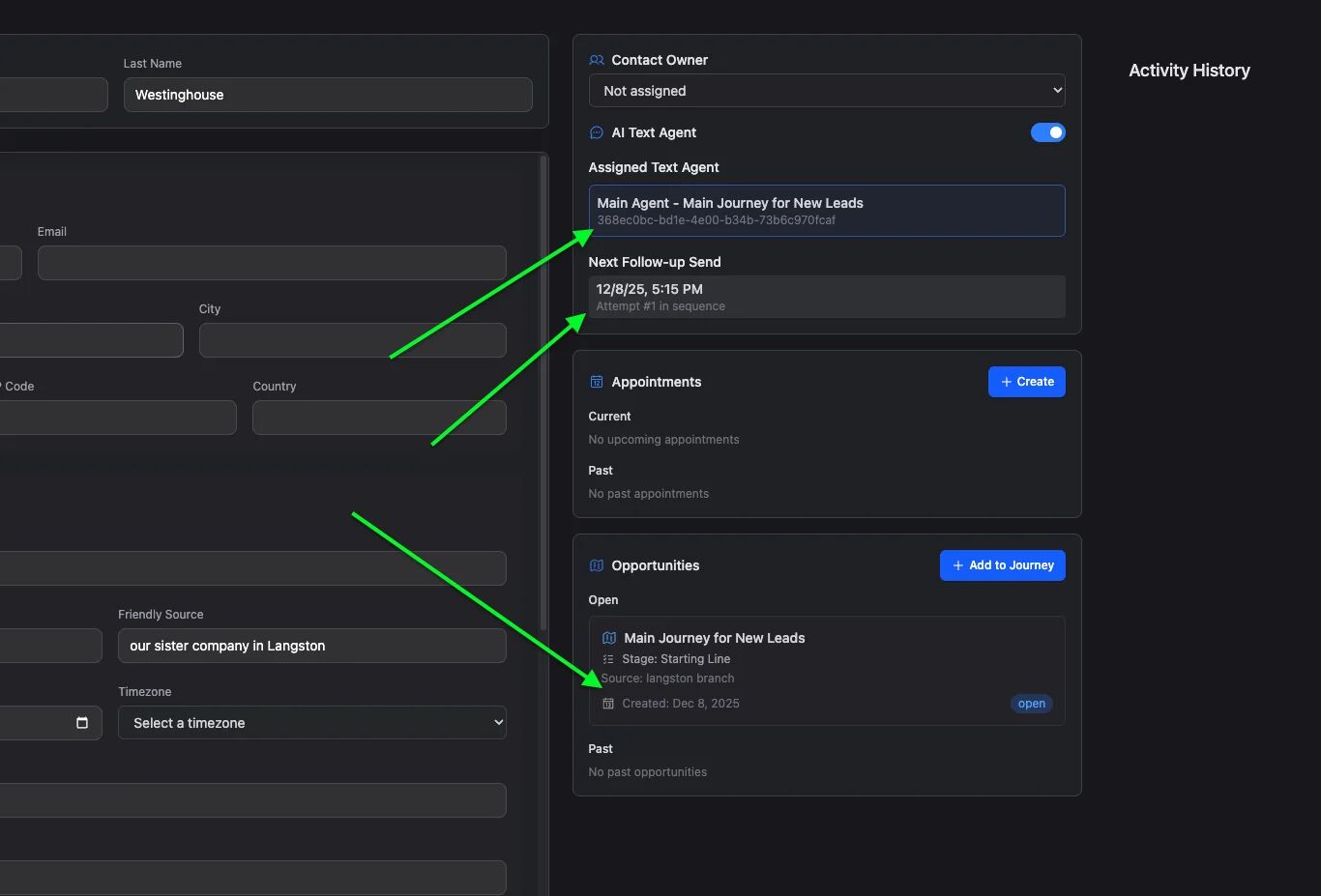
This will create the opportunity in the Journey and enter them at the "Starting Line". If your contact has a viable phone number and your Journey is configured properly, outreach will begin (unless you skipped the initial message).
11. You can refresh the page to see the Agent assigned, the next scheduled follow up, and the opportunity created. This can also be viewed in the conversations page, and opportunities can also be viewed on the Journeys page → Opportunity Board
Understanding Journey Fields
Journey Selection: Choose a journey that matches the contact's needs and your goal (e.g., "New Lead → Initial Appointment", "Consultation Request", "Product Interest").
Source (Required): The technical source used in reporting. Be specific for analytics.
- Examples: "Summer Sale Ad - Shelby County 2025", "Referral - John Smith", "Trade Show - Nashville Oct 2025"
Friendly Source (Required): How the AI will conversationally refer to the source.
- Examples: "our website", "our ad", "a referral", "the trade show"
- Keep it natural and casual for AI conversations
Hook (Required): The general interest that caught the lead's attention.
- Examples: "installation estimate", "new deck build", "tooth cleaning", "electrical services"
- Keep it short and generalized - AI uses this in conversations and follow-ups
What Happens Next
After adding a contact to a journey:
- Opportunity Created - Contact enters at "Starting Line" stage
- AI Agent Assigned - Journey-specific AI agent takes over
- Initial Outreach - First message sent (if journey configured and contact has valid phone)
- Follow-Up Scheduled - Next follow-up queued based on journey settings
- Tracking Begins - Opportunity appears in Journeys → Opportunities Board
Related Features
- Customer Journeys Overview - Complete guide to journey setup and configuration
- AI Text Agents - Understanding AI agent behavior in journeys
- Managing Contacts - Contact creation and management
- Human-in-the-Loop - Taking over conversations manually
Summary
Manual journey enrollment is perfect for:
- Converting existing contacts into active leads
- Following up on phone/email inquiries
- Testing journey configuration
- Re-engaging past contacts with new opportunities
Key Reminders:
- Source and friendly source help with both reporting and natural AI conversations
- Hook should be general interest, not specific details
- Contact must have a valid phone number for text outreach
- Opportunity tracking starts immediately at Starting Line stage