
Related Articles
Travel-Aware Scheduling
Quick Reference Keywords: Travel-aware scheduling · Drive time rules · In-person appointment routing · Location-based scheduling · Travel rules · Google Maps drive time
Overview
Travel-Aware Scheduling automatically filters available appointment times based on the real drive time between a contact's location and your team's existing appointments. This prevents reps from being booked back-to-back at locations that are too far apart, reducing windshield time and keeping schedules realistic.
Drive times are calculated using Google Maps traffic data.
Requirements
Before travel rules will take effect, the following must be in place:
-
Calendar location type must be "In Person" — Travel rules only apply to in-person calendars. Set this in the General tab of your calendar settings.
-
Contact must have an address — At minimum, the contact needs a street address, city, and zip code saved on their record. Without an address, the system cannot calculate drive times and will skip travel filtering for that contact.
-
Appointments need location data — All in-person appointments automatically have their location geocoded when created, regardless of whether travel rules are enabled. Travel rules compare new bookings against these stored locations.
-
Blocked slots can also be factored in — When a blocked slot has a service address (manual blocked slots from Brayv, HouseCall Pro jobs, and Google or Outlook calendar events with a recognizable address), travel rules will factor that location in too. All-day blocks are excluded — they're treated as out-of-office markers, not physical commitments.
To Configure
Step 1: Go to Appointments & Calendars, click the Calendar Settings tab, then click on the calendar you want to configure.
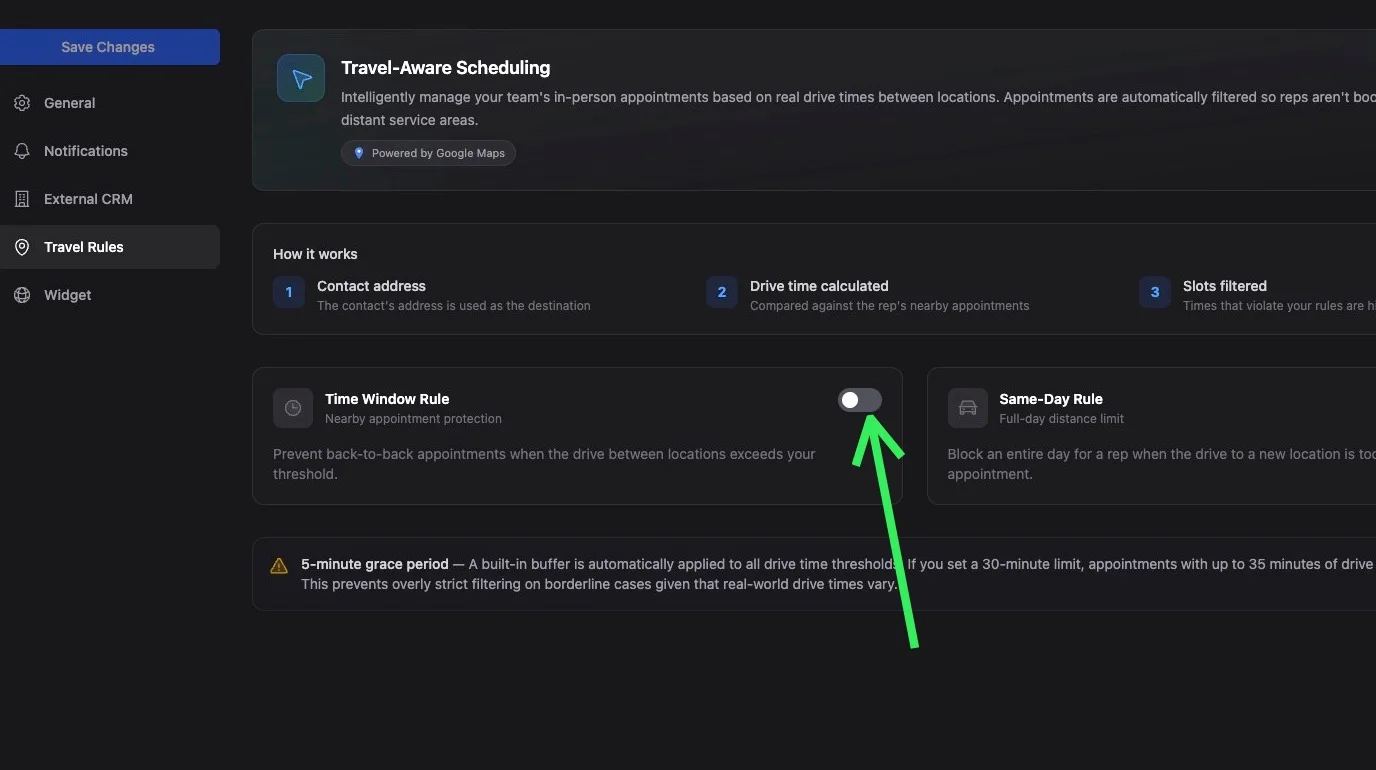
Step 2: Click the Travel Rules tab in the sidebar.
Step 3: Flip the toggle switch for the rule you want to enable.
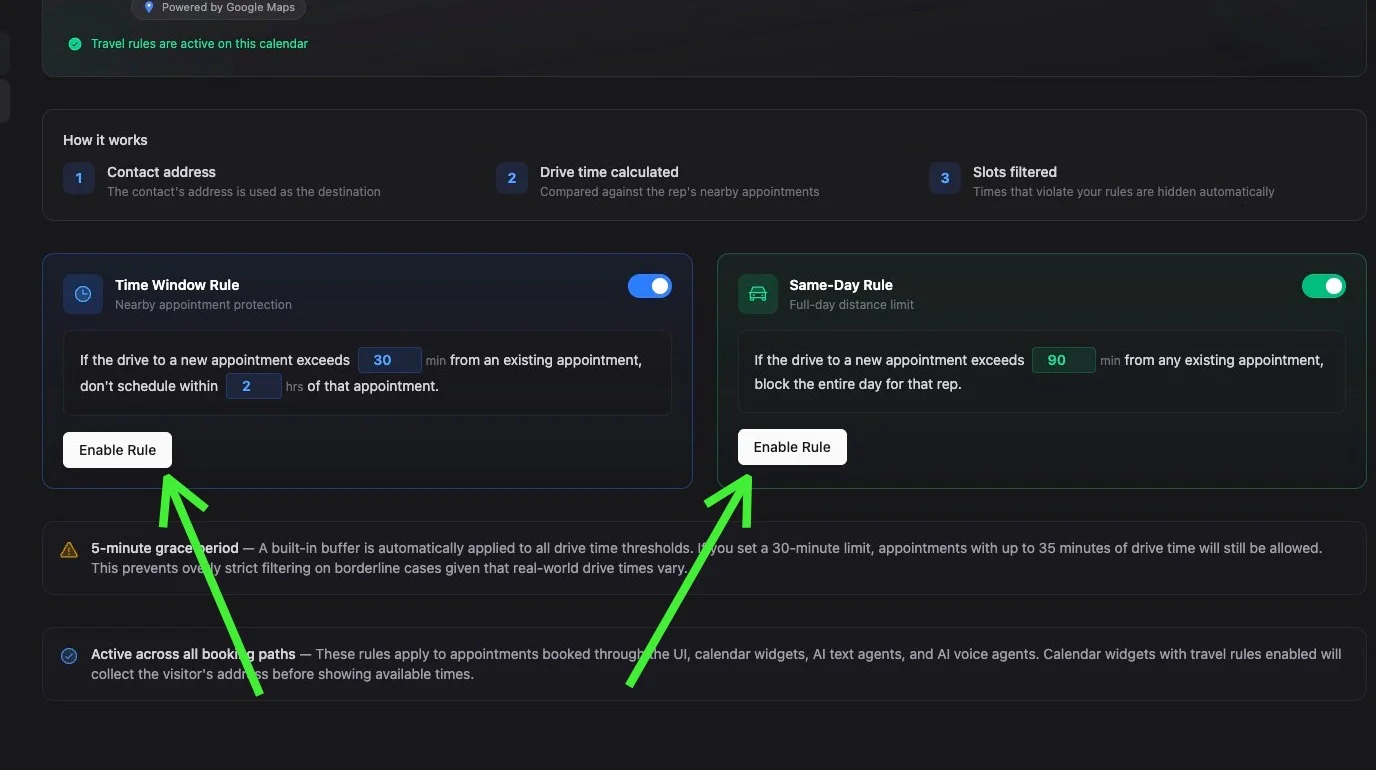
Step 4: Configure the rule with your desired drive time threshold and time window settings.
Step 5: Click the Enable Rule button to save.
Rule Types
You can configure two types of travel rules on each calendar. Both can be active at the same time.
Time Window Rule (Proximity)
Prevents scheduling a new appointment within a time window of an existing appointment when the drive between the two locations exceeds your threshold.
Example: If you set the max drive time to 30 minutes and the time window to 3 hours, a rep who has a 9:00 AM appointment 45 minutes away from a new contact won't have any available slots between 6:00 AM and 12:00 PM for that contact.
Same-Day Rule
Blocks an entire day for a rep when the drive to a new contact's location exceeds your threshold from any of that rep's existing appointments on that day.
Example: If you set the max drive time to 90 minutes and a rep has any appointment that day more than 90 minutes away from the new contact, that rep will show no availability for the entire day.
Grace Period
A built-in 5-minute grace period is automatically applied to all drive time thresholds. If you set a 30-minute rule, appointments with up to 35 minutes of drive time will still be allowed. This prevents overly strict filtering on borderline cases.
How It Works Across Booking Paths
Travel rules are enforced everywhere appointments are booked:
-
UI (Book Appointment dialog) — When a contact is selected, available slots are filtered by travel rules. If a contact doesn't have an address, slots show normally. The "Override Availability" option bypasses travel rules along with all other availability checks.
-
AI Text Agents — When your AI agent looks up availability for a contact, slots are automatically filtered. When the contact picks a time, the booking is validated against travel rules before confirmation. If a slot is no longer valid, the agent is told the slot is unavailable and offers other times.
-
AI Voice Agents — Same behavior as text agents. Slots are filtered during availability lookup and validated at booking time.
-
Calendar Widgets — When travel rules are enabled, the widget automatically switches to a form-first flow: the visitor enters their contact information (including address) before seeing available times. This allows the system to filter slots by drive time. Address fields (street address, city, zip code) are automatically added to the widget form and cannot be removed while travel rules are active.
User Selection Strategies
Travel rules work with both user selection strategies:
-
Maximize Availability — Each rep's slots are individually filtered by travel rules before being merged. A time slot will appear as available as long as at least one rep passes the travel check for that slot.
-
Optimize Distribution — The selected rep's slots are filtered by travel rules. If the chosen rep has travel conflicts, those slots are removed.
-
Preselected User - (bypasses calendar selection strategy - when a team member is booking with a particular user, or an AI agent has user level rules in its booking configuration.) The selected rep's slots are filtered by travel rules. If the chosen rep has travel conflicts, those slots are removed.
What Travel Rules Consider
Travel rules look at the rep's existing in-person commitments around the candidate slot, including:
- Brayv appointments — geocoded automatically on creation.
- Brayv blocked slots — when you provide an optional service address on the blocked slot.
- HouseCall Pro jobs — the customer's service address is pulled from the HouseCall Pro payload automatically.
- Google Calendar and Outlook Calendar events — when the event's
Locationfield contains a recognizable street address. Vague locations (Zoom links, room names, phone numbers, business names without a street number) are skipped to avoid false rejections. - All-day events are excluded — they're treated as out-of-office markers, not physical commitments.
ServiceTitan jobs do not yet contribute address information to travel rules.
Tips
-
Start with conservative thresholds — Begin with a 30-minute drive time limit and a 2-3 hour time window. You can always adjust after seeing how it affects your team's schedules.
-
Make sure contacts have addresses — Travel rules only work when the contact has a street address, city, and zip code. If your contacts are coming in through lead forms or AI conversations, make sure address collection is part of your intake flow.
-
Check existing appointments — Travel rules compare against the stored location of existing appointments. All new in-person appointments are automatically geocoded.
Related Features
- Calendars and Appointments - Full guide to calendar setup, availability, and user strategies
- How to Book and Edit Appointments - Step-by-step booking and editing guide
- AI Text Agents - Configure AI agents that book appointments with travel-aware filtering
- AI Voice Agents - Configure voice AI booking with travel-aware filtering
- AI Calendar Selection Booking Mode - Dynamic calendar routing for AI agents
- Customer Journeys - Use calendar triggers for journey stage transitions