
Related Articles
How to Clone an Existing Journey
Quick Reference Keywords: How to clone a journey · Clone customer journey · Create journey for sale/promo/bulk outreach · Clone journey agents · Clone journey calendars · Duplicate journey
Overview
Cloning an existing journey creates a complete copy including all stages, AI agents, calendars, and settings. This is perfect for creating variations of proven journeys for specific campaigns, bulk outreach, seasonal promotions, or lead reactivation efforts without rebuilding from scratch.
What Gets Cloned:
- All journey stages and stage transitions
- AI text agents (including instructions and settings)
- Calendars with identical settings (users, availability, buffers, locations)
- Booking configurations for agents
- Journey structure and automation rules
What Doesn't Get Cloned:
- Follow-up sequences (you'll need to regenerate these)
- Active opportunities (only the journey template is copied)
Step-by-Step Instructions
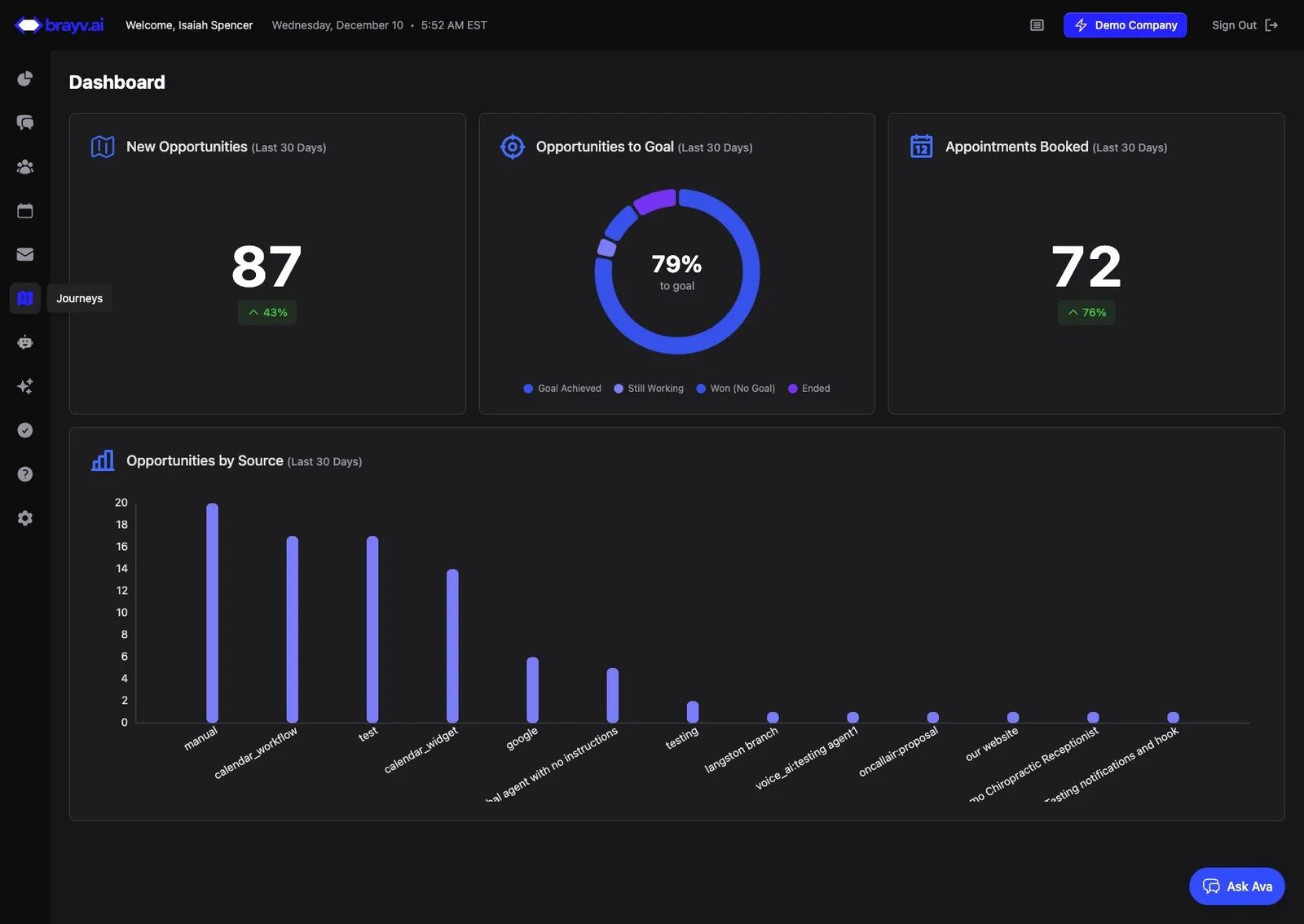
1. Click on the Journeys Icon (looks like a map) in the left hand menu
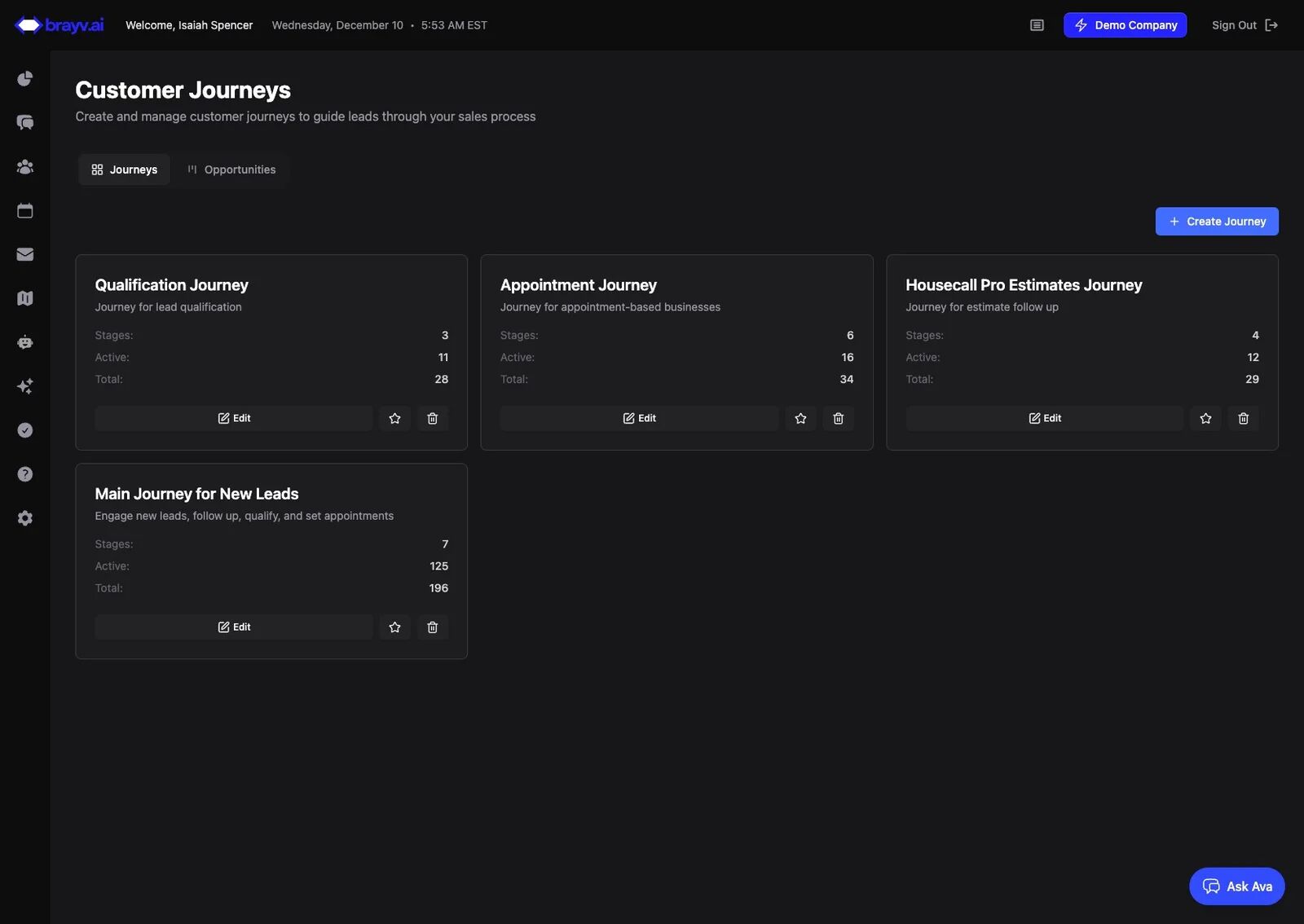
2. Click "Create Journey"
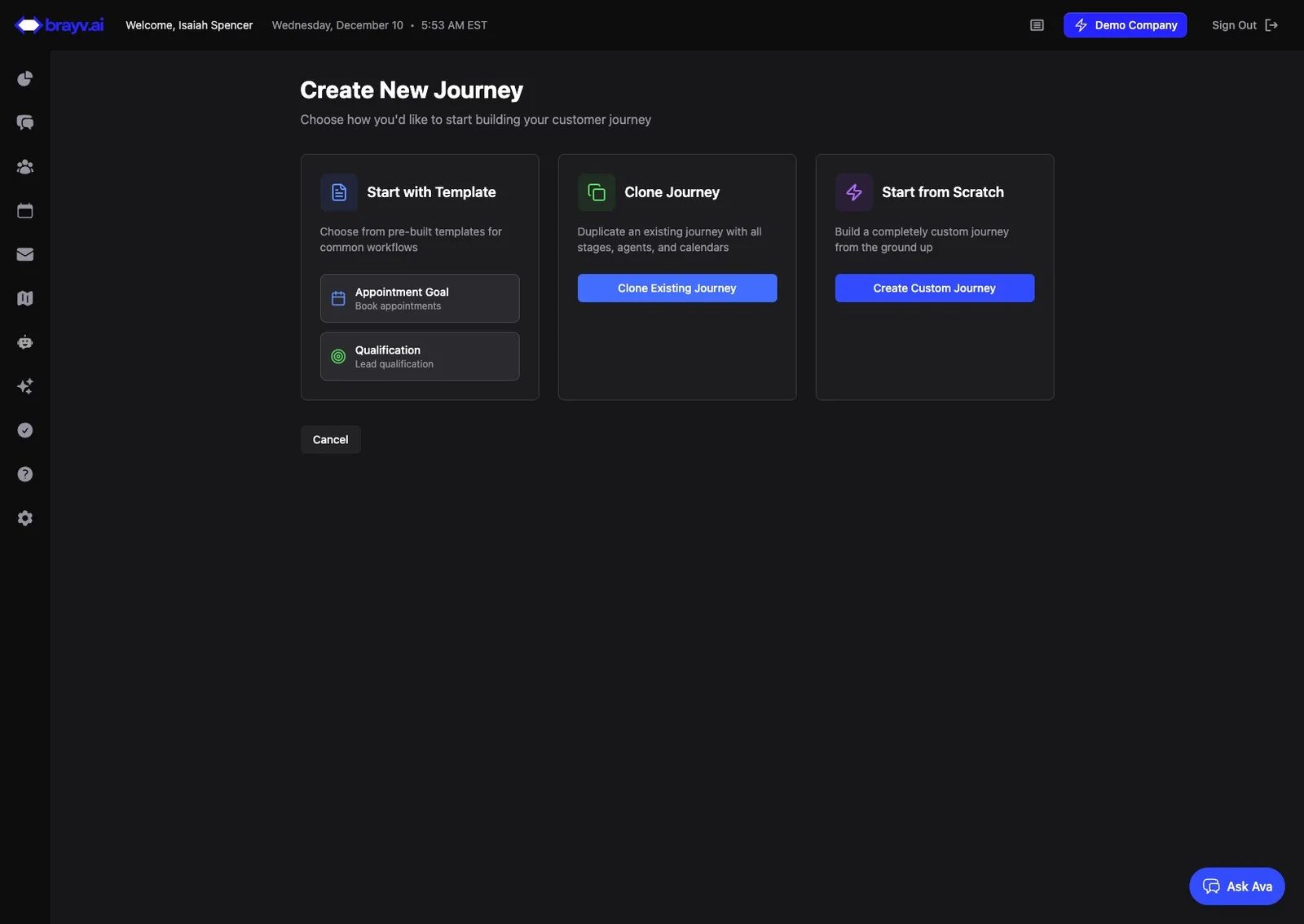
3. Click "Clone Existing Journey"
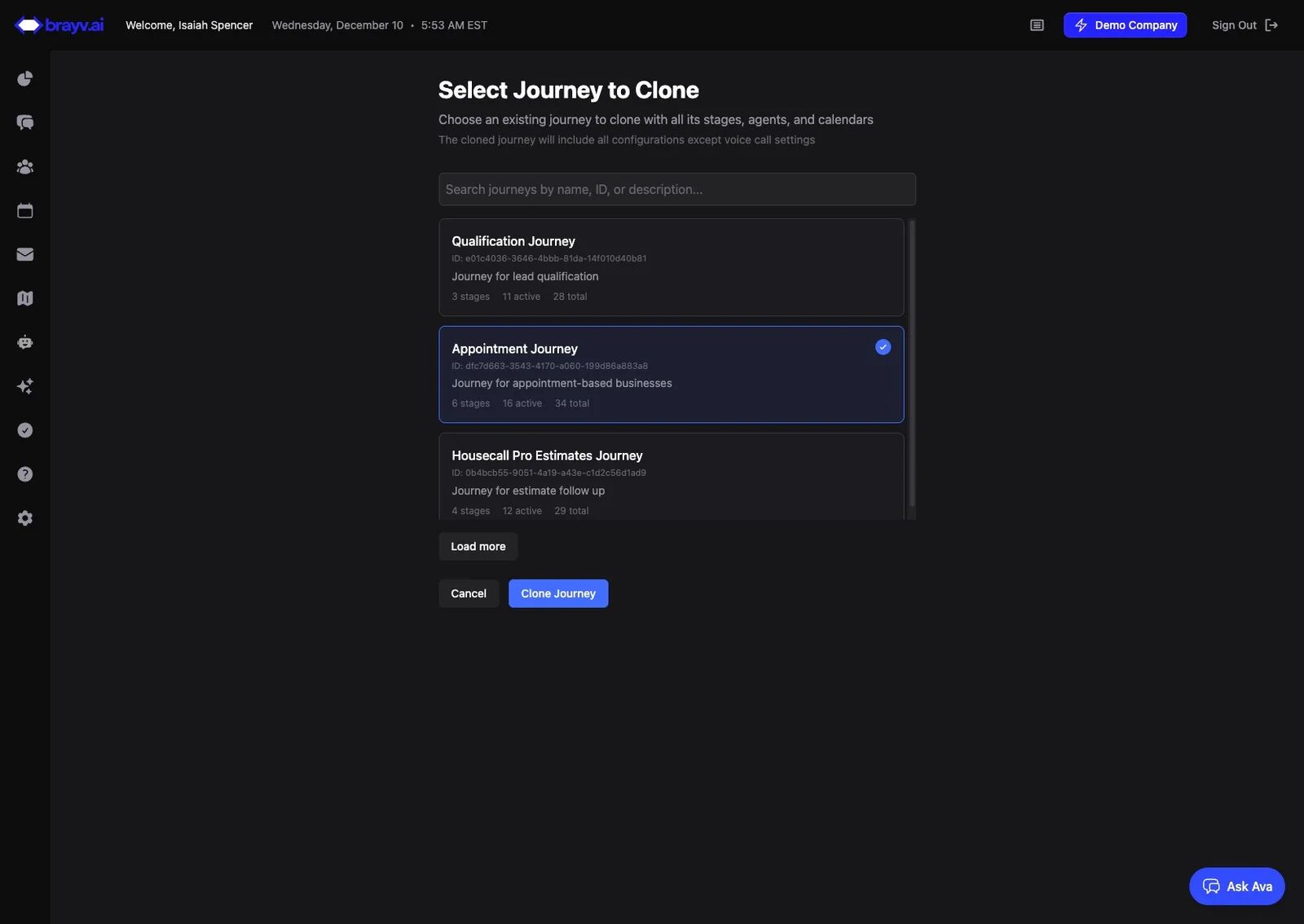
4. Click on the Journey you want to clone
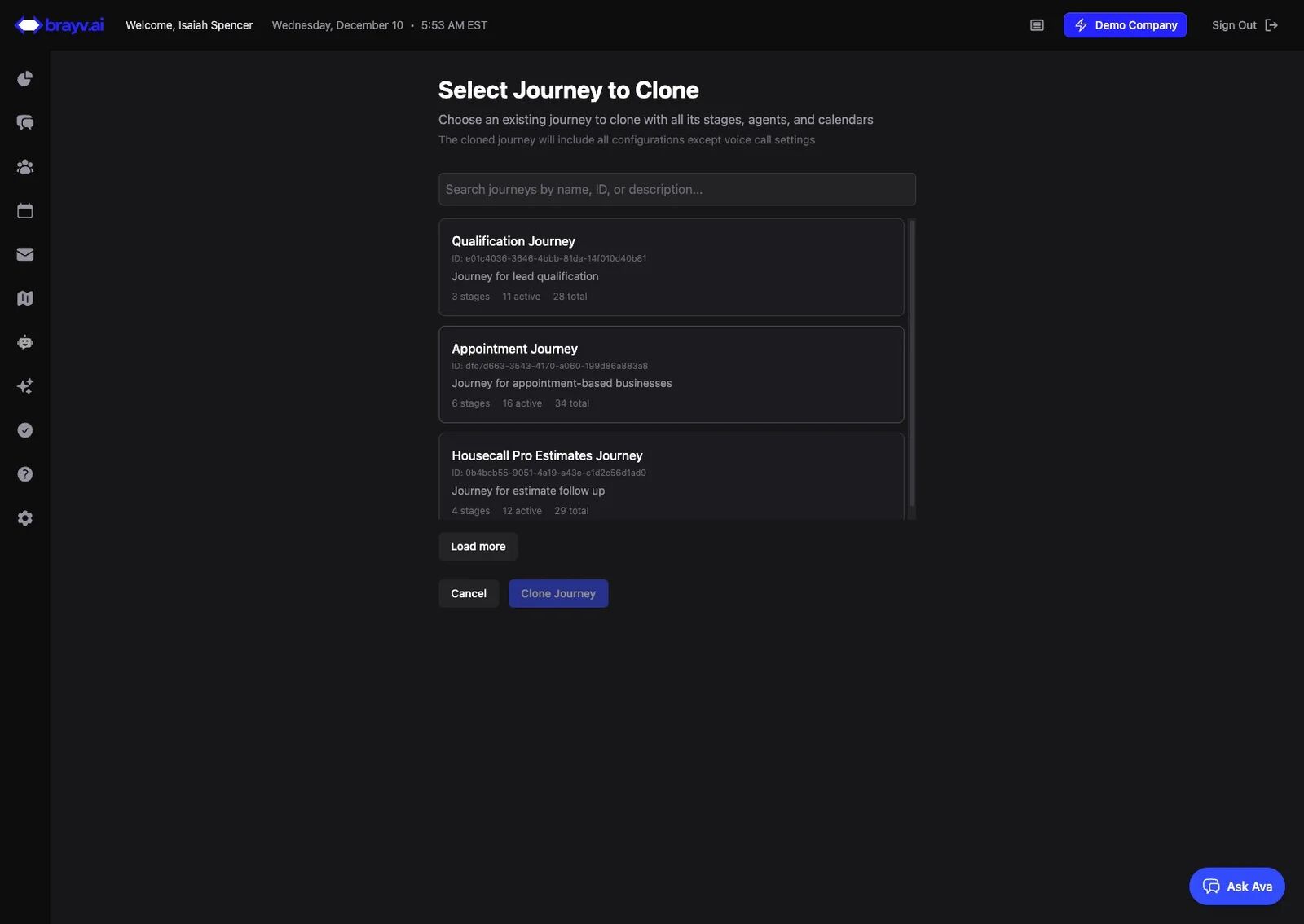
5. Click "Clone Journey"
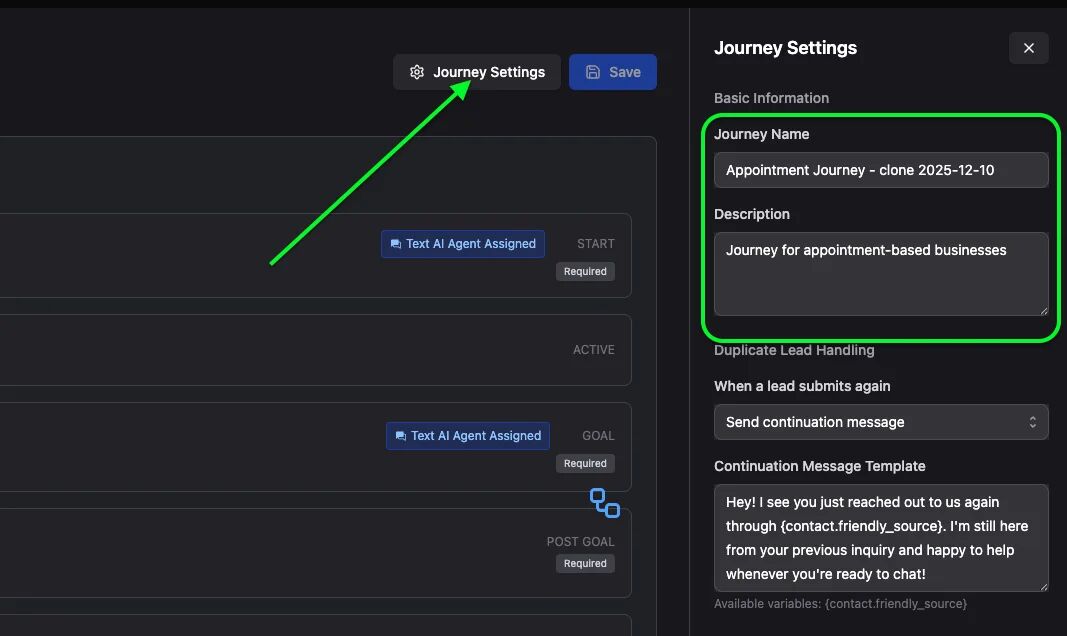
6. Click on Journey Settings to update the Journey Name and description to something that makes sense to you
Example: "Journey for Periodic Sales Outreach"
Tip: You don't need a new journey every time you want to run a sale to old leads! You can easily repurpose an existing journey for running a specific bulk outreach. You should have a bulk outreach journey that is separate from your main journey for new leads, but once you have one, each time you want to run a bulk outreach just update your agent's instructions slightly so it understands the context, and update your follow-up messaging and you're good to go. See Bulk Outreach Final Spot Check.
Reviewing Your Cloned Journey
7. After clone is complete it's important to review the cloned journey
If appointment booking is part of the original journey, cloned journey will include cloned calendars with the same settings as the original calendars (users, availability, buffers, appointment location, etc) so the cloned Journey can properly move opportunities within the correct journey.
Agents configured to book appointments will have the same booking settings, just with the new cloned calendars replacing the calendars from the original journey.
One thing that won't be cloned is follow-ups, but you probably want follow ups for your AI Text agent that takes over at the Starting Line stage.
Click on the Starting Line
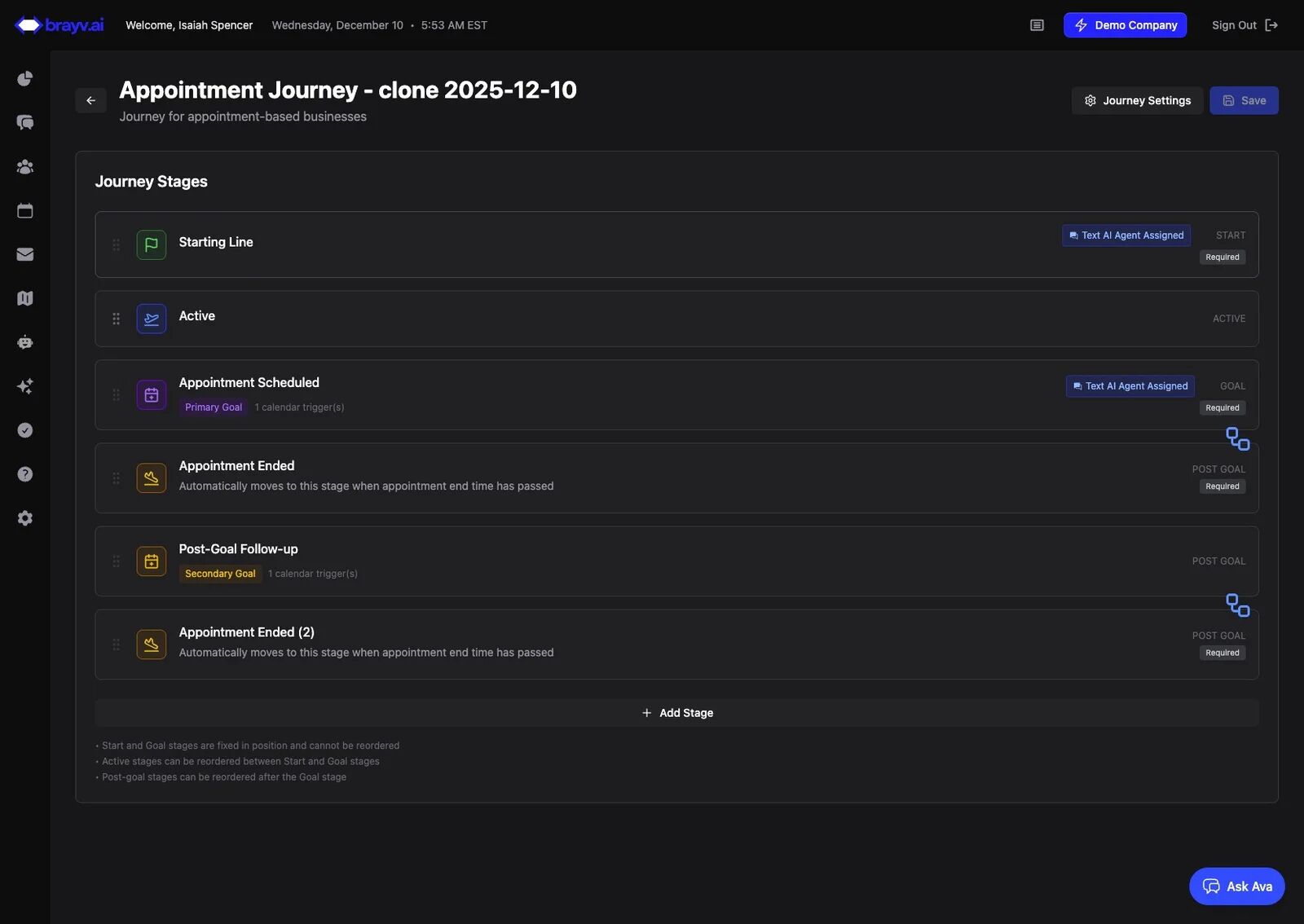
8. Click "Edit" on the AI Text Agent
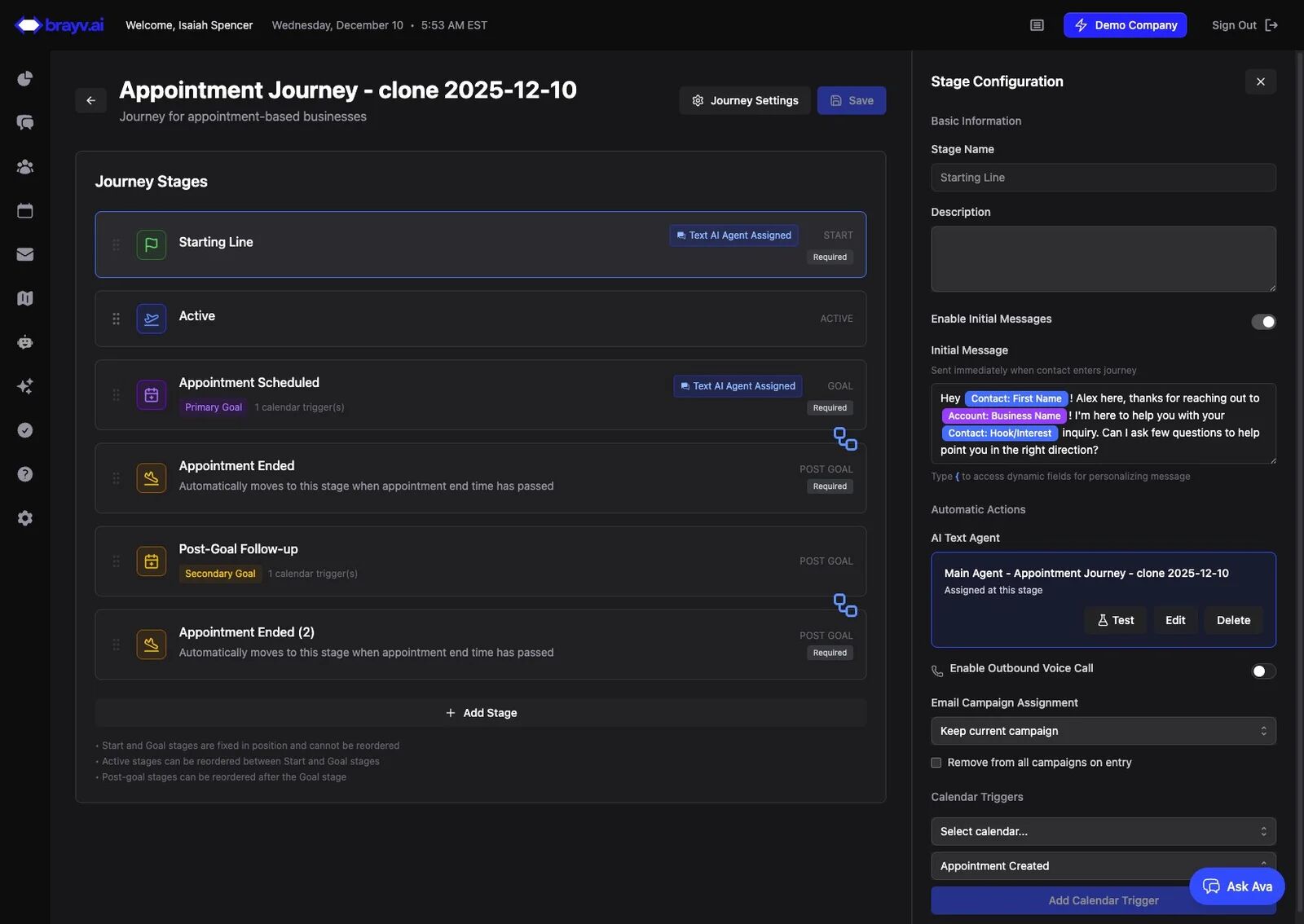
9. Optional: Update the Agent Name
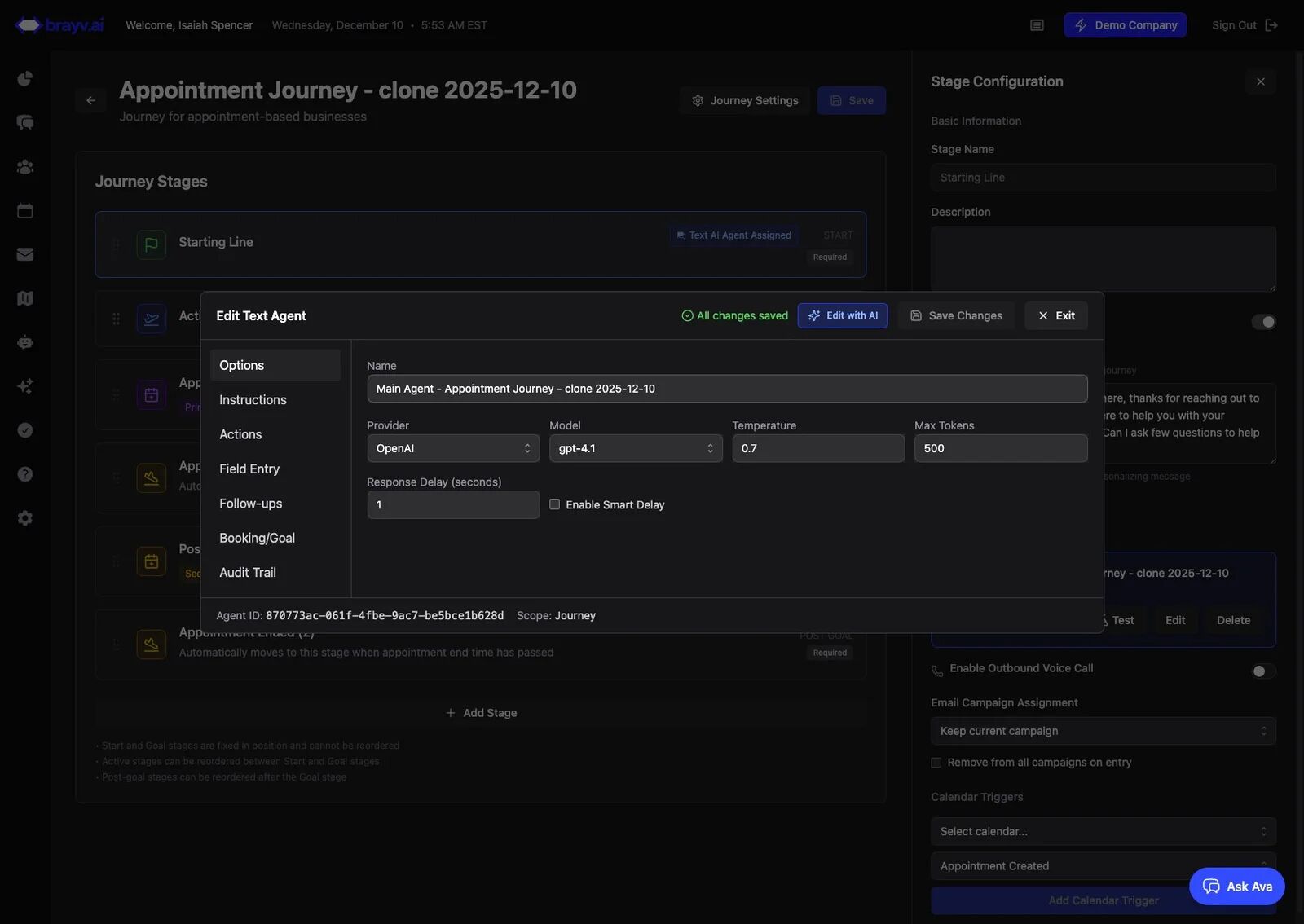
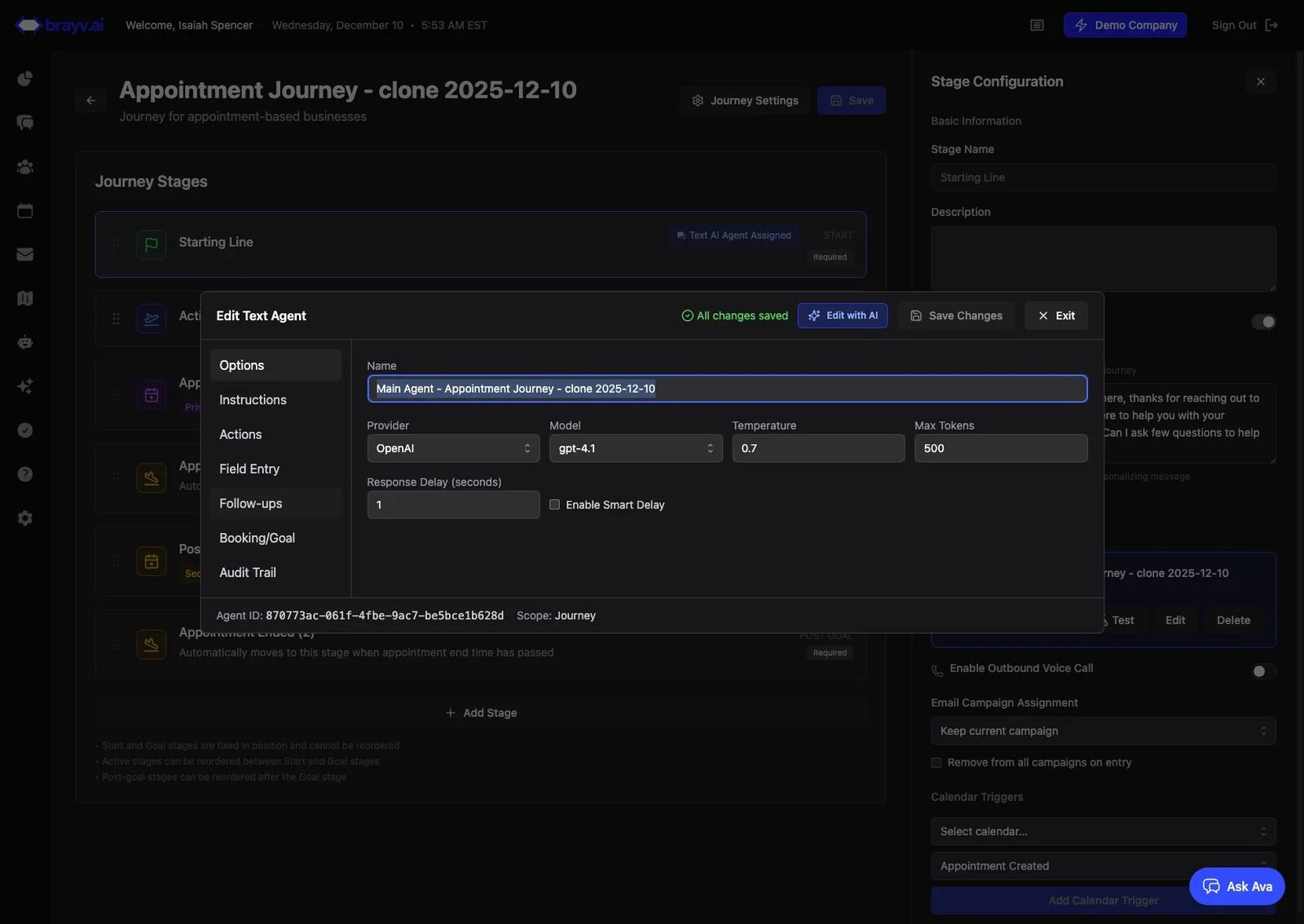
10. Click "Follow-ups"
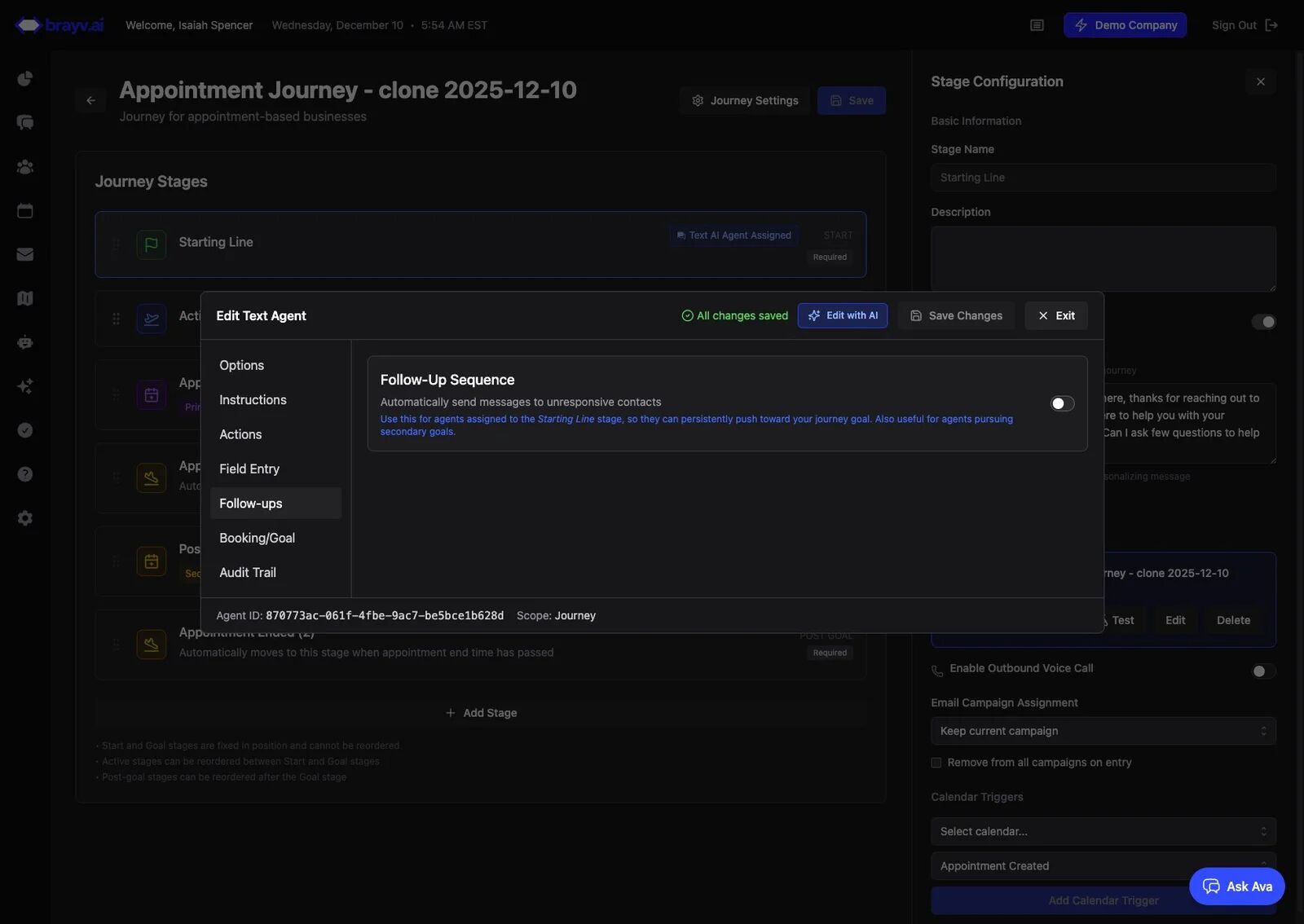
11. Click the switch to turn on follow ups
12. Click "Generate with AI"
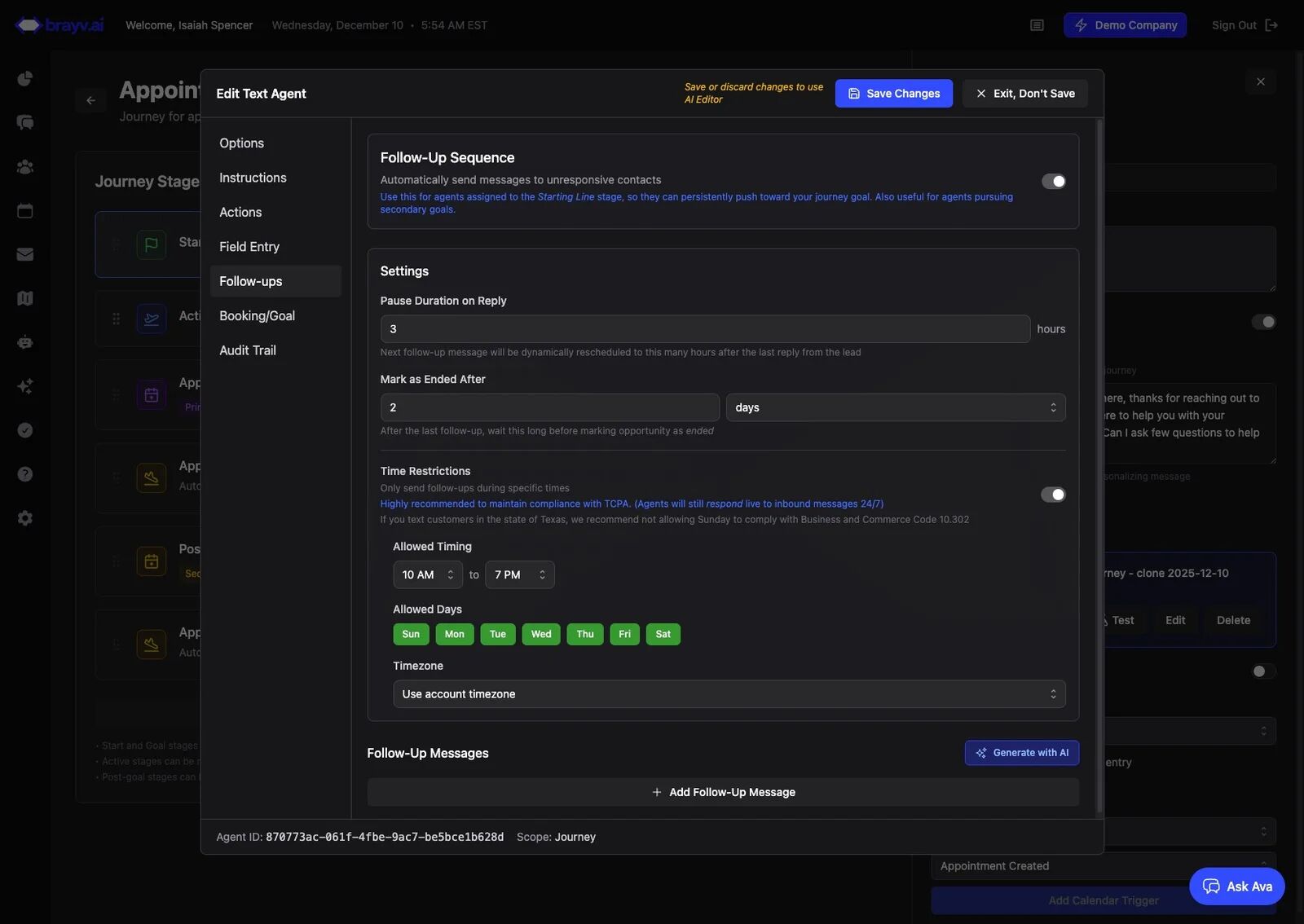
13. Choose "New Lead Follow-up" or "Old leads sale/promotion", add context for the AI, and click "Generate Sequence"
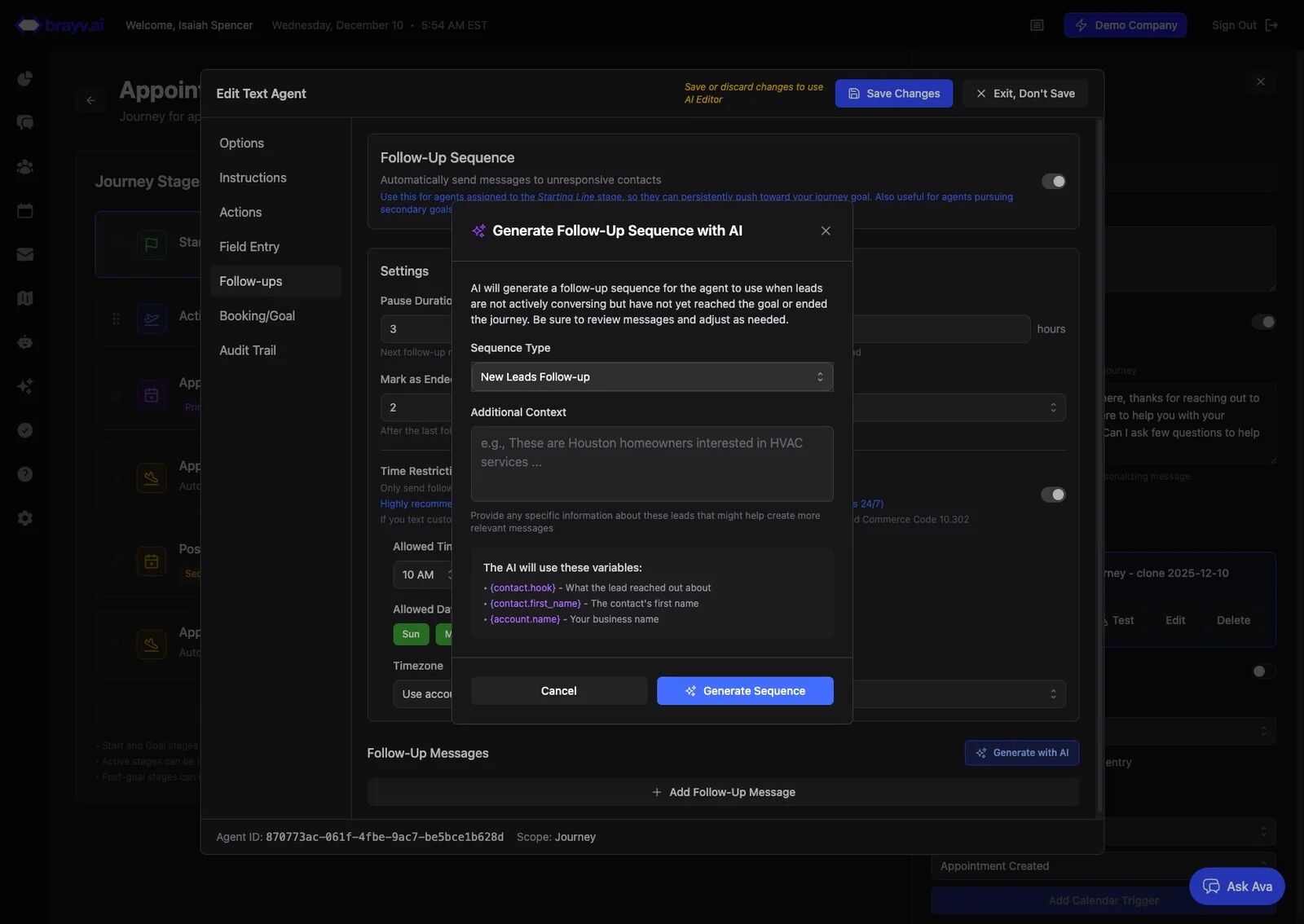
14. Review each of the generated follow up messages and make changes as necessary to the content, timing, and number of messages (delete or add messages)
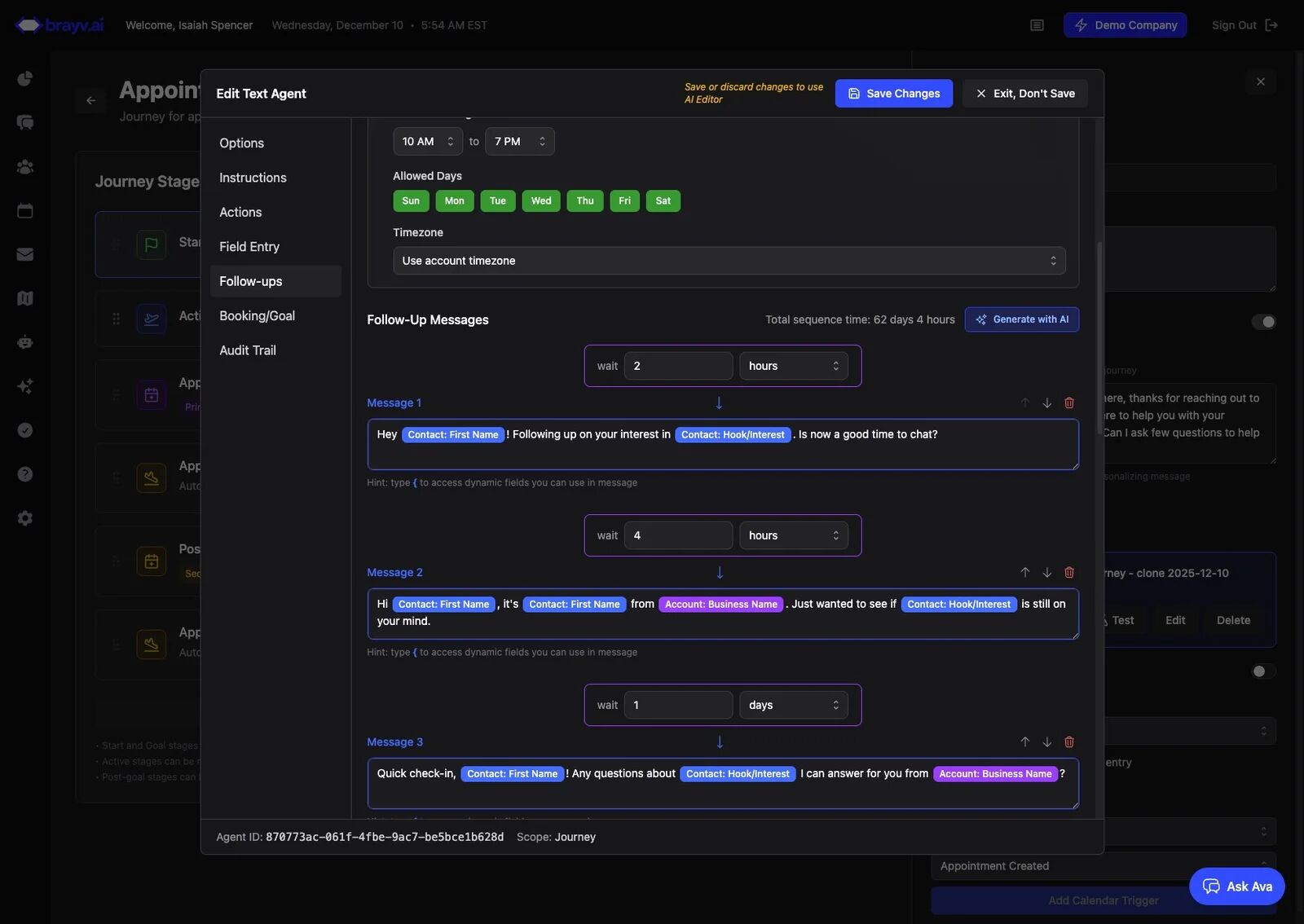
15. Click "Booking/Goal"
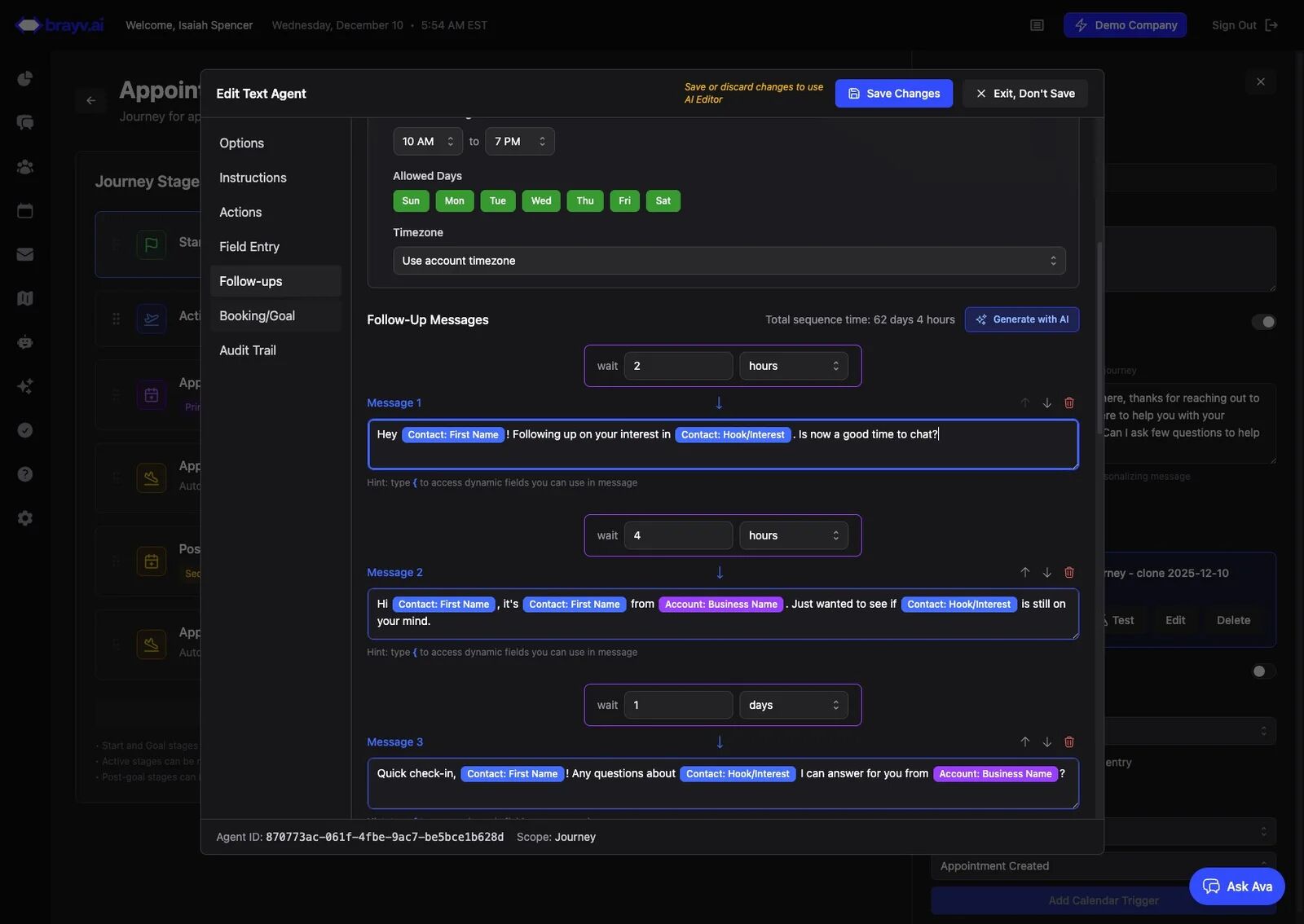
16. Review the Booking Mode and Calendar selected
If using AI calendar selection, review the selection instructions to make sure cloned calendars have been properly substituted in place of the original calendars.
If this newly cloned Journey is intended for lead reactivation / sale / promo (any bulk outreach to existing contacts) and you care about already assigned leads staying with the user they are assigned to, you may want to edit your selection instructions:
- To maintain assignment: make sure your scope is 'Calendar and User'
- Add an instruction like "If contact has an owner, {contact.owner_id}, book with the contact owner in {calendar to book in}"
- Be sure that calendar has all potential users in it. Create a new calendar for this purpose if necessary (or reuse existing calendar)
- Important: if you added instructions like this or any new instructions, click the generate script button so the AI can update the script it uses when choosing who to book with
- If you create a new calendar, it's very important that you click on the Appointment Scheduled stage in the Journey and add an "appointment created" trigger for that new calendar (or stage transitions and agent handoffs won't operate properly)
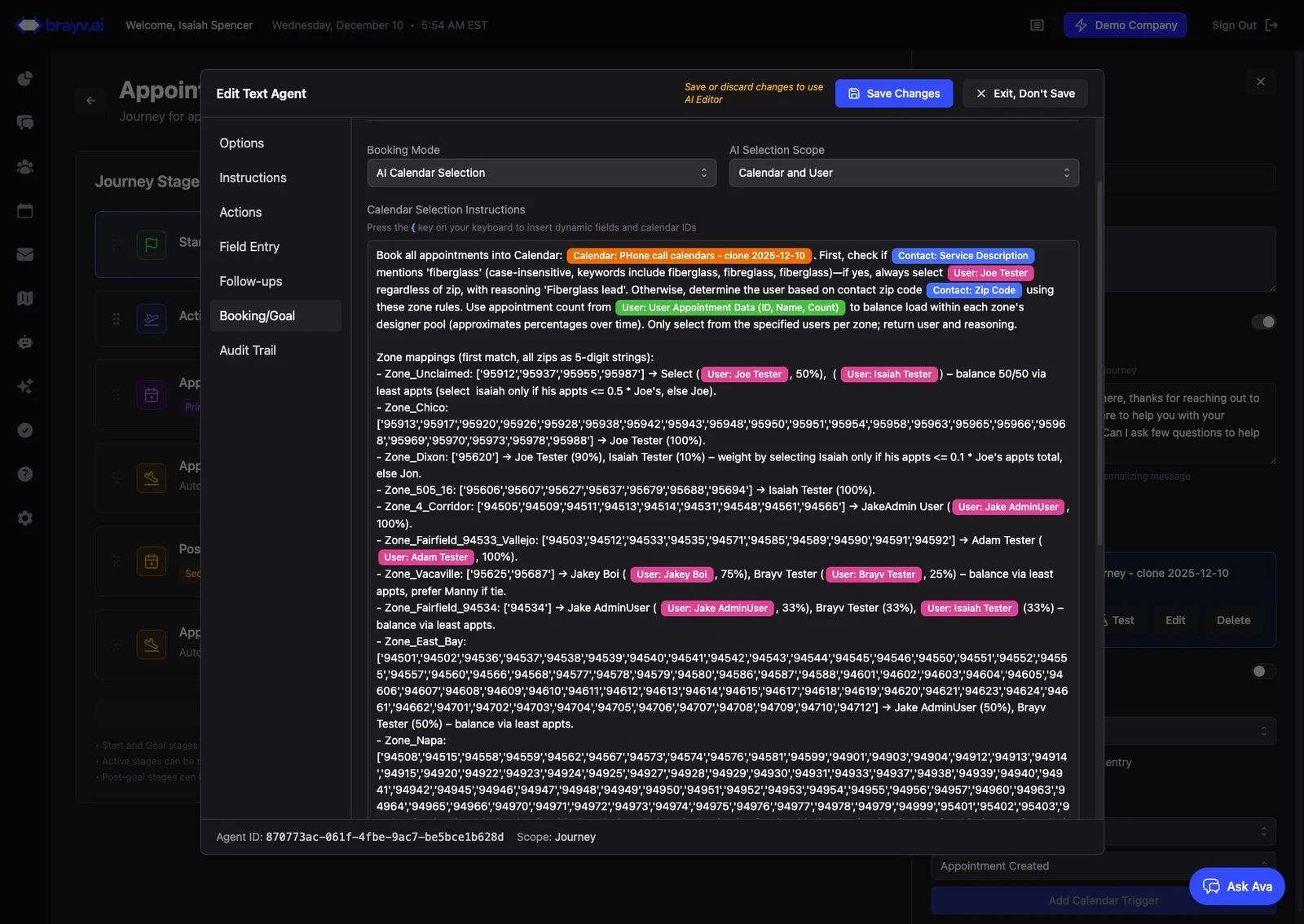
17. If using AI Selection mode, be sure to test the script!
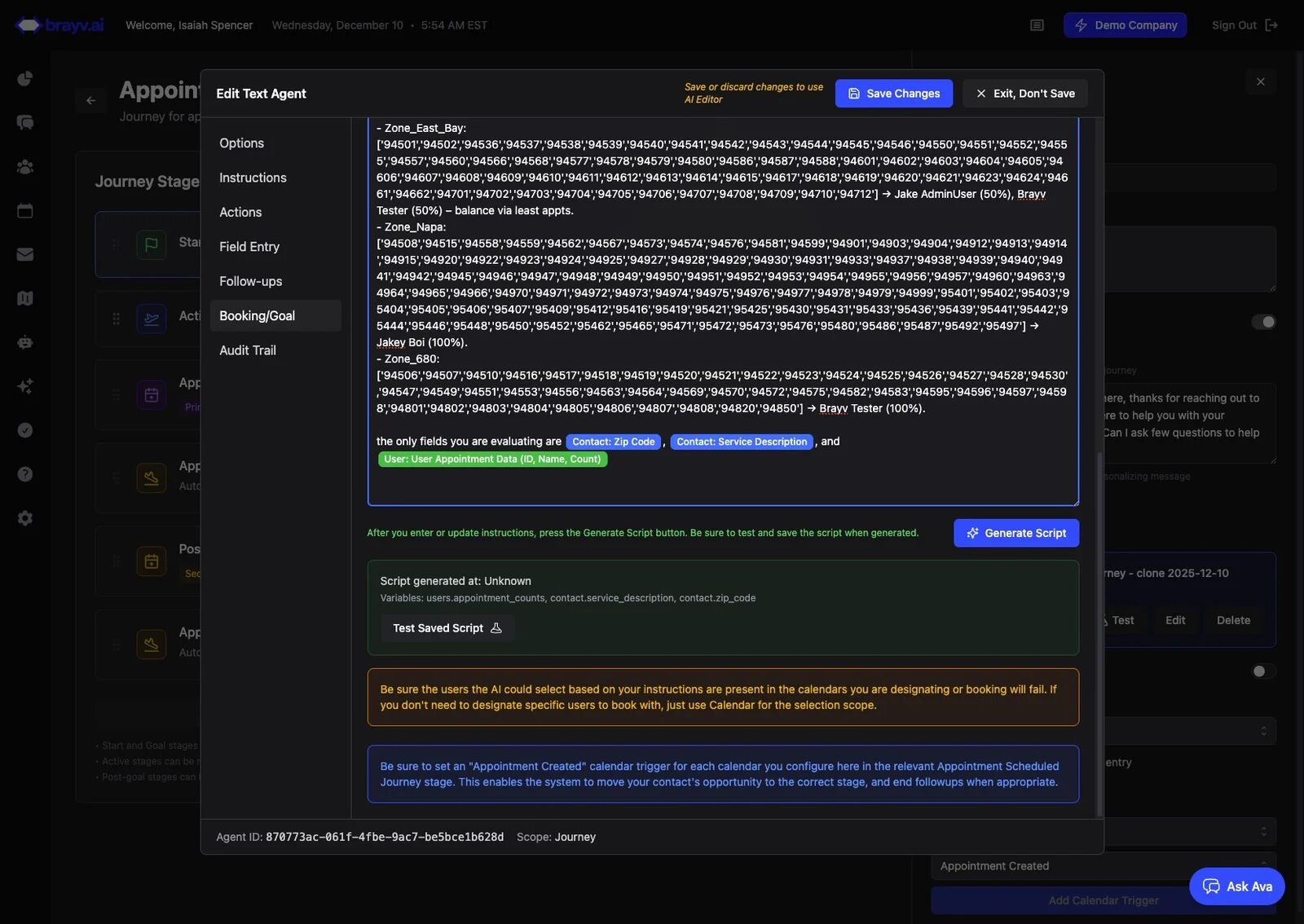
18. Add in relevant test values and click "Run Test"
Note: The calendar script test interface will always show all users in your account if appointment counts are part of the selection instructions. Don't worry, only users specified in the instructions/script will actually be chosen/booked with.
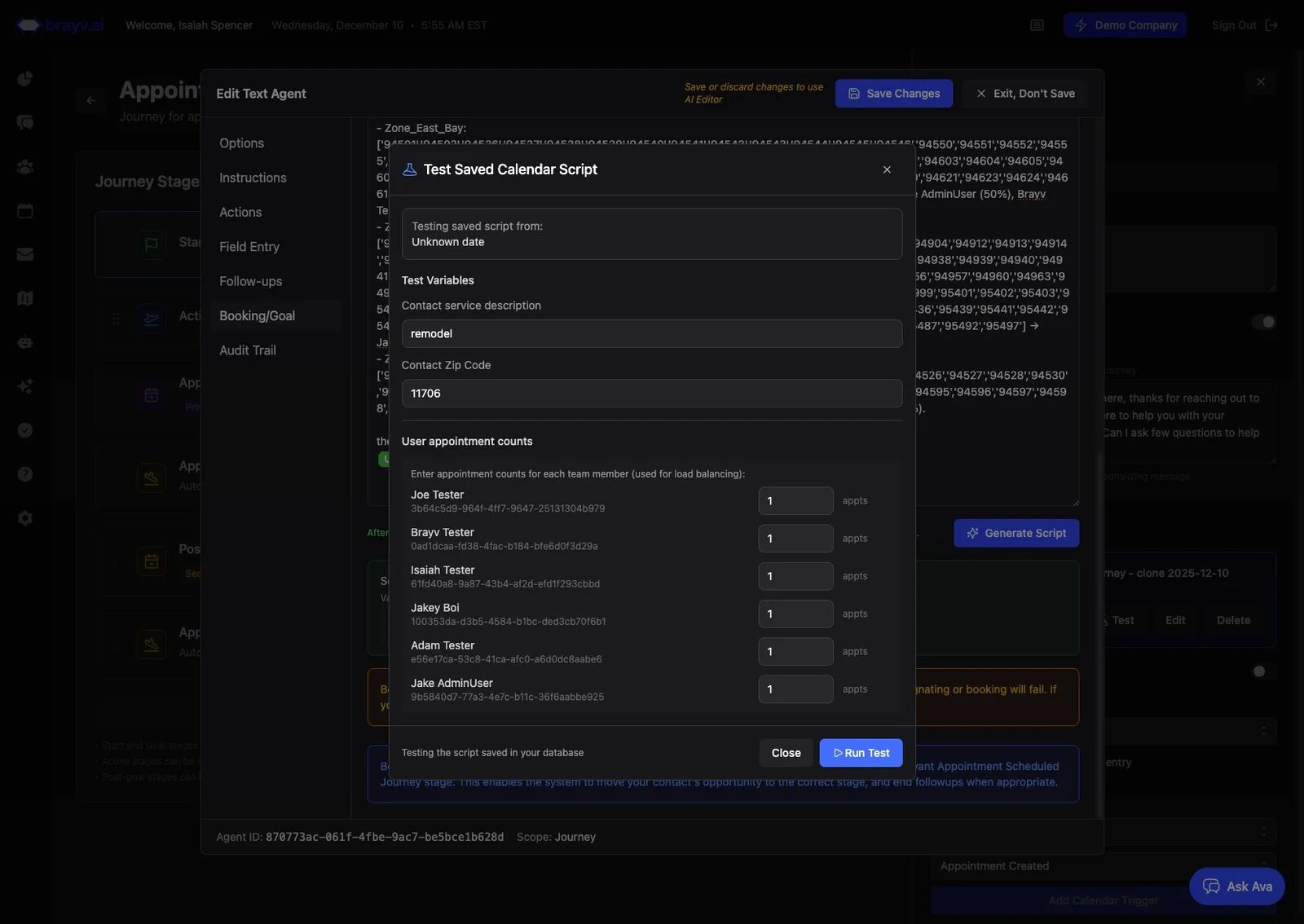
19. After a successful test, you can test more, or click "Close"
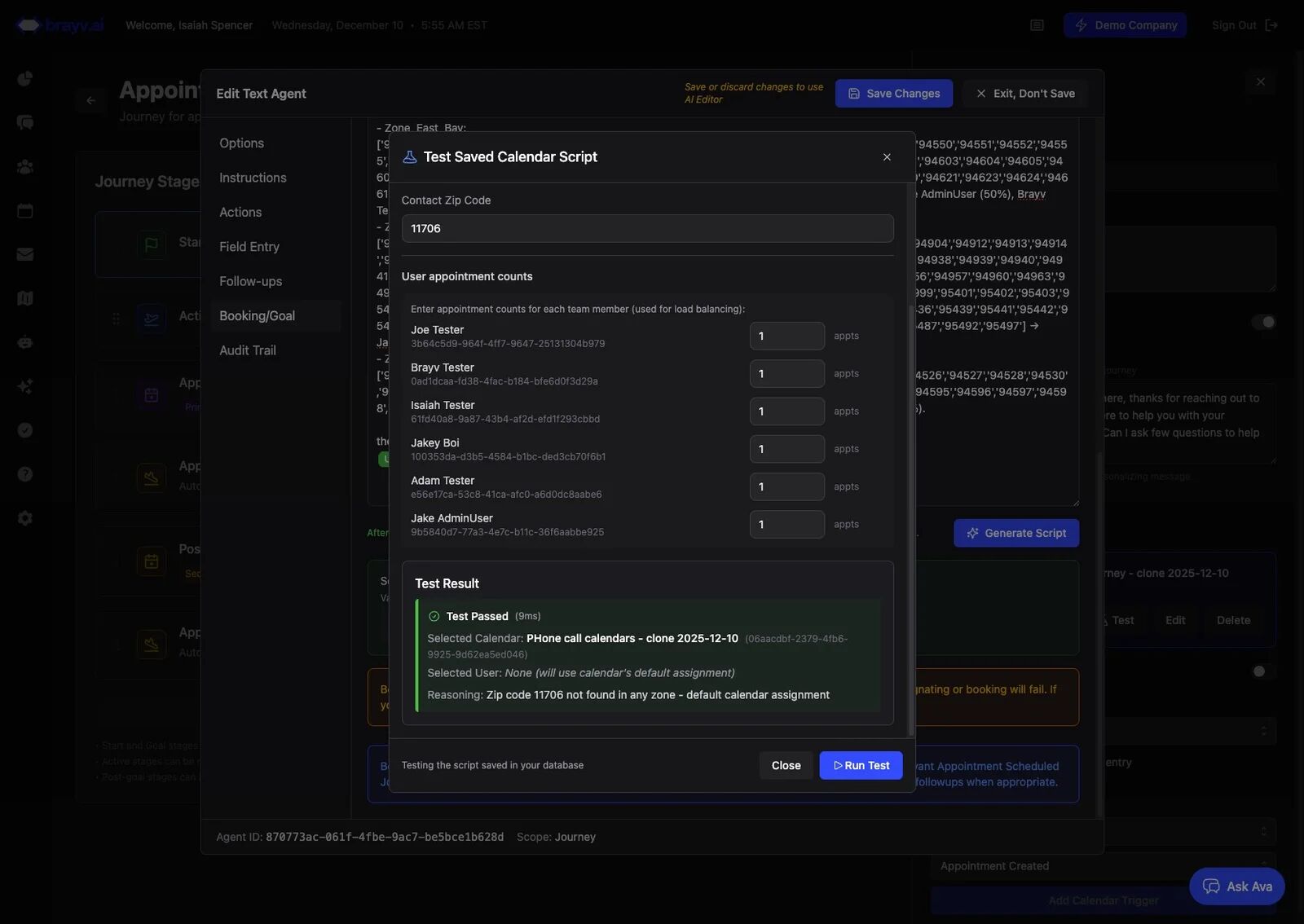
20. Click "Save Changes" on your agent
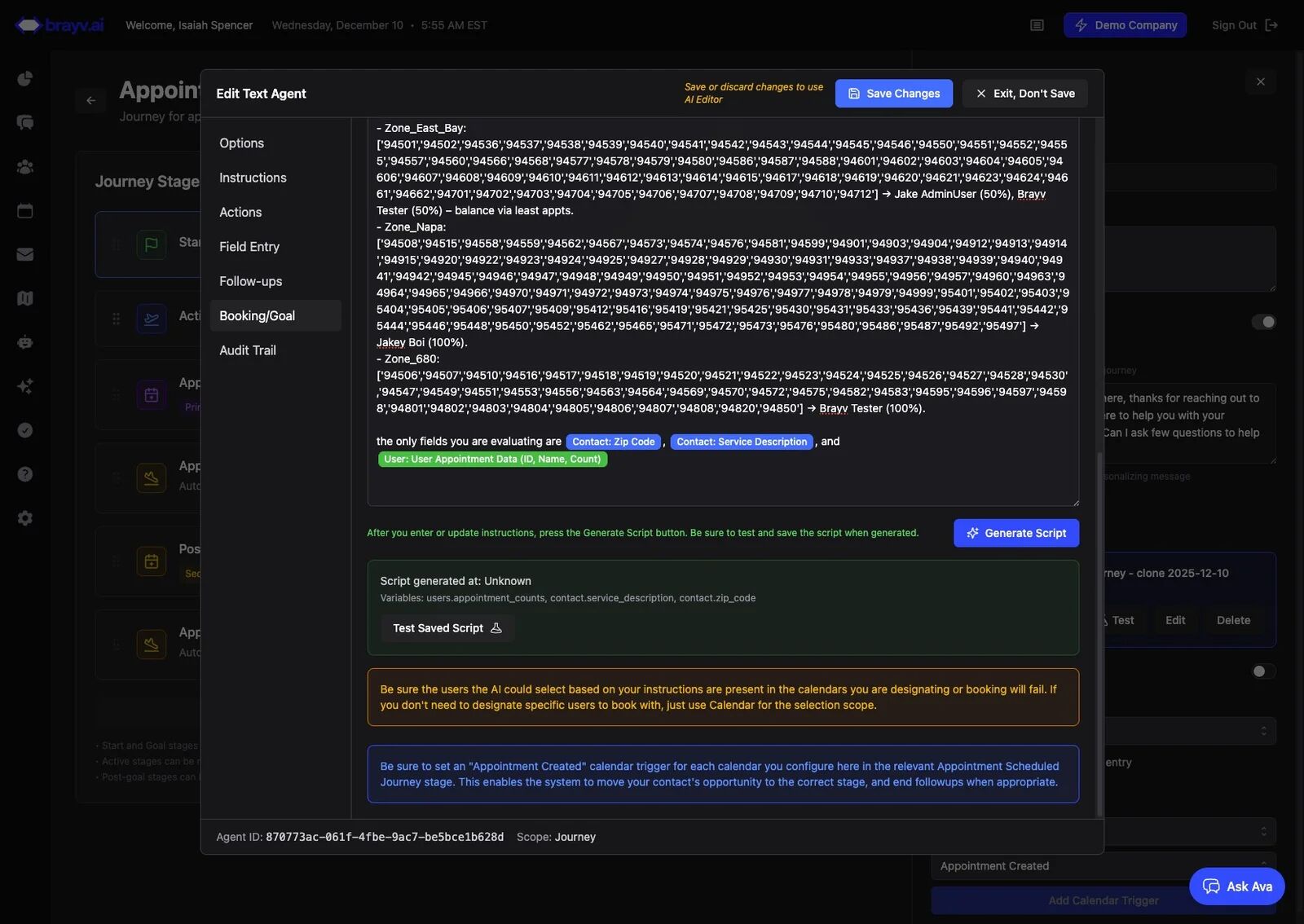
21. Click on any other stages that have an AI Text Agent assigned
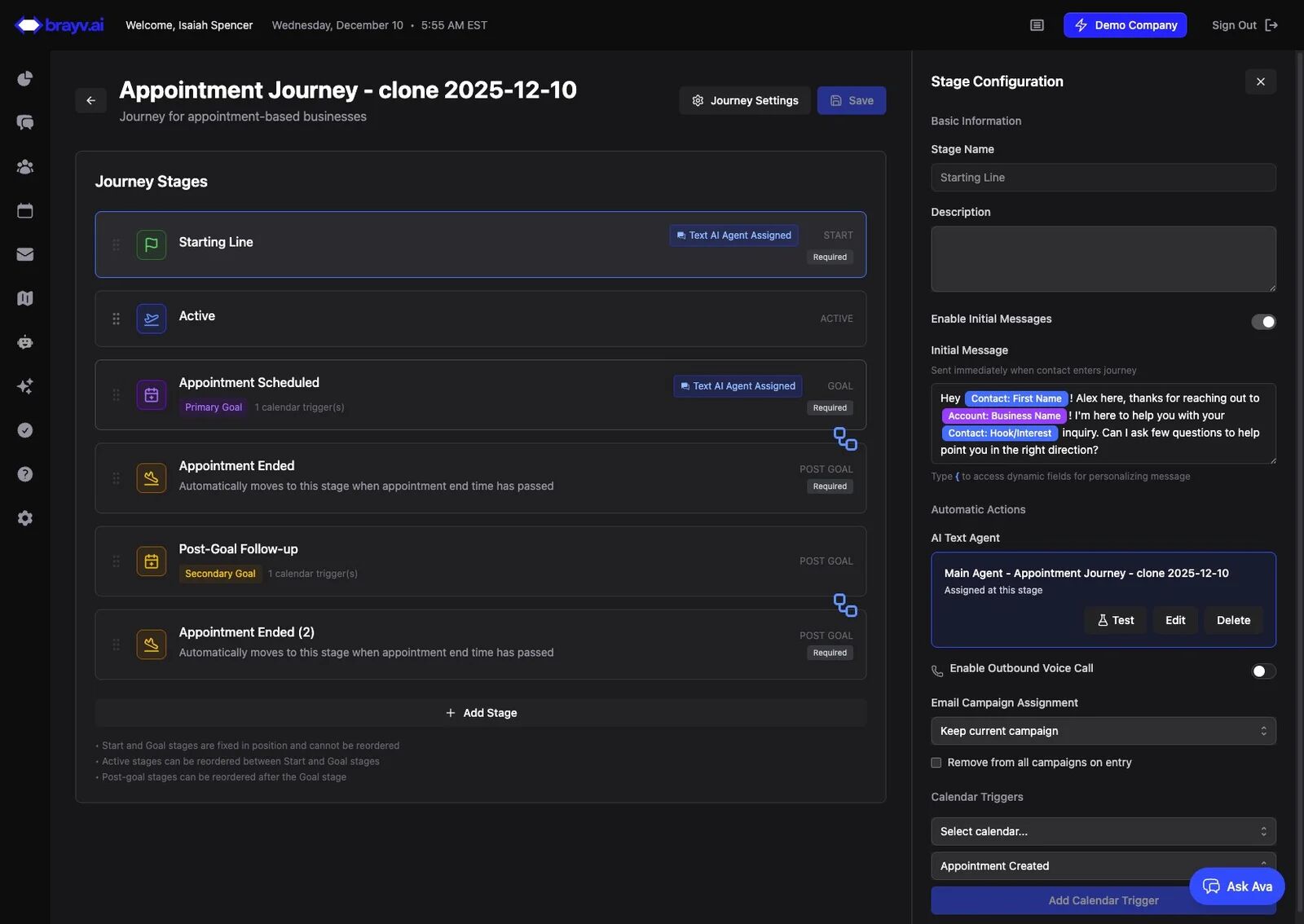
22. Review those agents
Agents not at the Starting Line generally don't need follow ups, and in most use-cases for cloned Journeys won't need any adjustments, but edit anything you'd like.
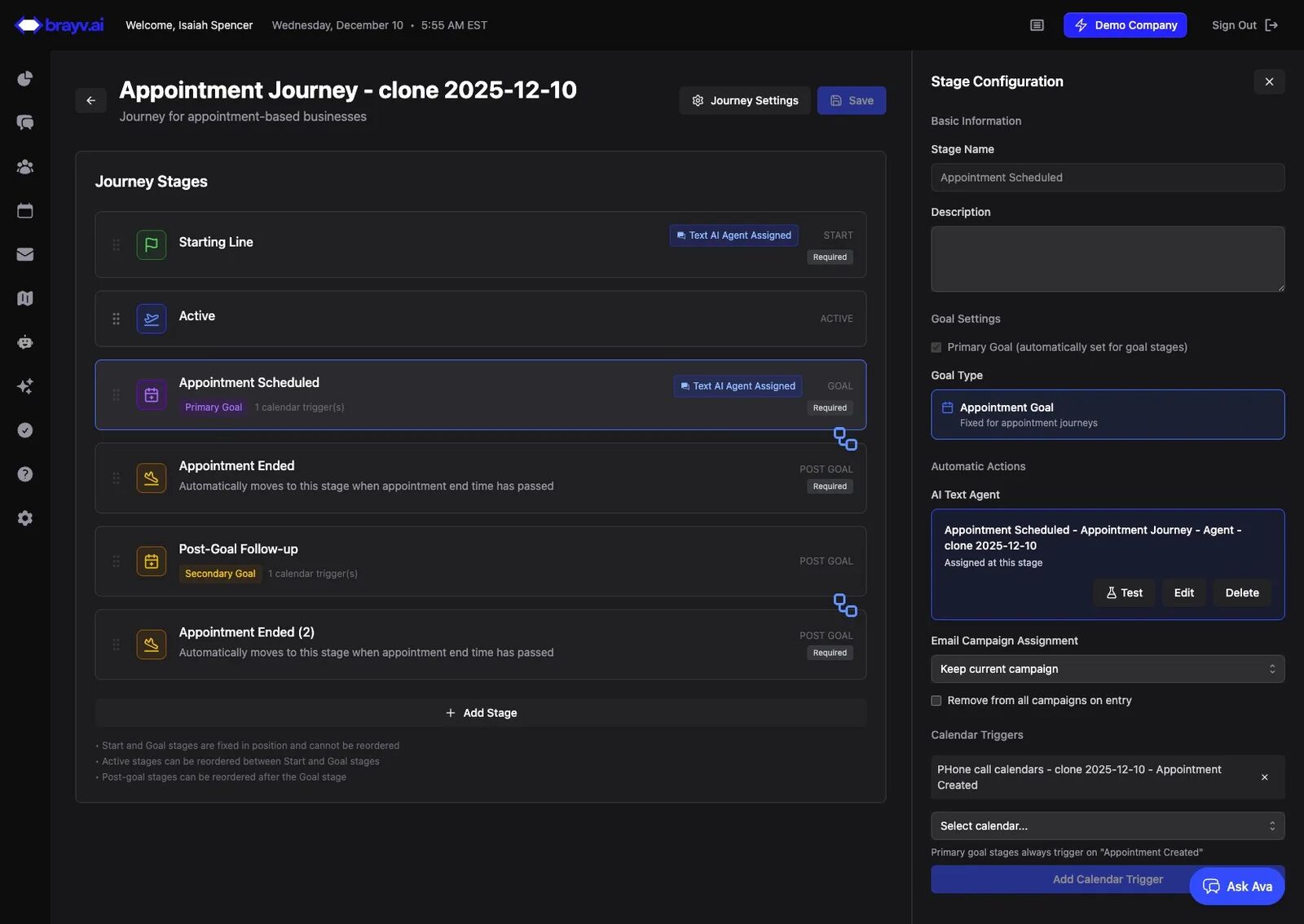
Tip: You'll have new calendars created as a result if your journey included booking functionality. You can go to Appointments & Calendars → Calendar Settings to review. You might want to update their names to be more informative. They will be named "{original name} - clone {date}".
Understanding Cloned Components
Journey Stages: All stages from the original journey are copied with the same automation rules and transition logic.
AI Text Agents: Agents are cloned with all instructions and settings, but follow-up sequences are not copied - you'll need to regenerate these based on your new journey's purpose.
Calendars: New calendars are automatically created with identical settings:
- Same team members/users
- Same availability schedules
- Same buffer times
- Same appointment locations and types
- Named as "{original name} - clone {date}"
Booking Configuration: Agents with booking capabilities maintain their settings but reference the new cloned calendars instead of the originals.
What to Update:
- Journey name and description
- Follow-up sequences for Starting Line agent
- Calendar selection instructions (if needed for assignment preservation)
- Agent instructions to reflect new campaign/purpose
- Calendar names for clarity
Common Use Cases
Seasonal Promotions: Clone your main journey and customize agent instructions and follow-ups for seasonal offers while maintaining your proven structure.
Lead Reactivation: Clone for bulk outreach to old leads, adjusting follow-up sequences for "Old leads sale/promotion" type messaging.
A/B Testing: Create journey variations to test different messaging strategies or follow-up timing.
Regional Campaigns: Clone and adjust calendar selection logic to route leads to specific team members by region.
Service Line Expansion: Duplicate a successful journey structure for new products/services with customized agent instructions.
Related Features
- Bulk Outreach Final Spot Check - Spot-check messaging before bulk outreach
- Customer Journeys Overview - Complete guide to journey setup and configuration
- Manually Add Contact to Journey - How to enroll contacts in your cloned journey
- How to Bulk Add Contacts to a Journey - Enroll a filtered list after the journey is ready
- AI Text Agents - Understanding AI agent behavior and configuration
- Calendar Settings - Managing cloned calendars and availability
Summary
Cloning journeys is a powerful way to leverage proven automation structures for new campaigns without rebuilding from scratch. The process copies all stages, agents, and calendars while giving you the flexibility to customize messaging and behavior for specific use cases.
Key Reminders:
- Always update journey name and description to reflect the new purpose
- Regenerate follow-up sequences for your Starting Line agent
- Review and test calendar selection logic, especially for bulk outreach to assigned contacts
- Update agent instructions to reflect new campaign context
- Rename cloned calendars for better organization
- Test AI calendar selection scripts before activating the journey
Best Practice: You don't need a new journey for every campaign - once you have a bulk outreach journey, simply update agent instructions and follow-ups each time you run a new campaign rather than cloning repeatedly.